Description
Milesight UR3x and UR75 routers(with GPS module) support GPS. This article will guide you through troubleshooting issues where the router cannot obtain a GPS fix or the positioning is inaccurate.
Please find the module name to check if your router is equipped GPS module: Milesight-IoT Naming Convention
Checklist
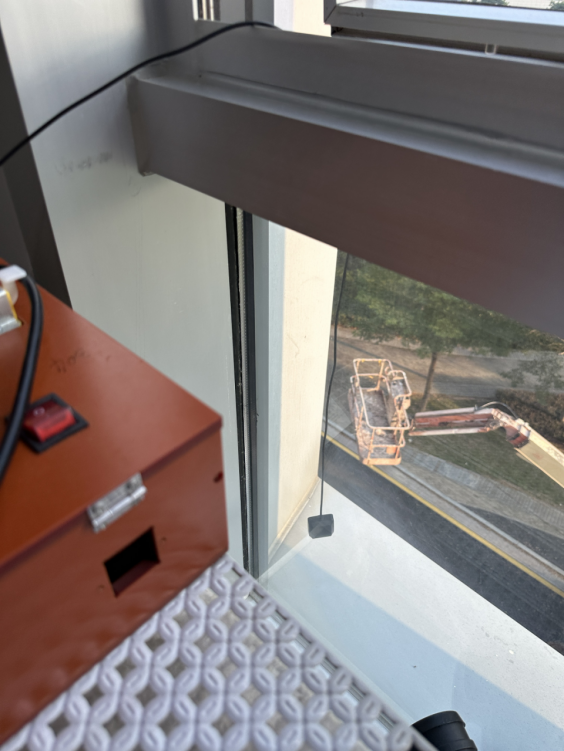
Step 1: Check whether the GPS antenna is placed outdoors in an open area.
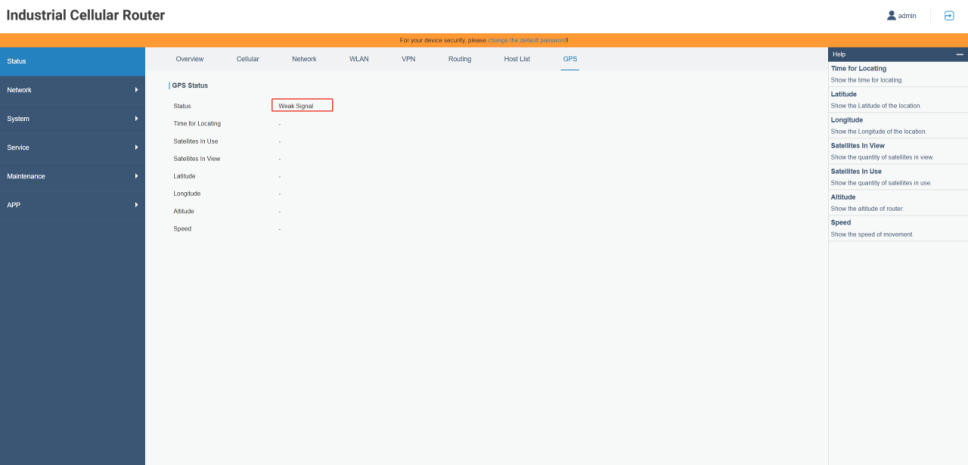
Since GPS information cannot be obtained indoors, when the GPS antenna is placed in an indoor environment, the GPS status on the router will show “weak signal”.
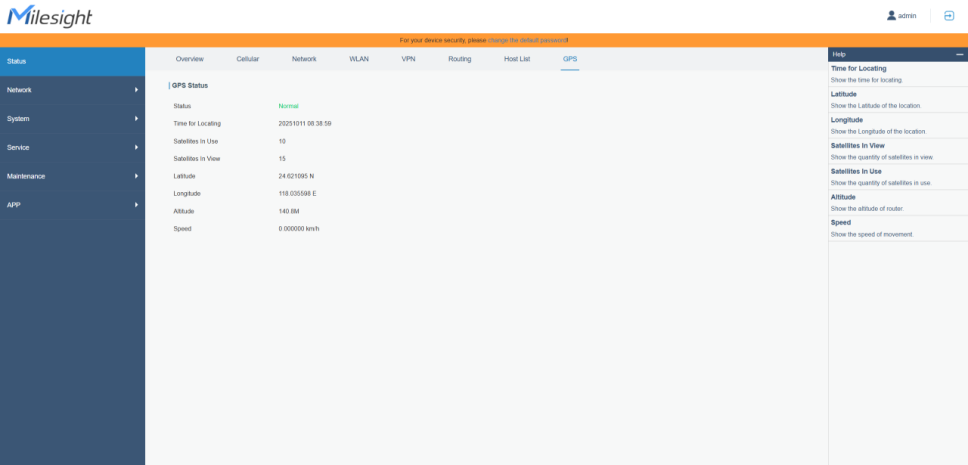
As shown in the image below, when the GPS antenna is placed outdoors, the router will display GPS information.
Step 2: Check whether the GPS positioning is accurate.
You can use the following website to convert the GPS information displayed on the router’s frontend from decimal format to degrees–minutes–seconds: https://www.gps-coordinates.net/gps-coordinates-converter
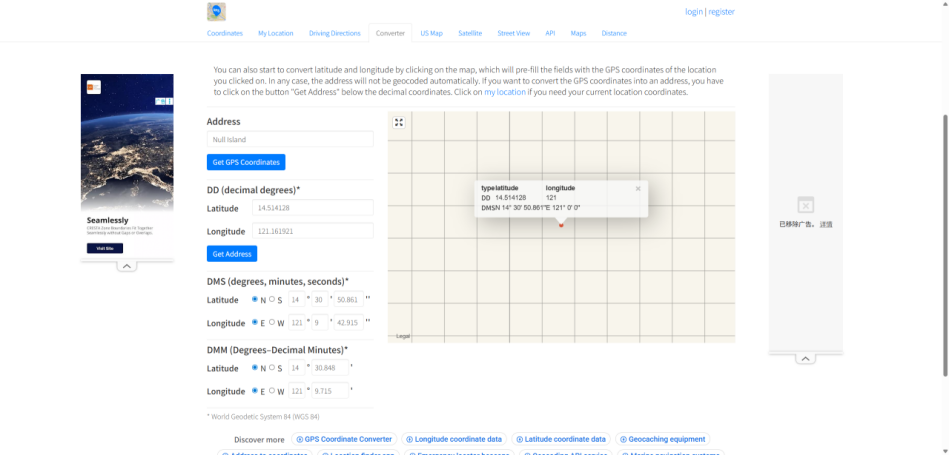
If you find that the GPS information displayed on the router’s front end deviates significantly from the actual location (usually a deviation within 50 meters is normal), you can download a GPS test app on your phone to compare the GPS information and check the number of satellites detected.
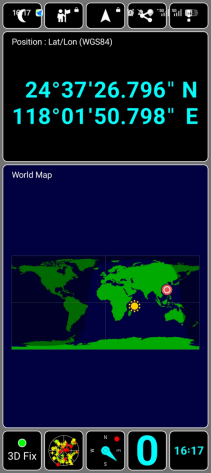
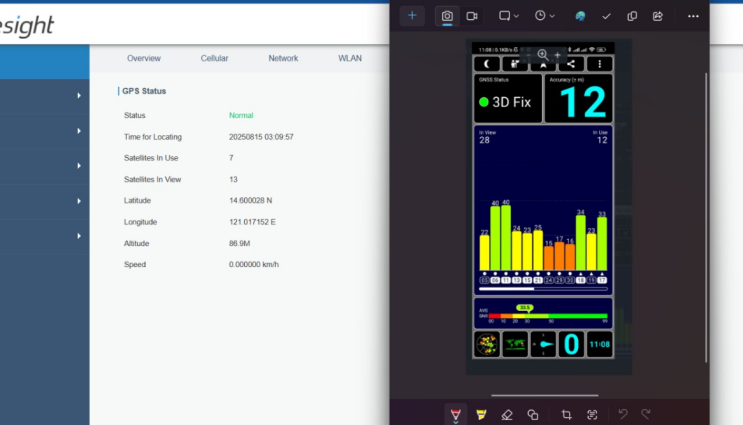
Having more than 10 satellites in both "Satellites In Use" and "Satellites In View" is usually sufficient to ensure relatively accurate GPS positioning.
If the number of detected satellites is low, you can try changing the deployment location of the GPS antenna and conduct the test in a more open area whenever possible.
Step 3: If the number of satellites is not an issue, but testing at multiple locations still shows a consistent discrepancy of several hundred meters between the GPS position displayed on the router and the actual location, it may be due to differences in coordinate systems causing the "inaccurate positioning."
As shown in the figure below, if the GPS position displayed on the router consistently differs from your actual location by several hundred meters and the direction of the offset is fixed, it is highly likely that the router is using an incorrect coordinate system. The default coordinate system for GPS is WGS84.
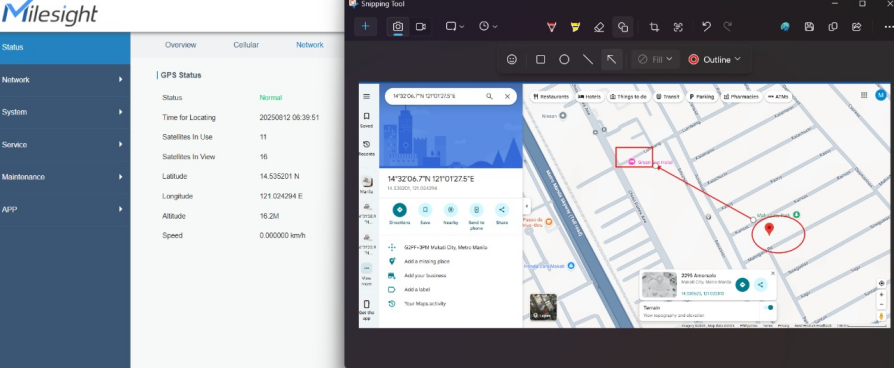
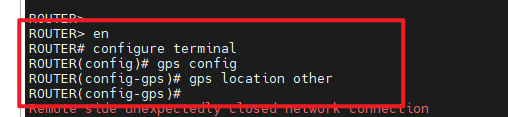
You can try accessing the router’s Command Line Interface (CLI) and use CLI commands to modify the coordinate system used by the router’s GPS. The specific steps are as follows:
- 1. Refer to the method described in this article to access the router’s Command Line Interface:How to Access the Command Line Interface (CLI) : IoT Support
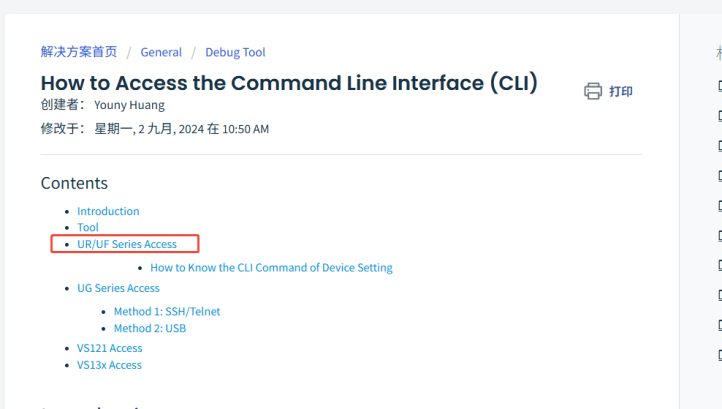
- 2. Use the following CLI commands to modify the GPS coordinate system of the router.
- 3. After making the changes, check whether the GPS position displayed on the front end has changed.
Step 4: Please contact Milesight IoT Support.
If the problem still persists after following the above approach, please start collecting debug-level logs in the manner described: How to Get Milesight Router Logs
We would like you to send us the log file and result of your troubleshooting via screenshot and text description to improve the speed of problem troubleshooting.
You can create Tickets or send an email directly to Milesight IoT Support.
Ticket System: https://support.milesight-iot.com
Email address: iot.support@milesight.com
----END----
Was this article helpful?
That’s Great!
Thank you for your feedback
Sorry! We couldn't be helpful
Thank you for your feedback
Feedback sent
We appreciate your effort and will try to fix the article