Description
This document describes how to troubleshoot gateway backup file import failed.
Backup files are divided into full backup and batch backup.The difference is Batch Backup configuration files do not included gateway ID, WLAN、Network Server, Static IP address, User Management , Device Management and APP. If you need to back up all configuratin, you can click "Full Backup".
Checklist
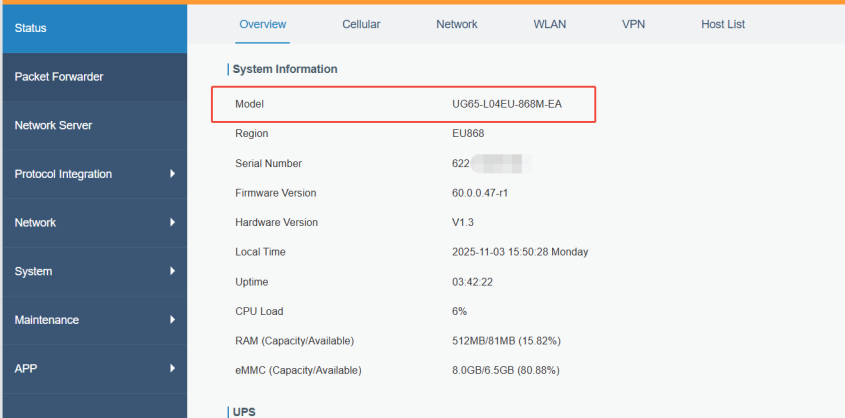
Step 1: Verify Gateway Model Compatibility
Ensure the backup file matches the model of the current gateway. For example, a UG65 backup cannot be imported into a UG67. Confirm that the models are identical before proceeding.
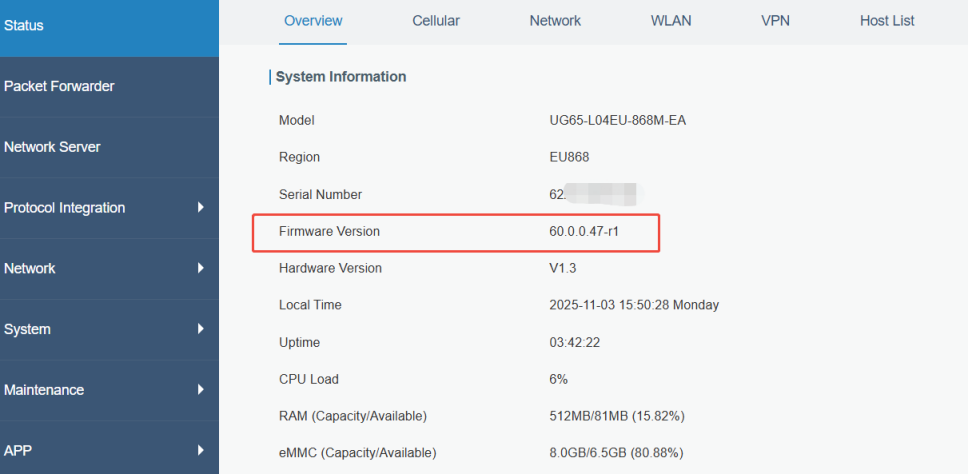
Step 2: Check Firmware Version Consistency
If the two gateways have different firmware versions, it is recommended to first upgrade the backup gateway to the same firmware version as the target gateway. Then, export the backup file and import it into the target gateway.
Step3:Check Backup File Integrity
Confirm that the backup file is not corrupted or altered. Ensure the file size and content match the original export to avoid failures during import.
Step 4: Backup Current Configuration and Record Key Information
Before any operation, make a backup of the current gateway configuration to prevent data loss in case of unexpected issues. Additionally, record key information (such as network parameters and server addresses) in advance, as these may be overwritten during the import process.
Step 5:Restore Factory Settings Before Importing
It is advisable to restore the target gateway to factory settings before importing the backup file, to ensure a clean environment for the new configuration.
Step 6:Ensure Network Stability and Power Supply
During firmware upgrades or configuration imports, make sure the network connection between the gateway and the management computer/server is stable. Avoid power interruptions or forced reboots to prevent device malfunction.
Step 7:Verify Gateway Functionality After Import
After importing the backup, thoroughly check all gateway functions (such as data reporting, MQTT connectivity, and sensor integration) to ensure the configuration is effective and the device operates normally.
Step 8: Contact Milesight IoT Support
Please download the gateway log and contact Milesight IoT Support.
We would like you to send us the situation and result of your troubleshooting via screenshot and text description to improve the speed of problem troubleshooting. How to Get Milesight Gateway Log Files
You can create Tickets or send an email directly to Milesight IoT Support.
Ticket System: https://support.milesight-iot.com
Email address: iot.support@milesight.com
----END----
Was this article helpful?
That’s Great!
Thank you for your feedback
Sorry! We couldn't be helpful
Thank you for your feedback
Feedback sent
We appreciate your effort and will try to fix the article