Description
CV Player is an offline video player for VS13X and VS125 devices.
This article will describe how to use CV Player. This tool is used to connect the VS13X and VS125 devices and download the videos originally recorded on the devices through the tool. In this way, the video content downloaded will include the detection line and the data of passing the line.
Note: avi files downloaded on VS13X and VS125 devices cannot be directly imported into cv player for direct parsing and use.
CV Player currently only supports importing videos that were previously exported from the CV Player tool.
Requirement
- Milesight VS13X: Firmware version v1.0.8 and later
- Milesight VS125: Firmware version v1.0.3 and later
Configuration
Step 1: After downloading the compressed package, be sure to extract it locally to your computer.
https://resource.milesight-iot.com/Support/Lami/%E6%92%AD%E6%94%BE%E5%99%A8/cv_player_1.0.3-r1.zip
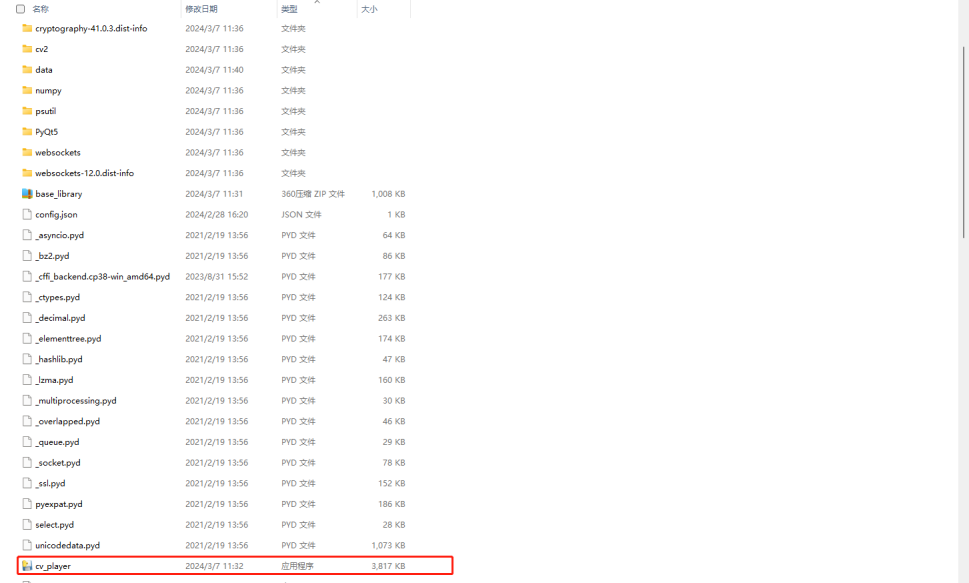
Step 2: Connect VS125 or VS13x to CV Player. And use the corresponding web ip address and web port.
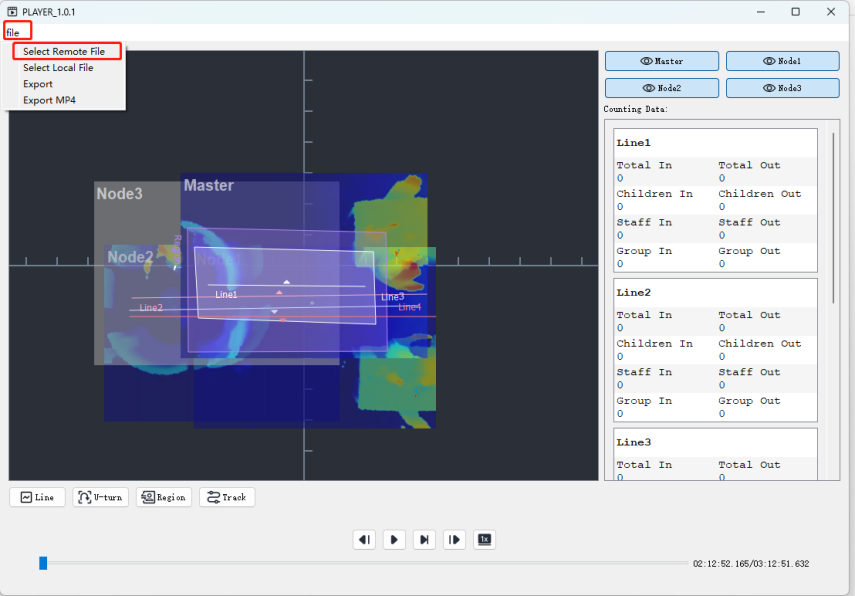
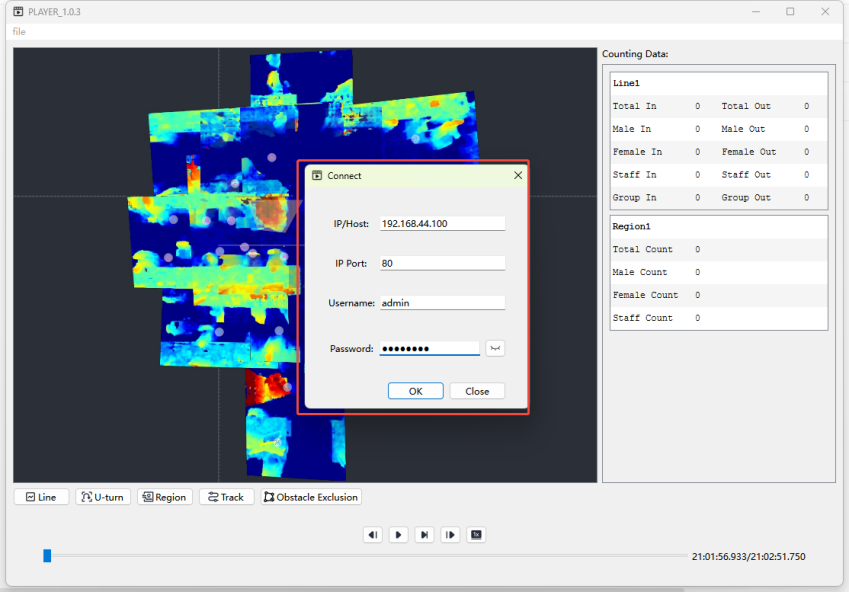
Step 3: Select the video previously recorded by Validation . (Wait for 100% end of loading, because VS125 has two cameras data processing will take a long time, please wait patiently) Then you can play it on the player.
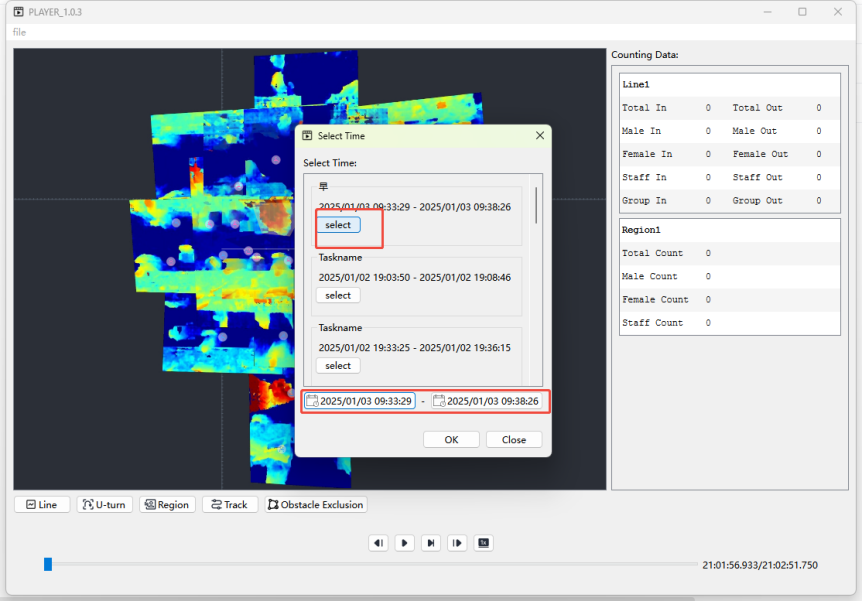
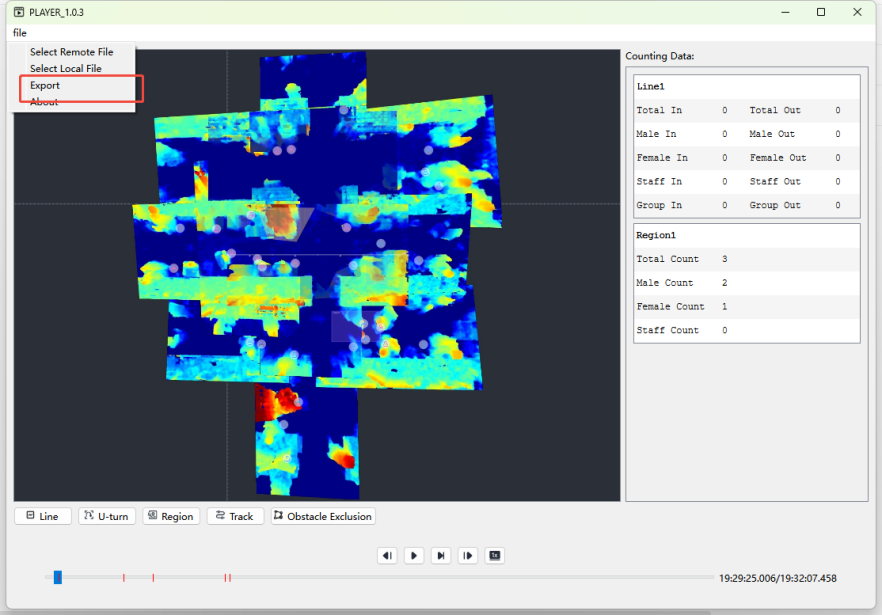
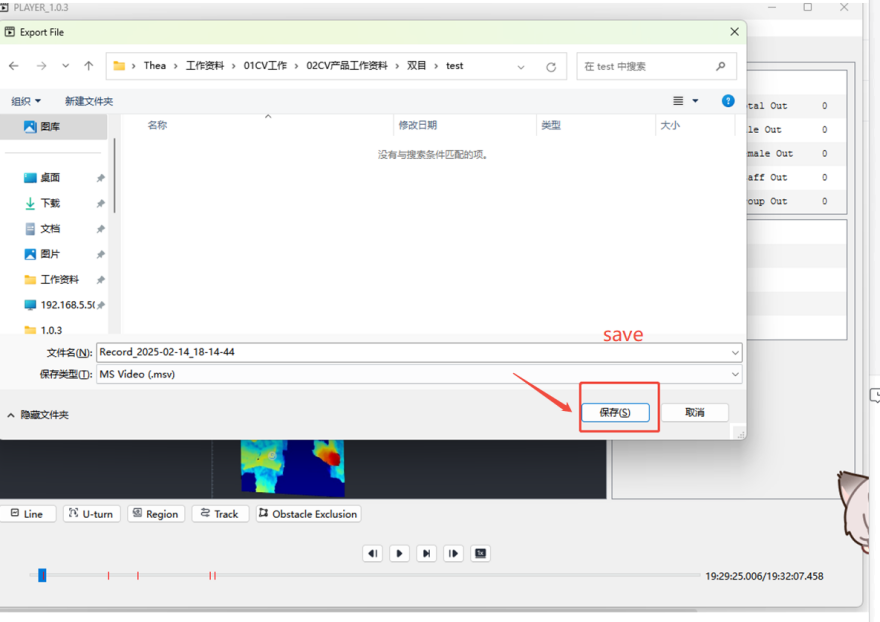
Step 4: If you want to save the video offline, select Export to export the msv file for future import.
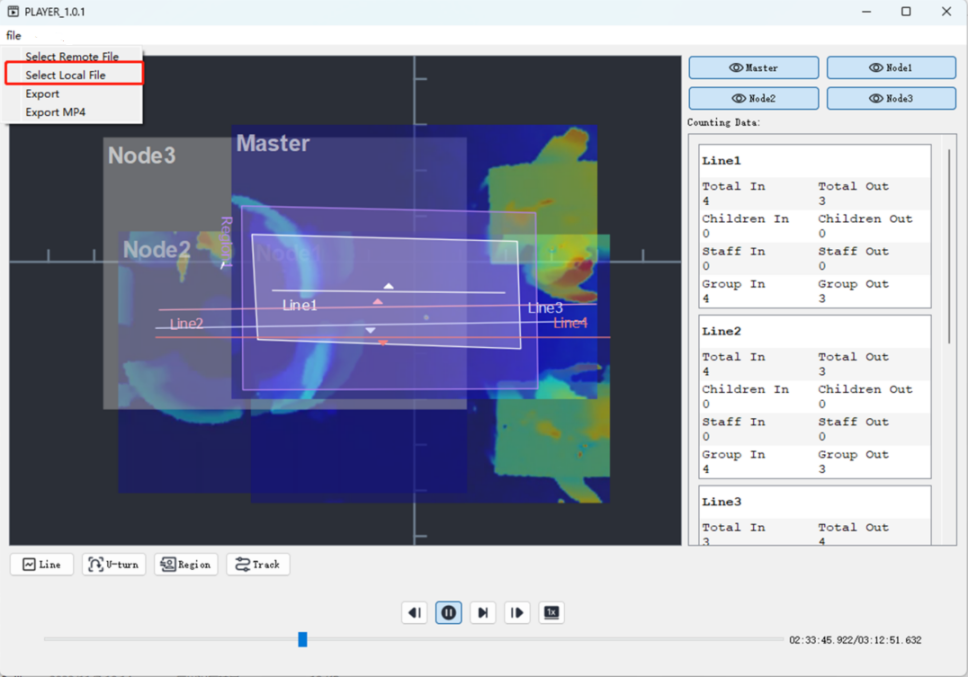
Step 5: Import a saved local video for playback.
---END---
Was this article helpful?
That’s Great!
Thank you for your feedback
Sorry! We couldn't be helpful
Thank you for your feedback
Feedback sent
We appreciate your effort and will try to fix the article