Description
This article will describe how to troubleshooting VS125 accuracy is inaccurate.
Requirement
- VS125 Series: with firmware version 125.1.0.5-r1 and later.
VS125 Principle Explanation and Limitations
By employing deep learning algorithms that integrate depth maps and visible light (RGB) images, detection results are fused to achieve final target detection. Due to technical limitations, please note the following usage implications.
Troubleshooting Inaccurate Counting Issues with the VS125 in Different Scenarios.
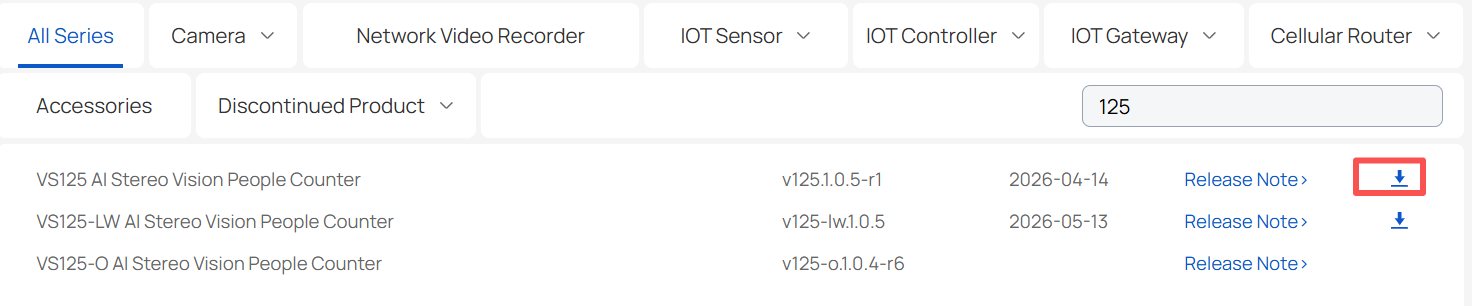
Step 1: Confirm that all sensors have been upgraded to the latest firmware and obtain their corresponding SN (Serial Number) information.
Due to firmware updates for the sensor, new features will be added and algorithm recognition performance optimized. Before use, it is recommended to obtain the latest firmware version corresponding to each model from the Milesight official website and perform an upgrade.
Step 2: Check Installation Environment.
- 1. Check if the lens protective film has been removed.
- 2. Ensure the device is installed horizontally.
- 3. Make sure there are no close-range objects, such as chandeliers/pendant lights, around the VS125.
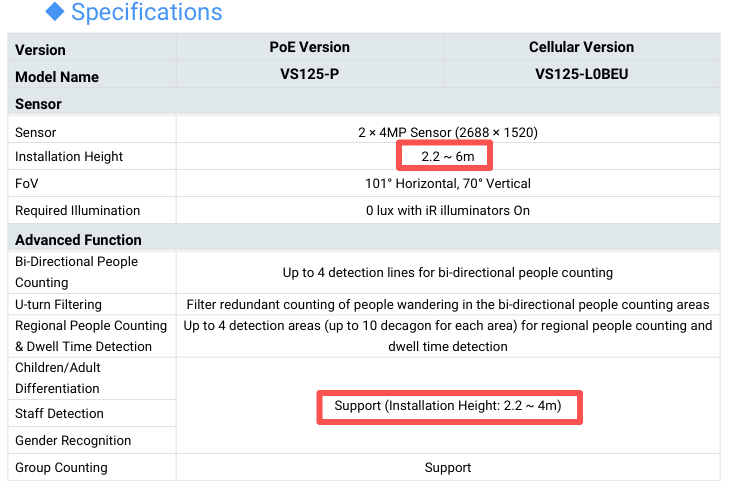
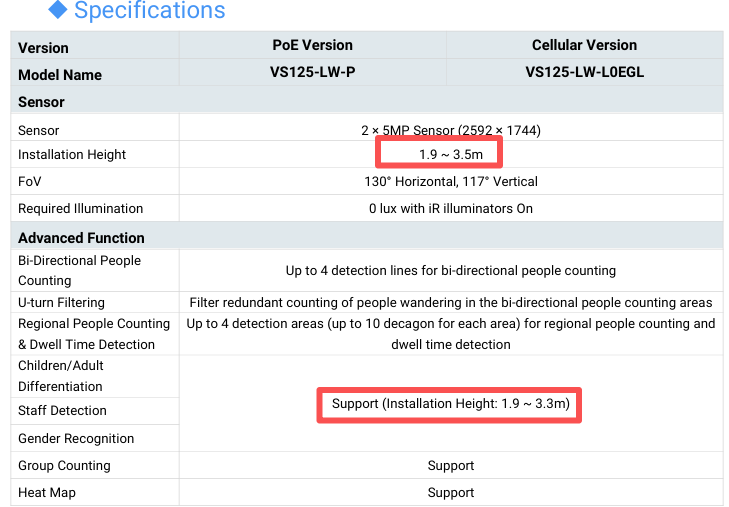
- 4. Verify if the installation height meets the following specifications:
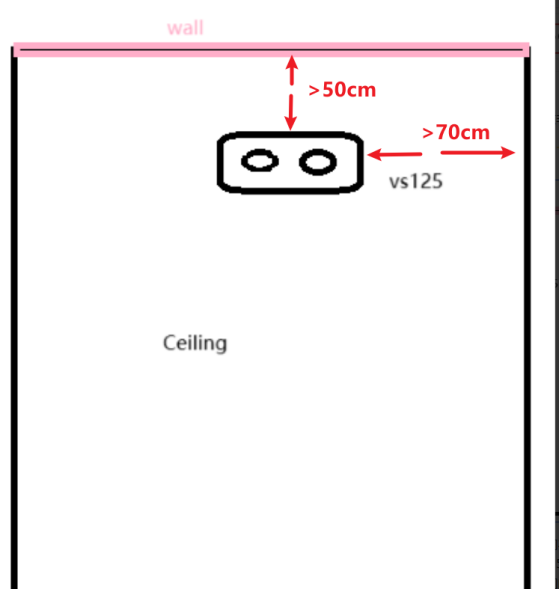
- 5. Check the distance from the wall and ensure there are no obstructions in the VS125's field of view (FOV). It is recommended to install the device away from the door-opening side, ideally 50–70cm from the wall. Otherwise, the accuracy of detecting foot traffic coming from the other side of the wall may be reduced.
- 6. Regarding the scenario in Point 5: If the device is installed on the side where the door opens, ensure that the VS125 is not positioned directly above the door when it is fully open at 90°. This prevents the door from obstructing the VS125's field of view.
Note: If the device is already 50–70cm away and not directly above the door, no adjustment is needed. However, if it is positioned directly above the door, please move it further away to avoid interference from the door's movement. 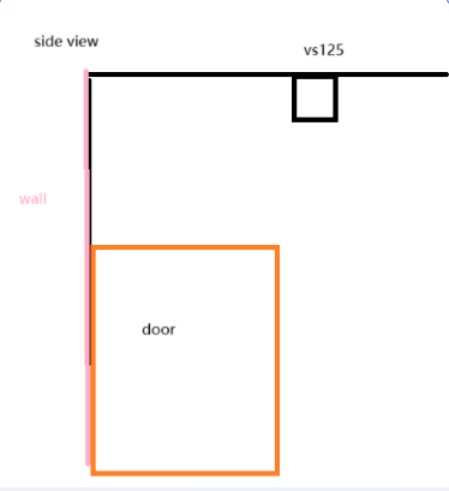
- 7. Please ensure the "Installation Height" setting matches the actual height. The distance measured by clicking the "Detect" button may be inaccurate due to environmental interference. Please manually enter the actual measured height instead.
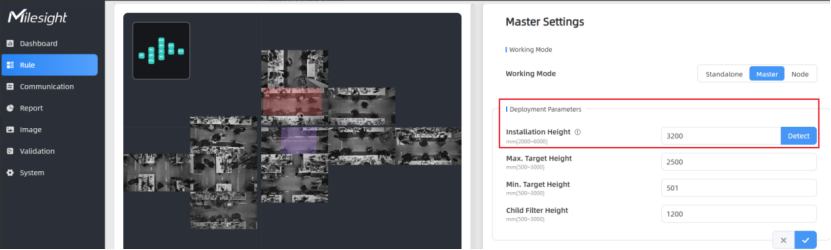
Measure the actual height from the device's installation position to the floor, convert the value into millimeters (mm), and enter it into the "Installation Height" parameter field.
Below is an example of an abnormal Dashboard display:For instance, if the configured height is greater than the actual installation height, the floor color on the Dashboard will appear reddish or orange.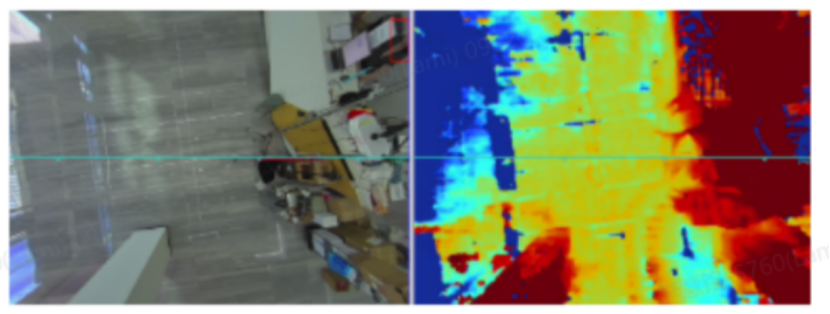
When the installation height of the device configuration is lower than the actual installation height, the Dashboard's background color will appear bluish.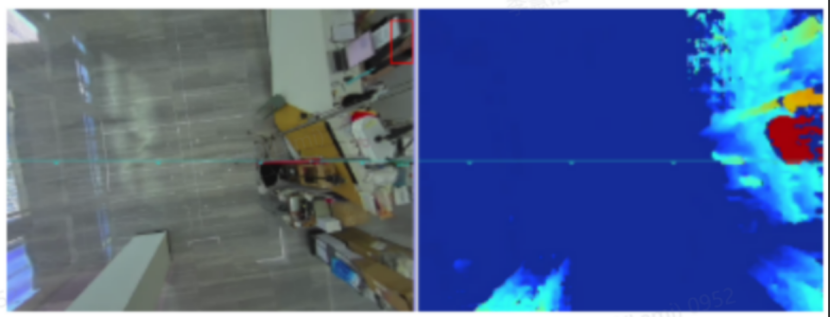
Step 3: Functional Scenario Category
Inaccurate crossing lines and region counting.
- 1. Check the line drawing and region settings.
Verify the line crossing settings. While in pseudo-color mode, draw the detection line within the blue area and towards the center, as shown in the image below. If the line is drawn too close to the edge of the detection range, the system may lack sufficient feature data to accurately identify the target as a person until after they have already crossed the line. Regional counting works the same way.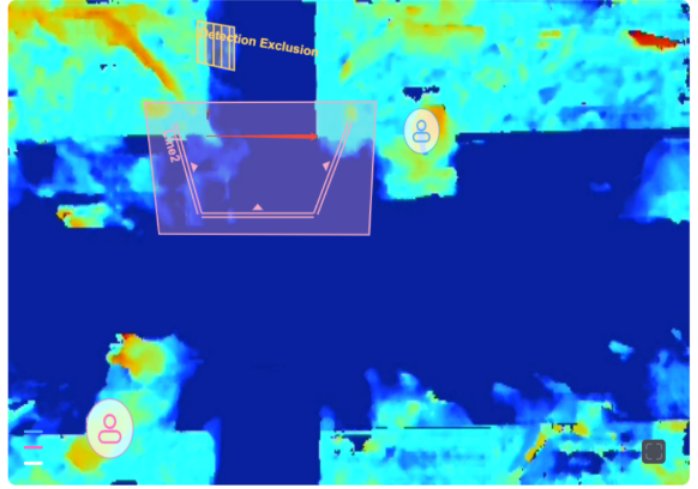
- 2. When the person crossing the line or detection region is not within the set height range, the detection screen will display the following annotation:

Verify whether the actual height of the persons passing through falls within the configured "Max/Min Detection Height" range. If not, please adjust the height settings accordingly.
If an "Out of Range" indicator appears on the Dashboard, it means the person's height has exceeded the configured detection height boundaries.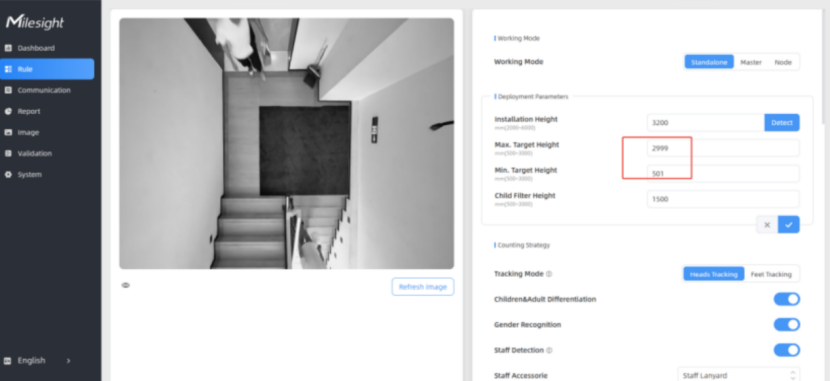
- 3. Object false recognition
If large areas of the wall appear red or if there are pillars within the detection range, they may occasionally be misidentified as people due to their similar characteristics under the Depth algorithm. This is normal behavior, as shown in the image below.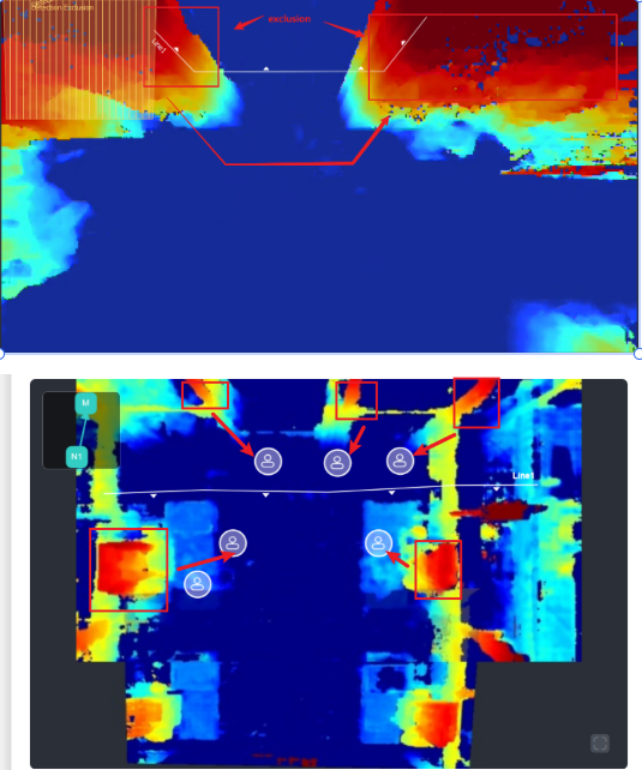
In this case, you can either switch the "Detection Algorithm Setting" to "RGB Only" mode or draw an "Obstacle Exclusion Region" over these areas to isolate them from being misidentified.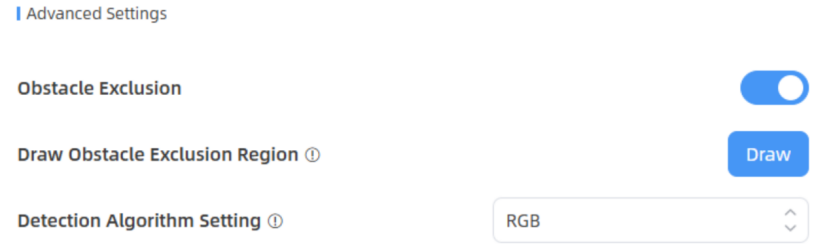
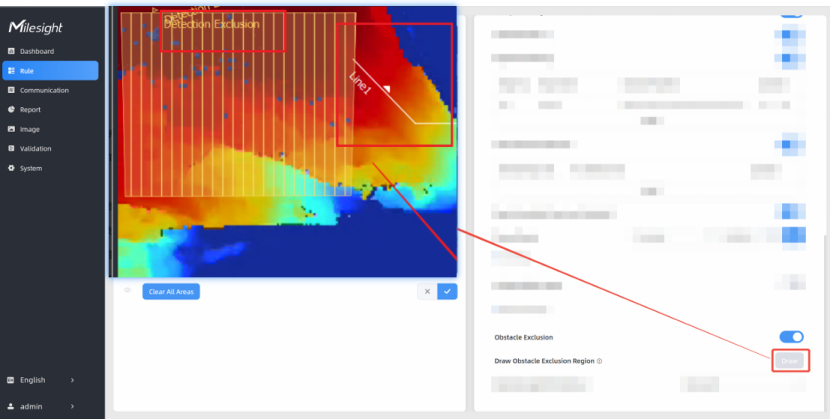
- 4. Inaccurate line crossing in multi-device stitching scenarios:
Please verify if the stitching process was performed correctly. Use prominent reference points in the view (such as floor tiles, floor tape, etc.) to connect the devices and draw a quadrilateral in punctuation order.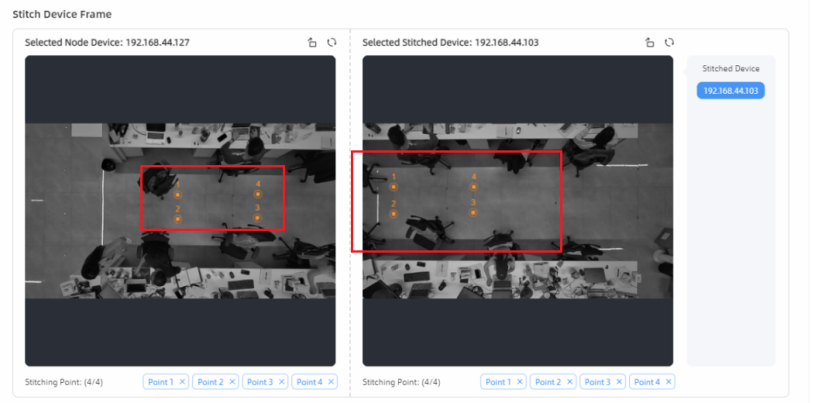
If you are unsure about the specific steps for cascading, you can refer to the following video for detailed instructions.
https://www.youtube.com/watch?v=oIesz485vgs&t=4s
- 5. False identification caused by low-light conditions
This typically occurs during early morning, midnight, or dusk. We recommend turning off the ambient lighting first to see if the false identification can be reproduced.
If the issue cannot be reproduced, please switch the device to "Night Mode" on the Image Settings page and conduct further testing to check if the false identification occurs again.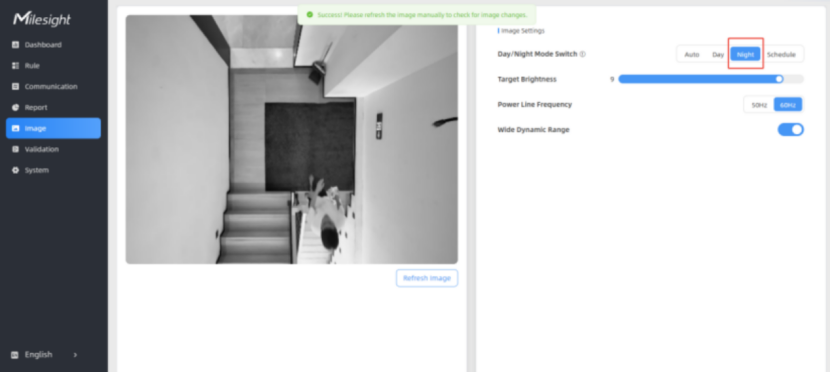
You can attempt to resolve this by switching the Detection Mode or adding an "Obstacle Exclusion Region," as mentioned previously.
For example, if the false identification disappears after switching to "RGB Only" mode, it confirms that the issue was caused by the Depth algorithm; in this case, you can temporarily remain in RGB mode. Conversely, if the false identification disappears in "Depth Only" mode, you should use Depth mode for the time being.
Attribute identification issue.
- 1. Inaccurate Gender Recognition
The gender recognition of the VS125 is primarily based on deep learning models trained on extensive datasets. Please review the recorded footage of the persons crossing the line and verify their actual gender.
If a misjudgment is confirmed, please document the individual's clothing and hairstyle, take photos, and specify the current country/region. Following the instructions at the end of this document, use the vs_player software to record a verification video. Finally, send all relevant information and the video to iot.support@milesight.com for further optimization.
- 2. Inaccurate Group Counting
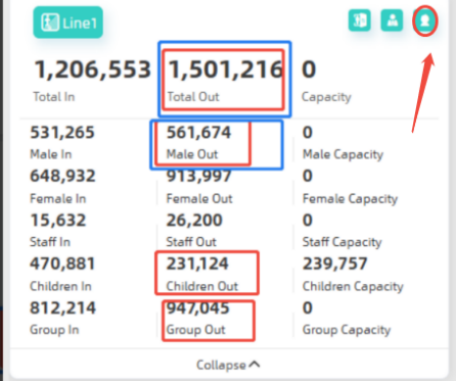
Group counting is calculated based on the movement direction, speed, and physical distance between individuals. Group counting is triggered when multiple people cross the line simultaneously. For example, if one adult and one child cross the line together, the logic is as follows: Adult Count +1, Adult Gender +1, Child Count +1, Child Gender +1, and Group Count +1.
As shown in the image, when a man and a boy cross the line as a group, the statistics will be recorded accordingly.
Note: Please ensure that the "Child Counter" switch in the upper right corner is enabled to ensure accurate counting results.
Other or further questions
If the issue persists, please take screenshots of the aforementioned configurations and use the VS_Player software to record a validation video segment illustrating the recognition errors. Send these materials to iot.support@milesight.com for further analysis.
For detailed instructions on how to use VS_Player, please refer to this article.
https://resource.milesight-iot.com/Support/Van/%E6%96%87%E6%A1%A3/How%20to%20use%20vs%20Player.docx
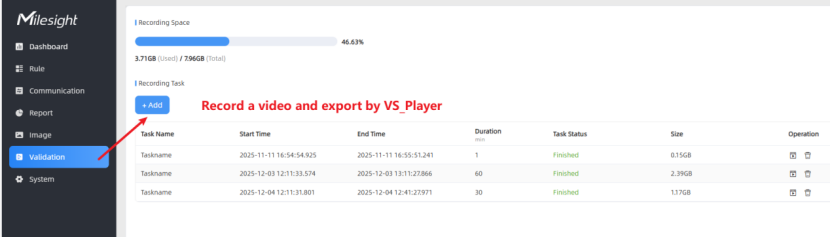
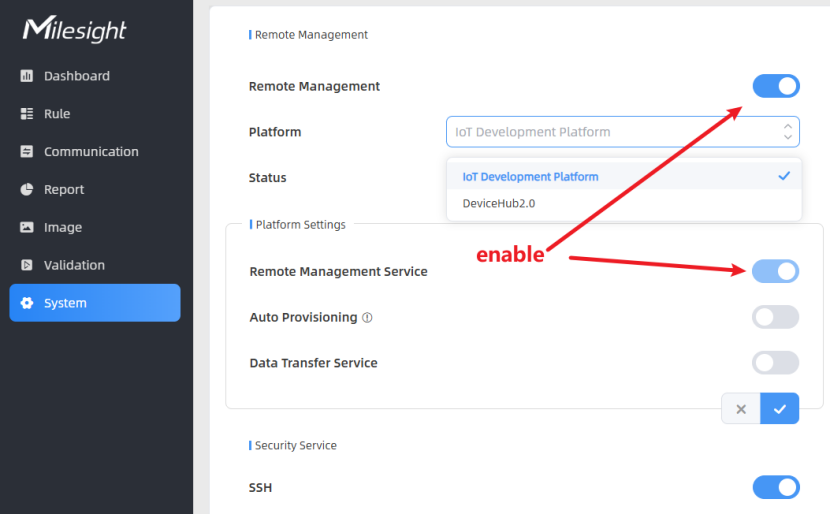
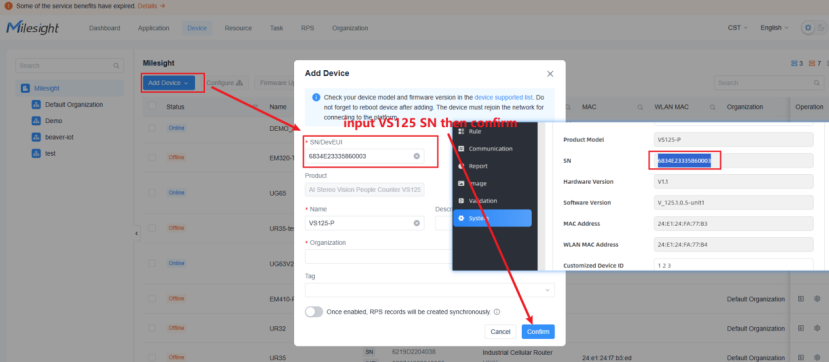
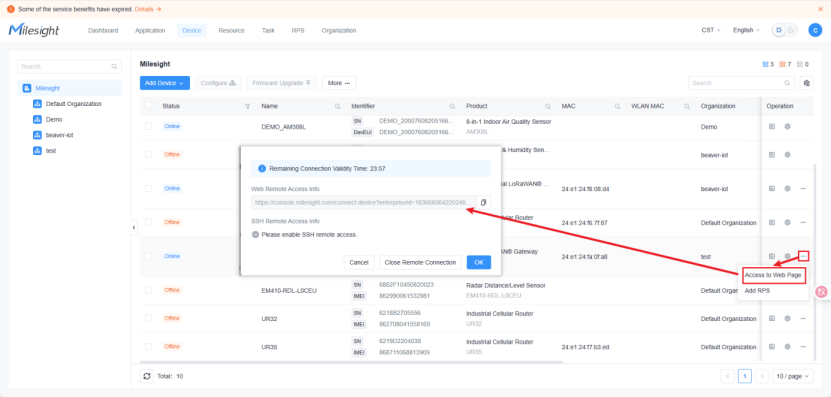
And if your device has external network access, you can try connecting the VS125 to the Milesight Development Platform. The platform provides remote access capabilities; you can then provide us with your account credentials or the generated remote access link for further inspection and analysis. For the process of connecting the VS125 development platform, please refer to the following diagram for guidance.
Was this article helpful?
That’s Great!
Thank you for your feedback
Sorry! We couldn't be helpful
Thank you for your feedback
Feedback sent
We appreciate your effort and will try to fix the article