TABLE OF CONTENTS
- Preface
- Prerequisites
- Configure Milesight sensor and Gateway
- Configure the Datapoints of Milesight device.
- Configure the web project.
- Play with the dashboard.
Preface
LOYTEC electronics GmbH , A Deta Group Company, today ranks among the leading European providers of intelligent network infrastructure products for building automation. There, LOYTEC exclusively relies on open and standardized communication protocols.
Loytec L-IOB refers to a series of I/O (input/output) controllers and modules used in building automation systems to connect physical sensors and actuators to the network. They are designed to expand the functionality of Loytec's automation servers and room controllers.
Milesight offers multi-potential sensing products to capture the most meaningful data and makes it accessible across diverse applications. Milesight product are widely used in facility management, energy management, people comfort and occupancy&people counting in smart buildings.
In this guide, Milesight LoRaWAN sensors and gateway are easily integrated to Loytec controllers through the BACnet protocol, which achieve the dashboard for Building Management.
Prerequisites
LOYTEC:
Hardware: LOYTEC Building Controller L-IOB588
Software:
- LOYTEC LINX configurator
- LOYTEC L-vis configurator
- LOYTEC LWEB-802/803
All the software above can be downloaded Here. And Install it in advance.
Milesight:
- Milesight LoRaWAN Sensor: LoRaWAN Air Quality sensor (AM308)
- Milesight LoRaWAN Gateway: UG65/UG56/UG67
Configure Milesight sensor and Gateway
Login the gateway using the IP address and the default credentials

- User name: admin
- Password: password
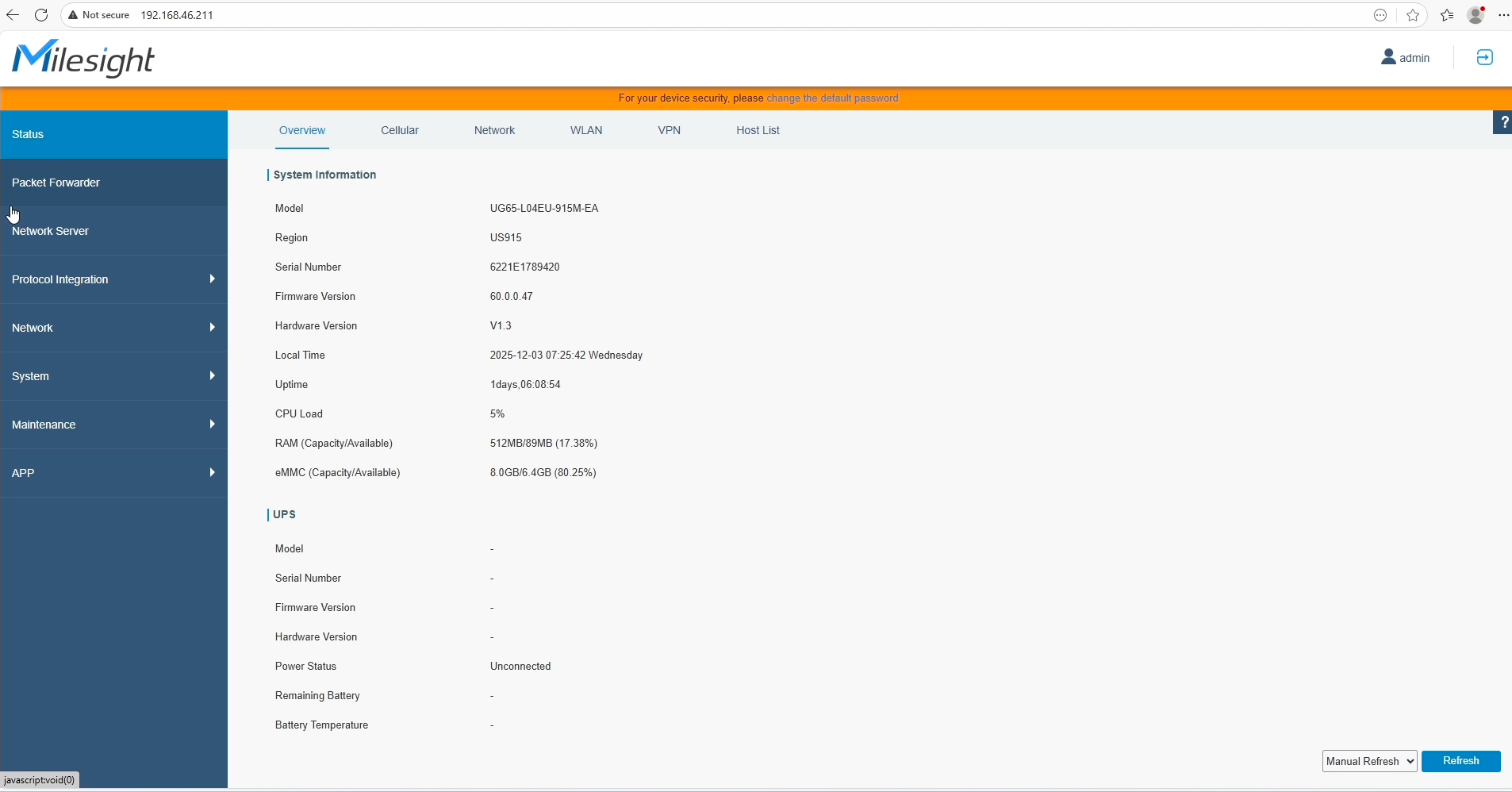
Navigate to 'Device' page to add the sensor.
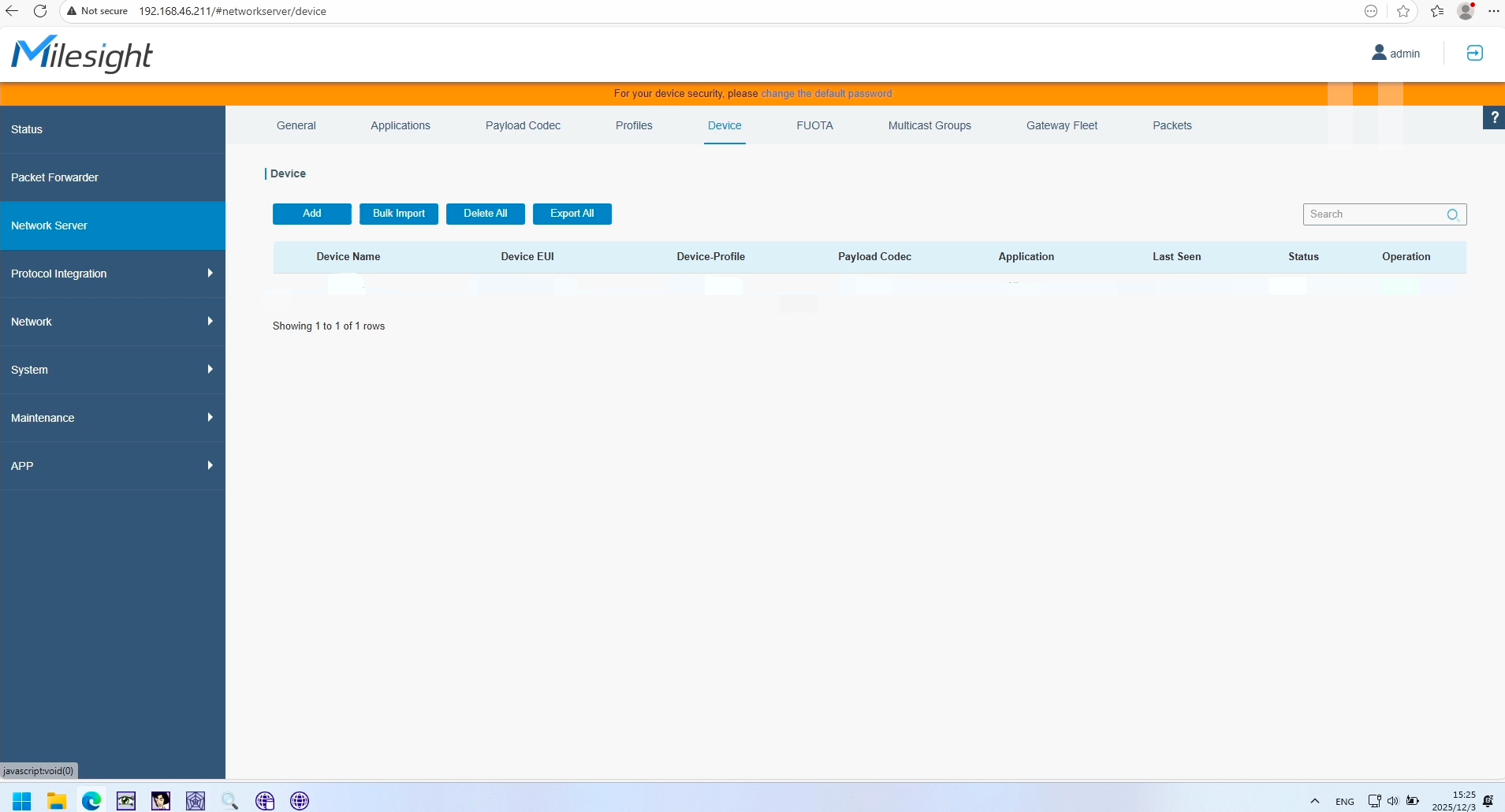
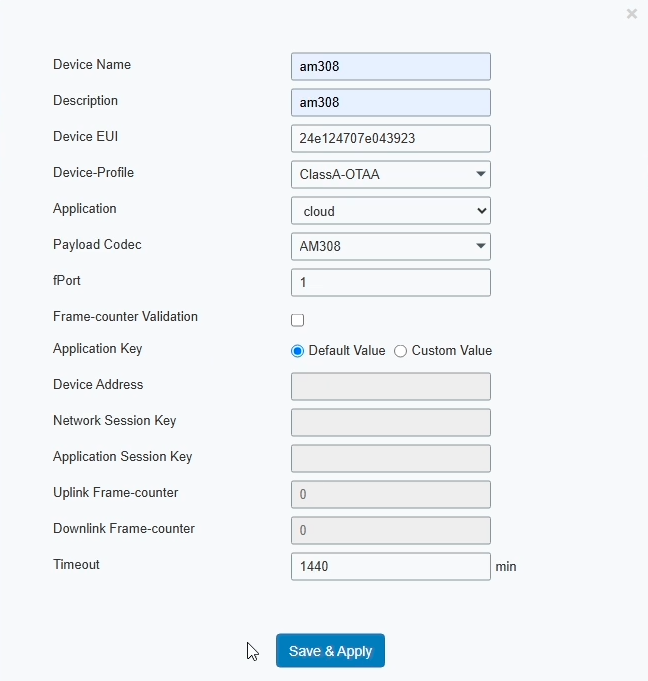
Click 'Add' button
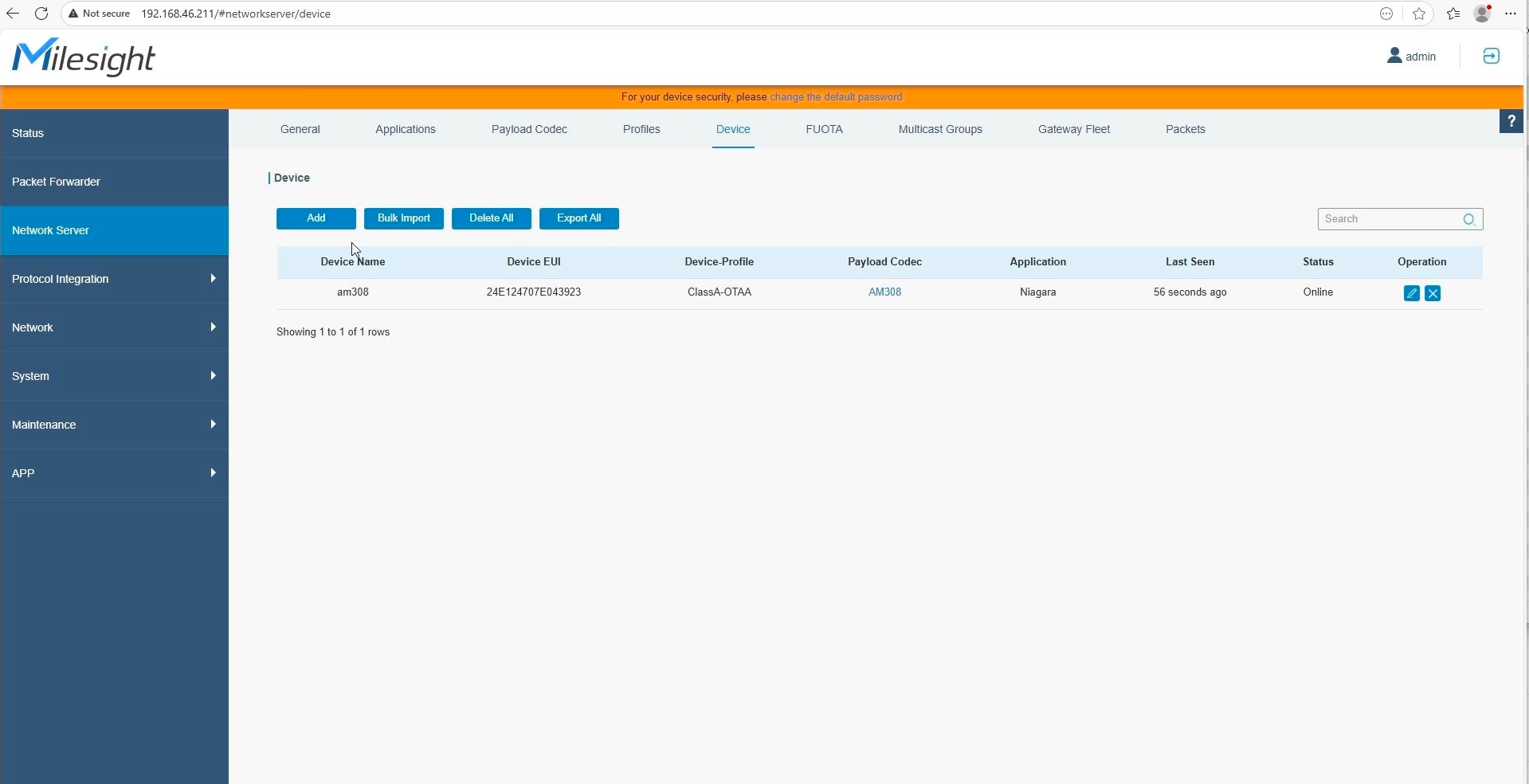
Power on the sensor, it will be online shortly.
More details about how to configure Milesight sensors and devices, refer to this Page.
Configure the Datapoints of Milesight device.
Open the LOYTEC LINX Configurator software.
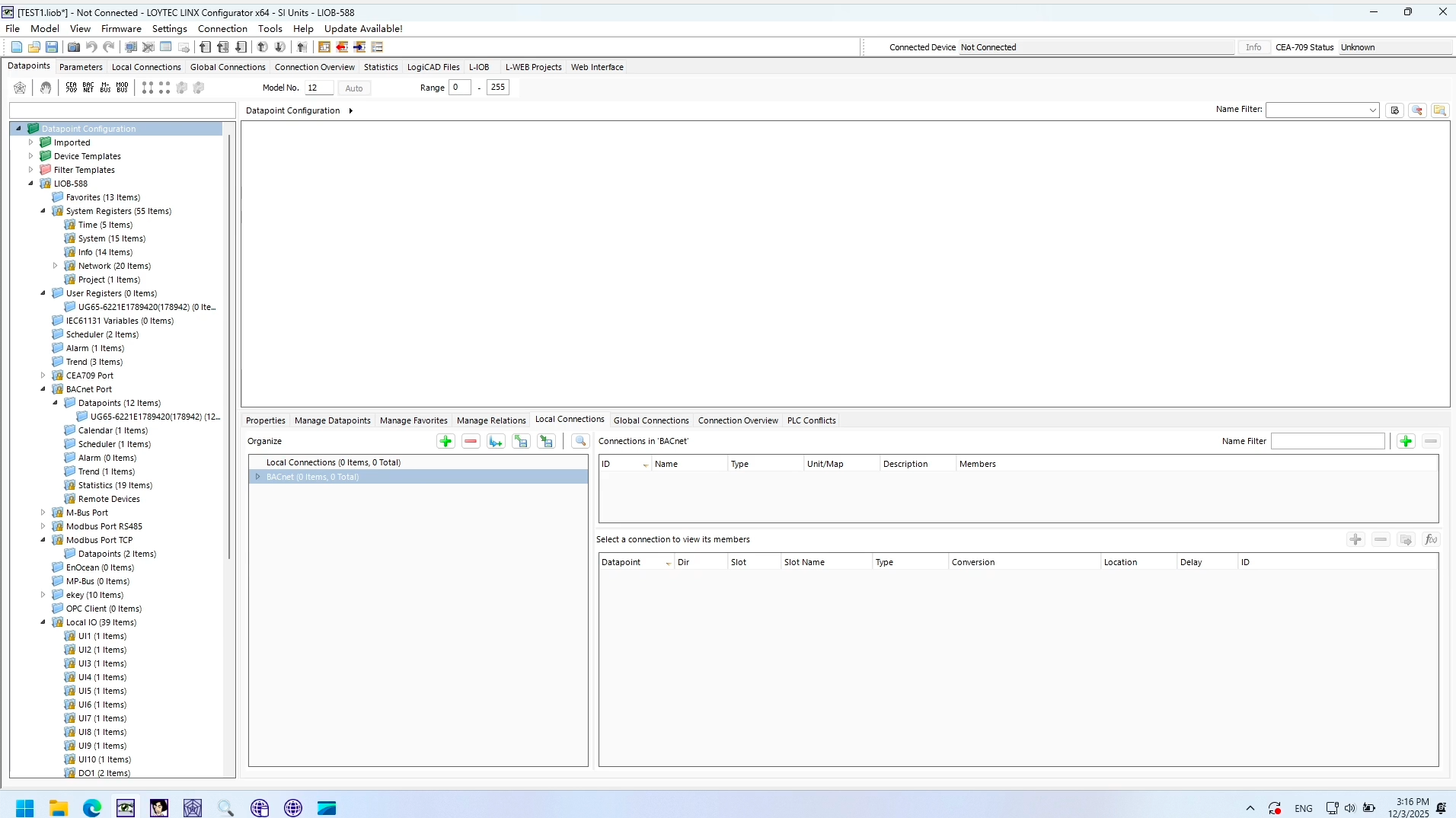
Please check the IP address at IOB588 side first. in this example the IP is 192.168.46.240.
Click 'connect to device' button.

Input and check the credential and IP address of the controller.
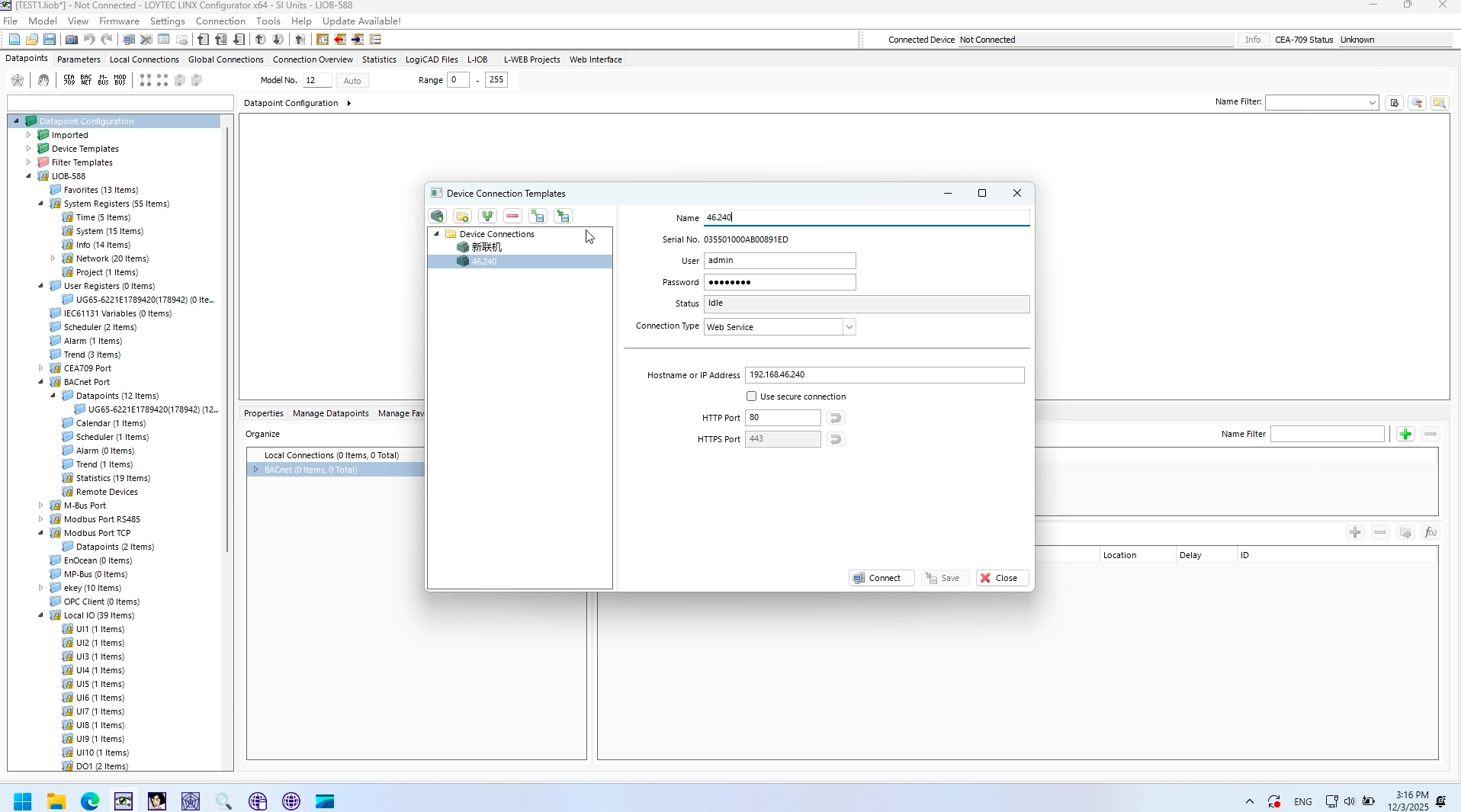
- Username: admin
- Password: loytec4u
Click Connect button to keep the IOB controller connected.
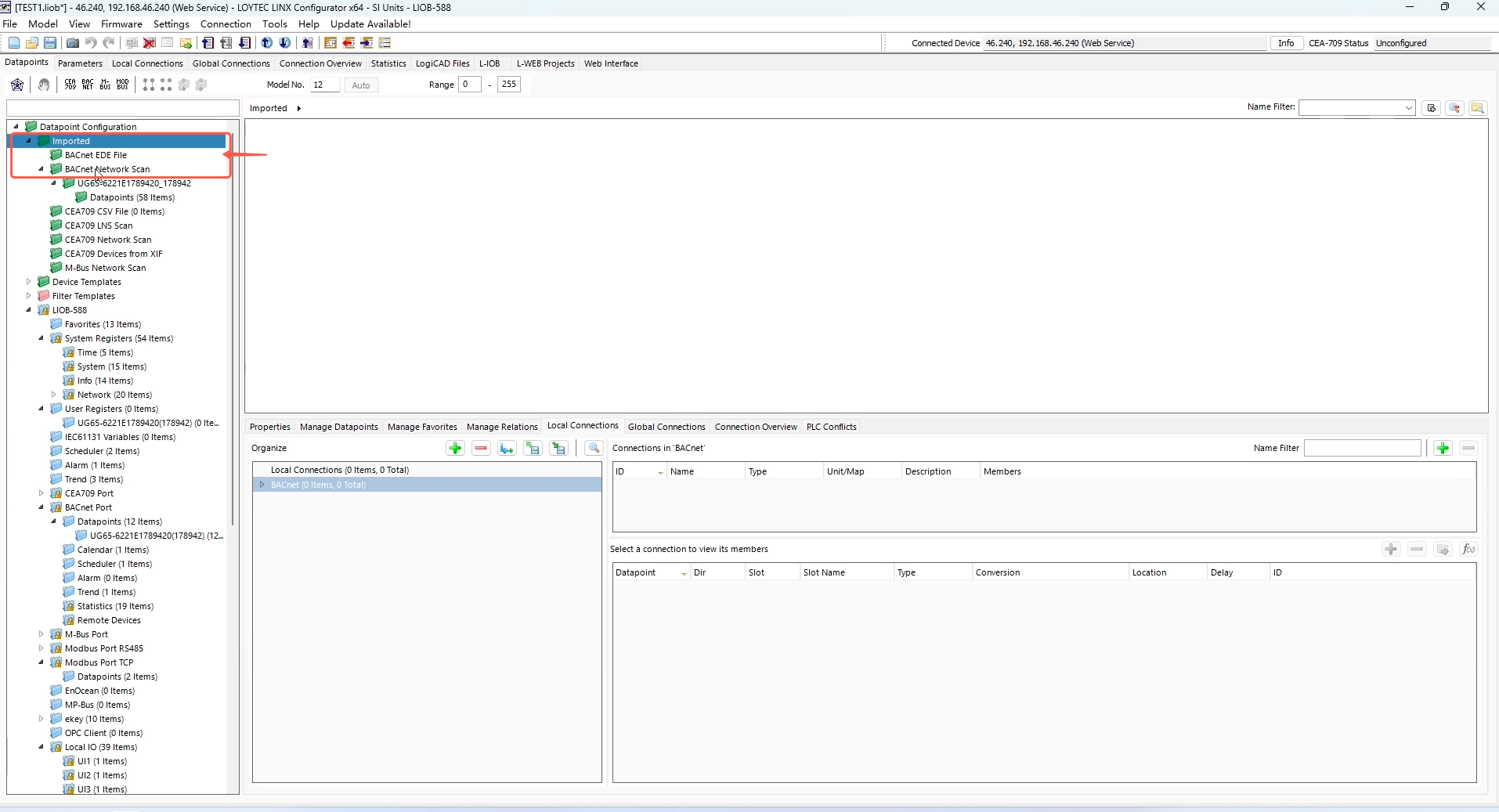
Navigate to 'Inported->BACnet Network Scan'
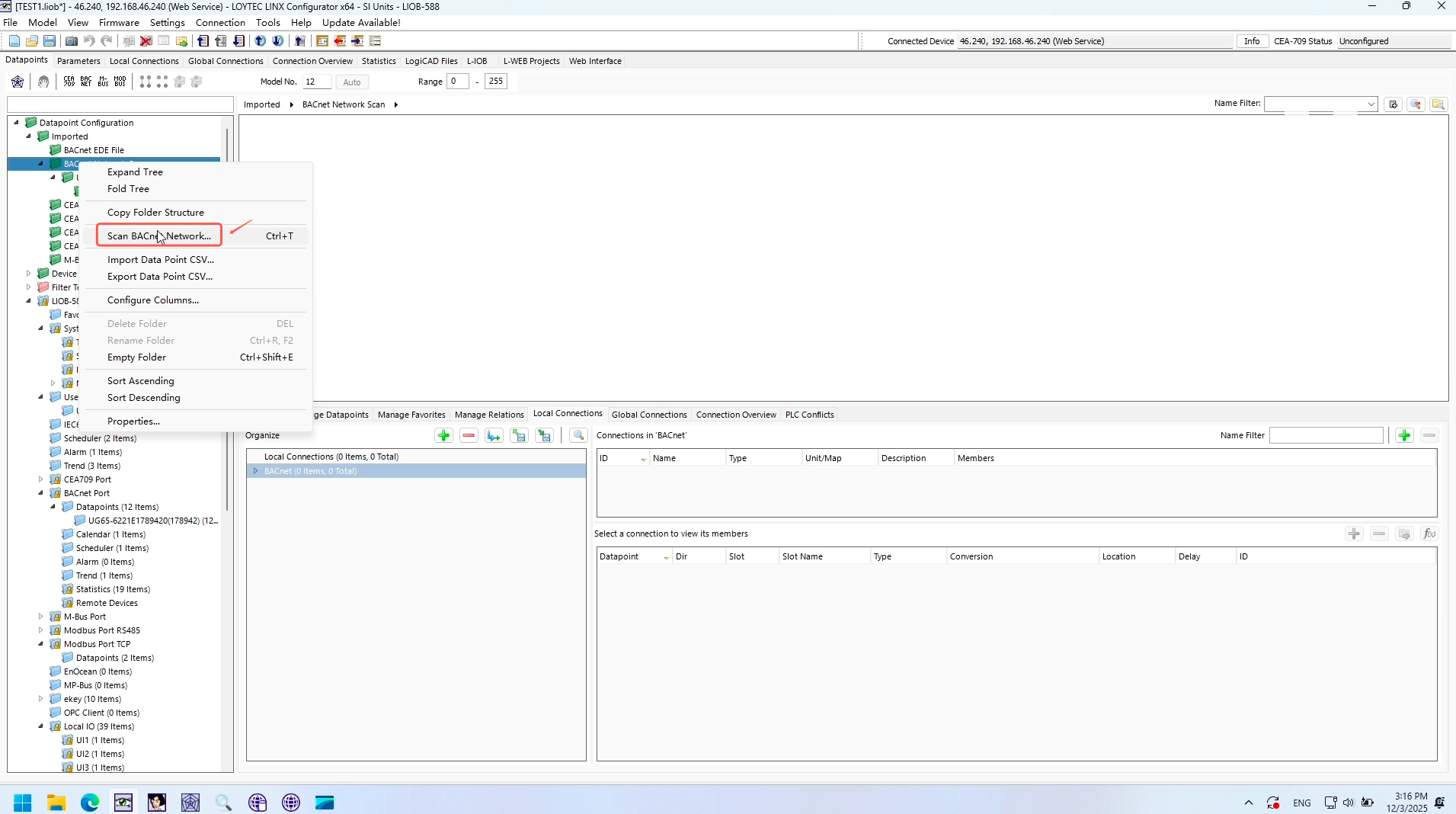
Right click and choose 'Scan BACnet Network'
Click 'Discover Devices' to scan the Milesight Gateway directly.
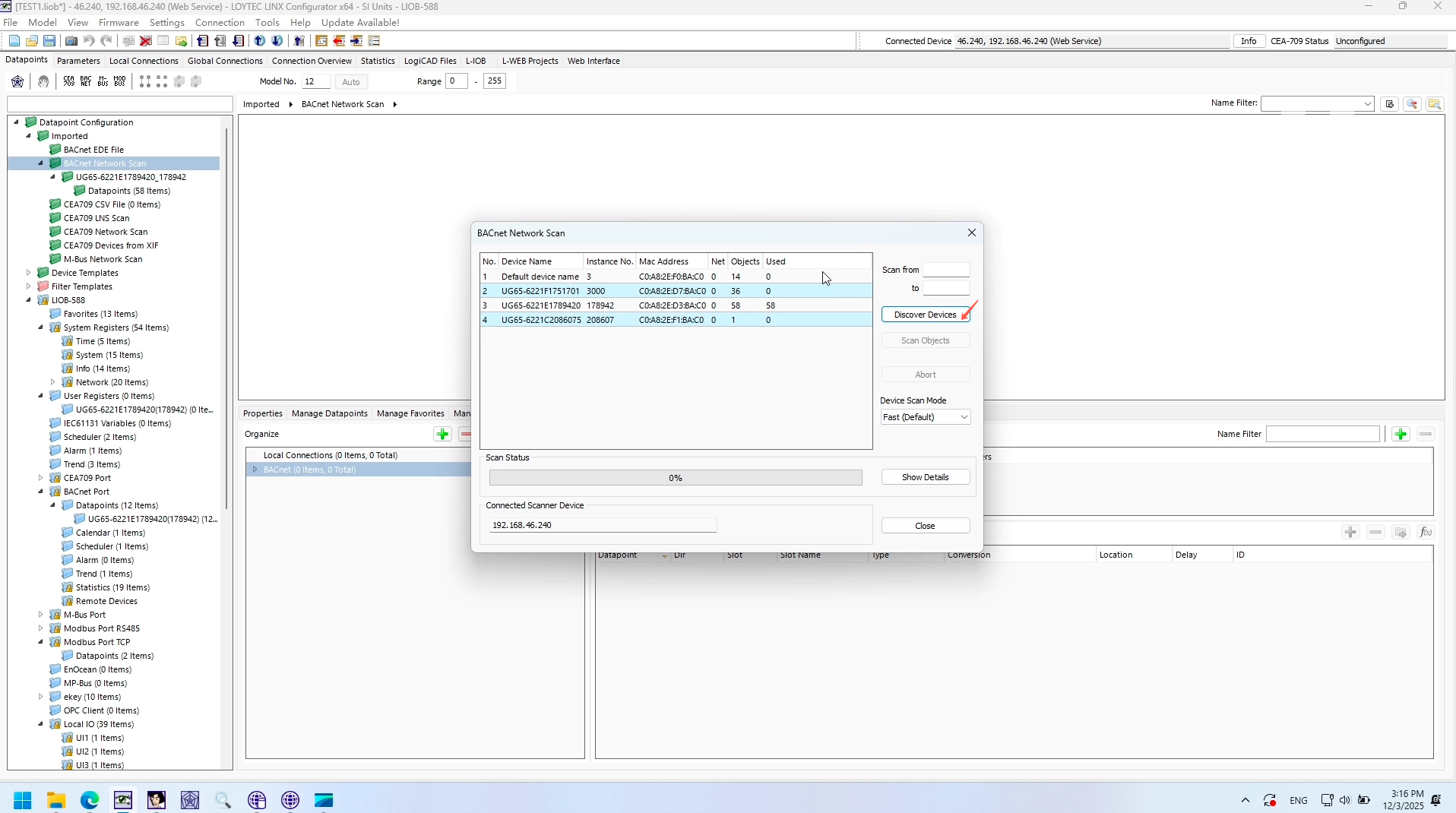
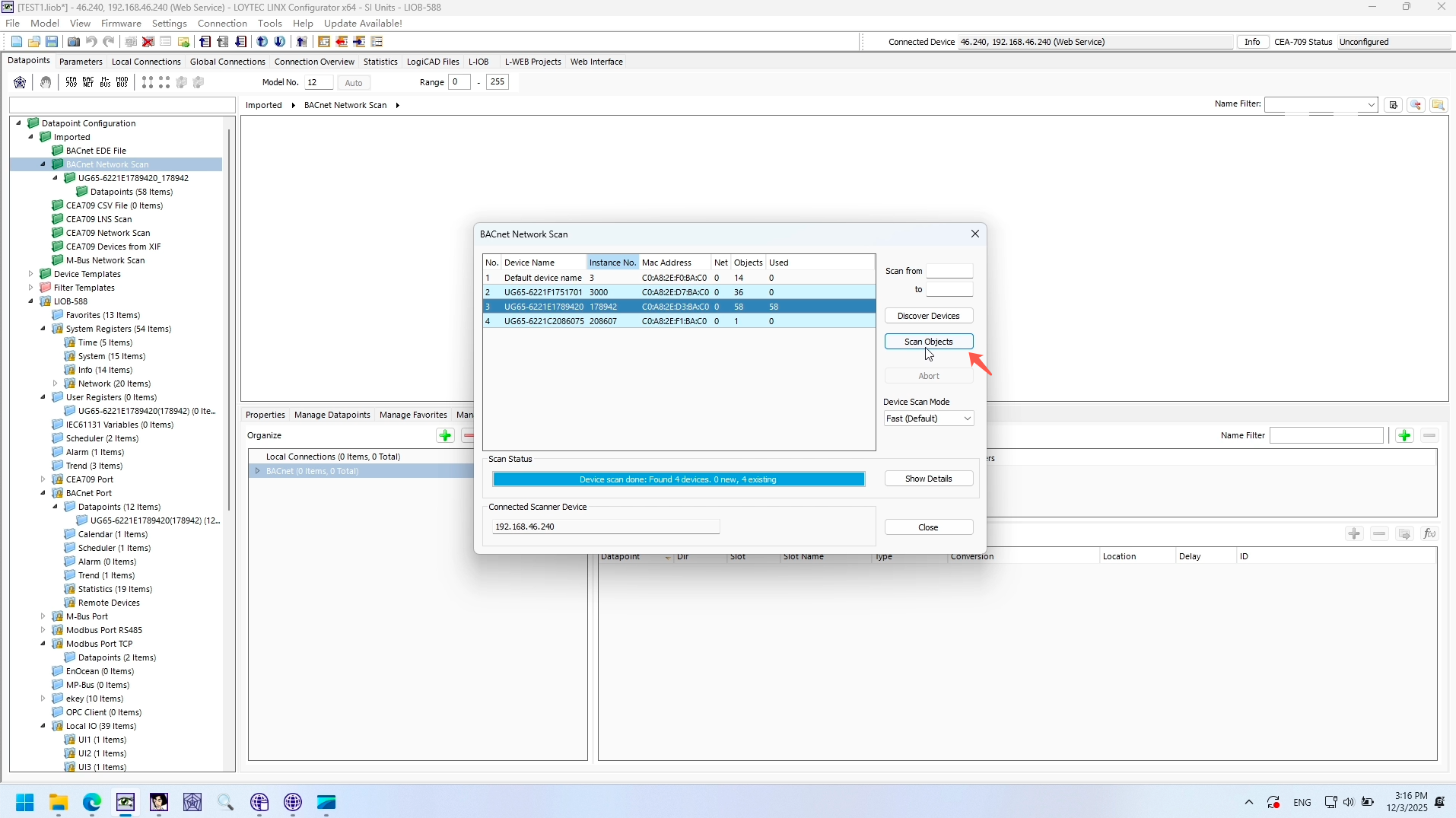
Choose the UG65 gateway, click 'Scan Objects', then close it.
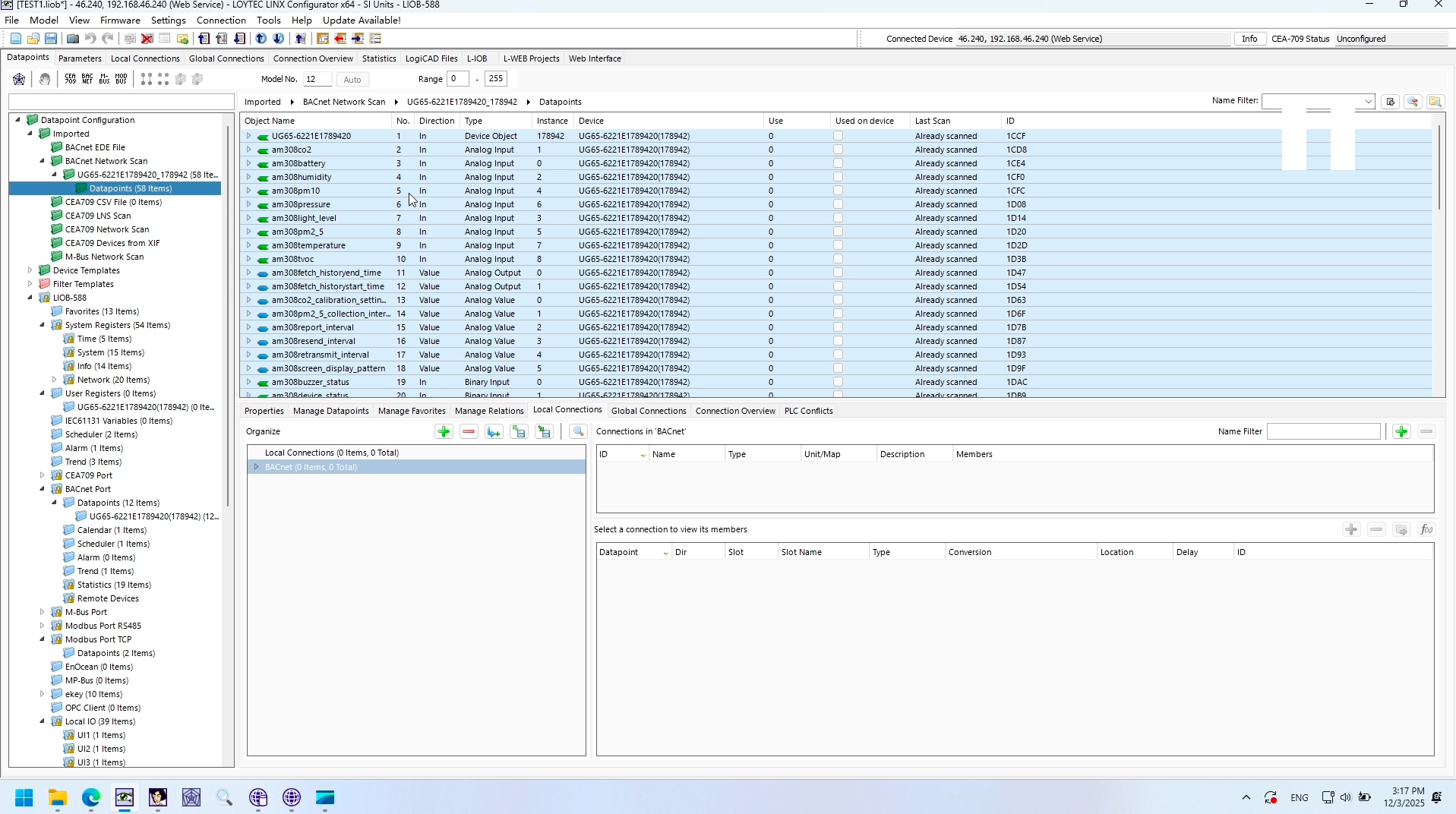
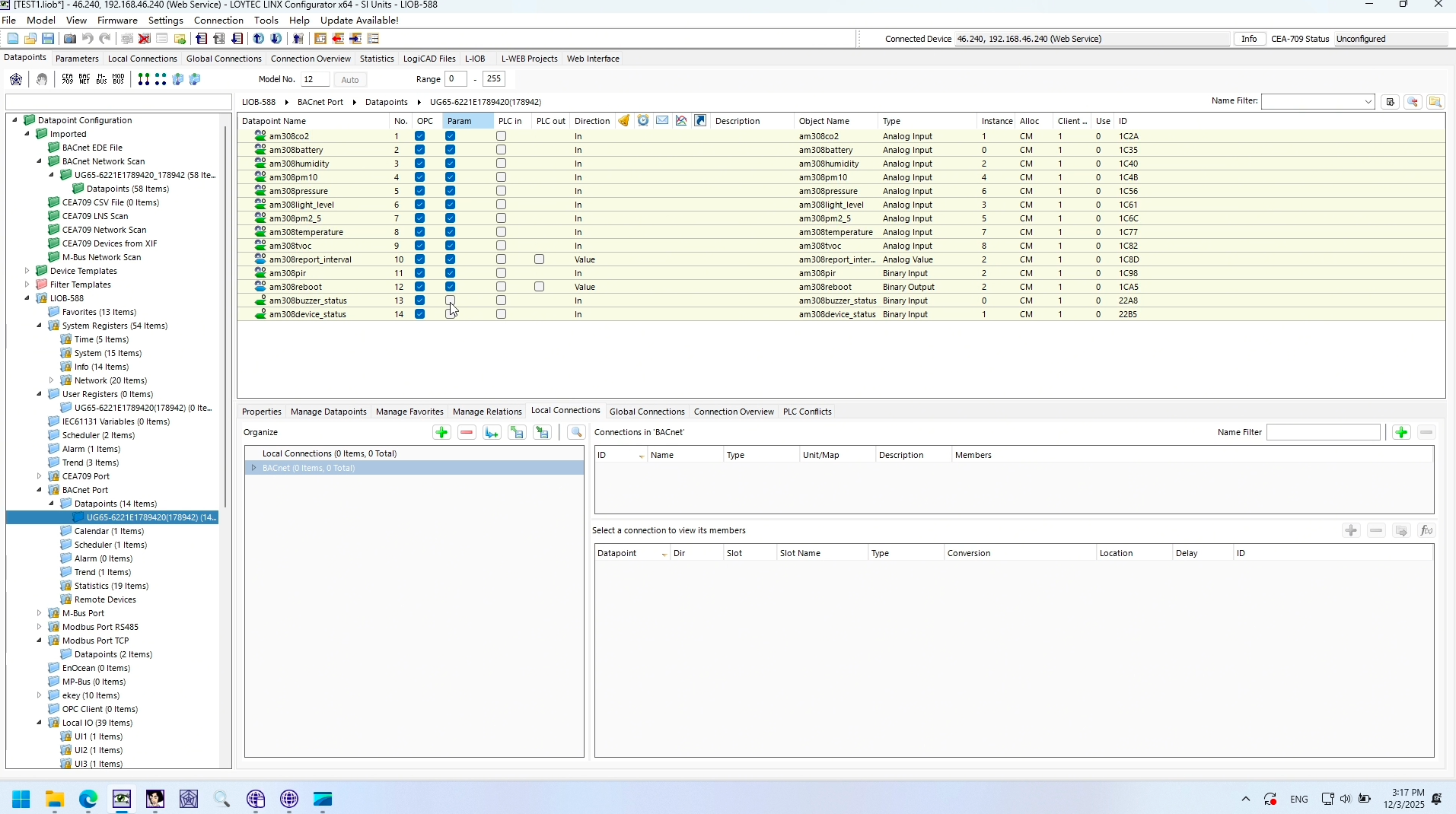
You will find the datapoints are available now.
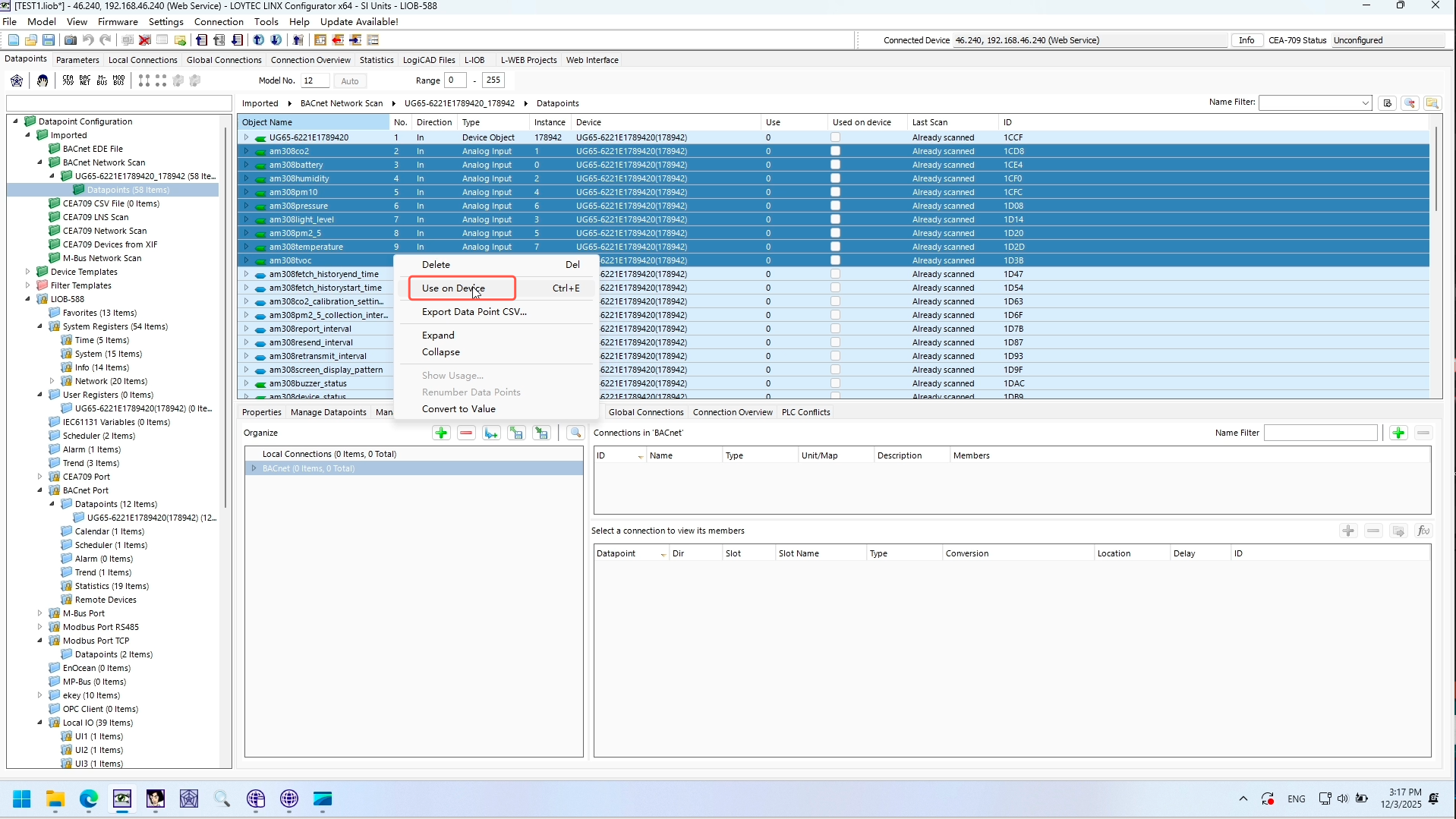
Choose the wanted datapoints, right click and choose 'use on Device'.
Then we can check the datapoints inside the configuration.
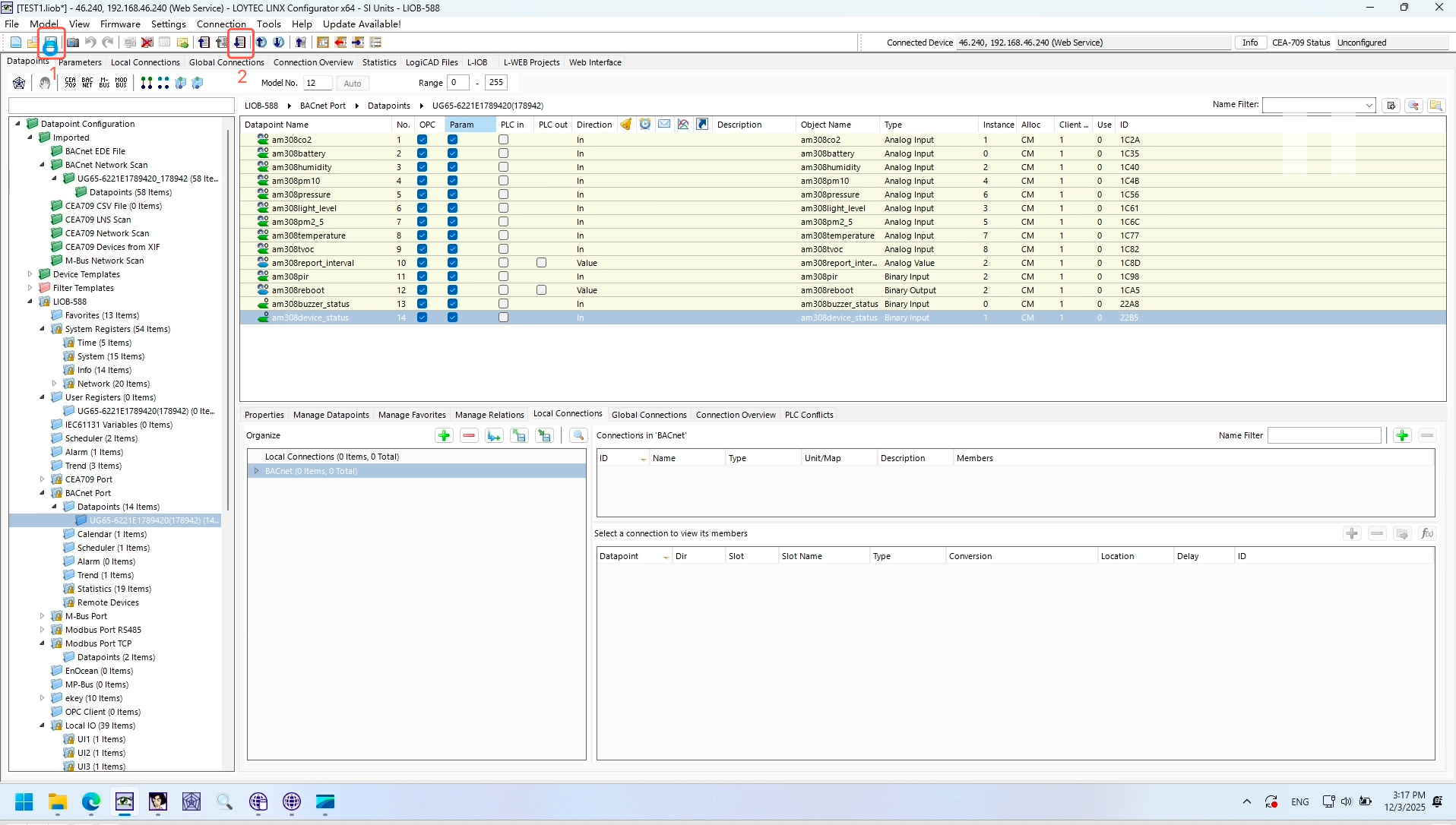
Save it locally.Download the configuration to IOB controller side.
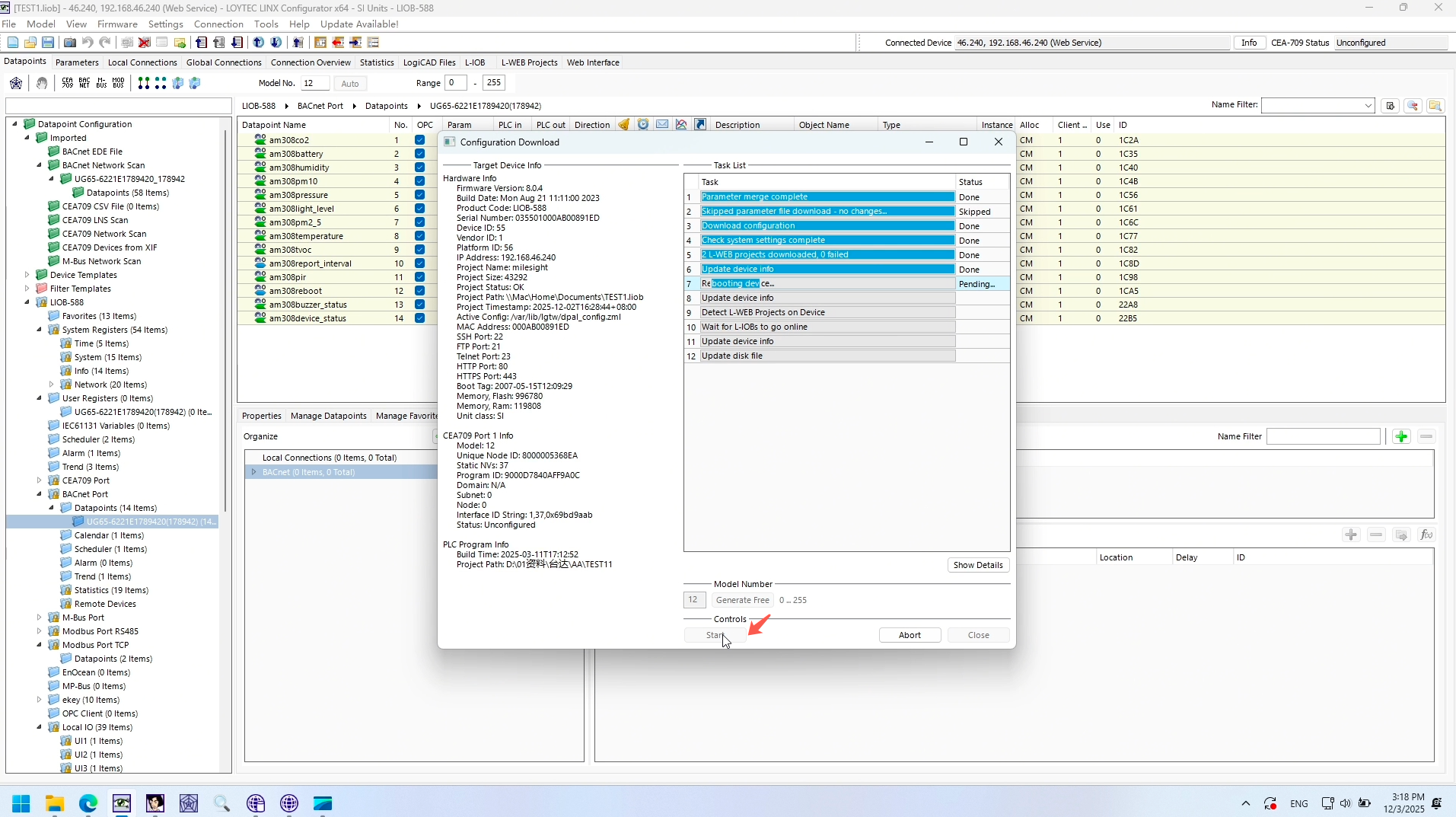
Click 'Start' , the IOB controller will obtain the configuration and restart to take effect automatically.
Configure the web project.
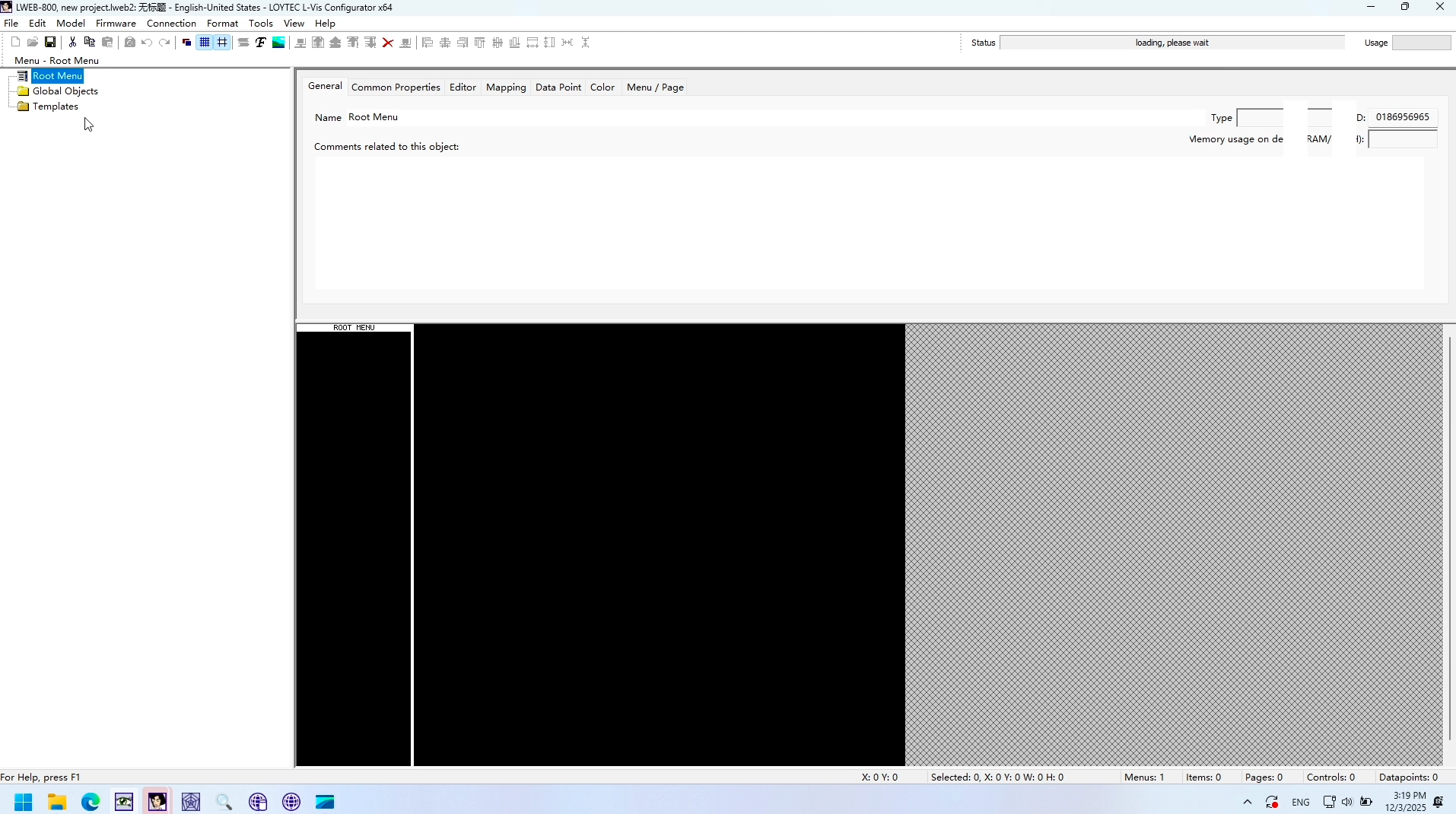
Now, let's create the Web project for visualization.
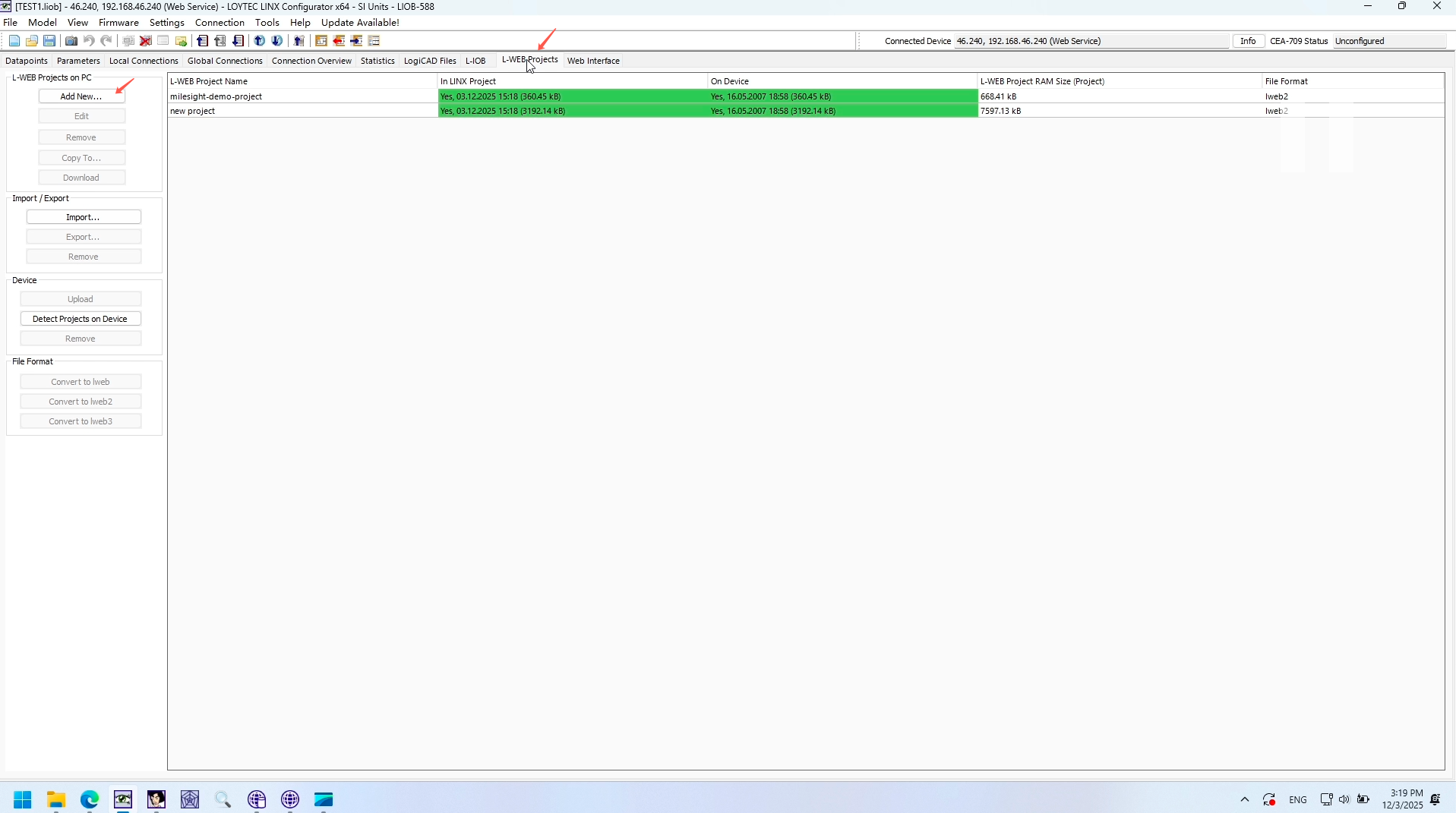
You can create a new one, or edit the existing template.
Right click the menu and click 'Add Pages from Data Points'
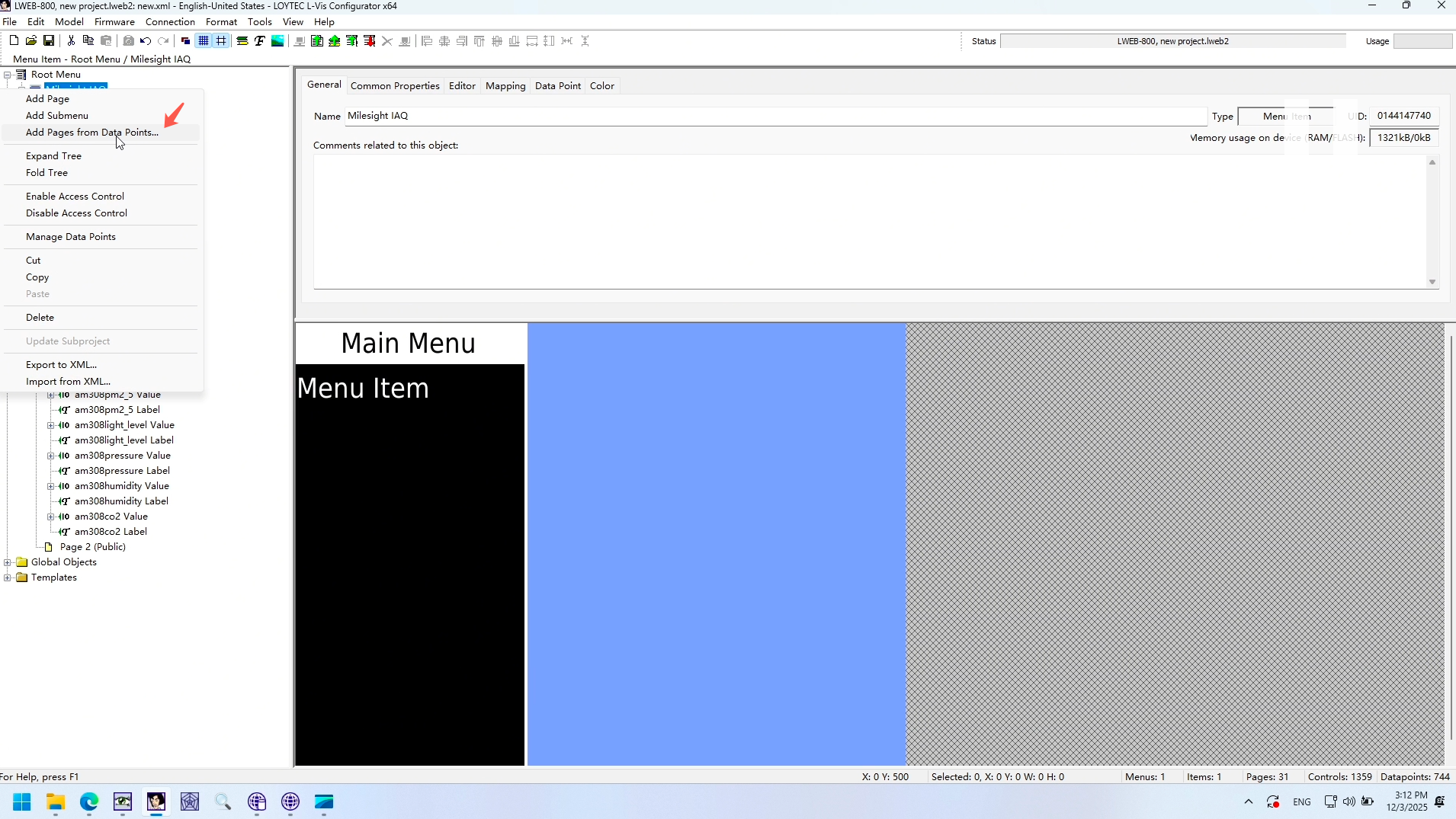
Choose the BACnet datapoints discovered, click 'start'.

Then you can start to design the project used to display.
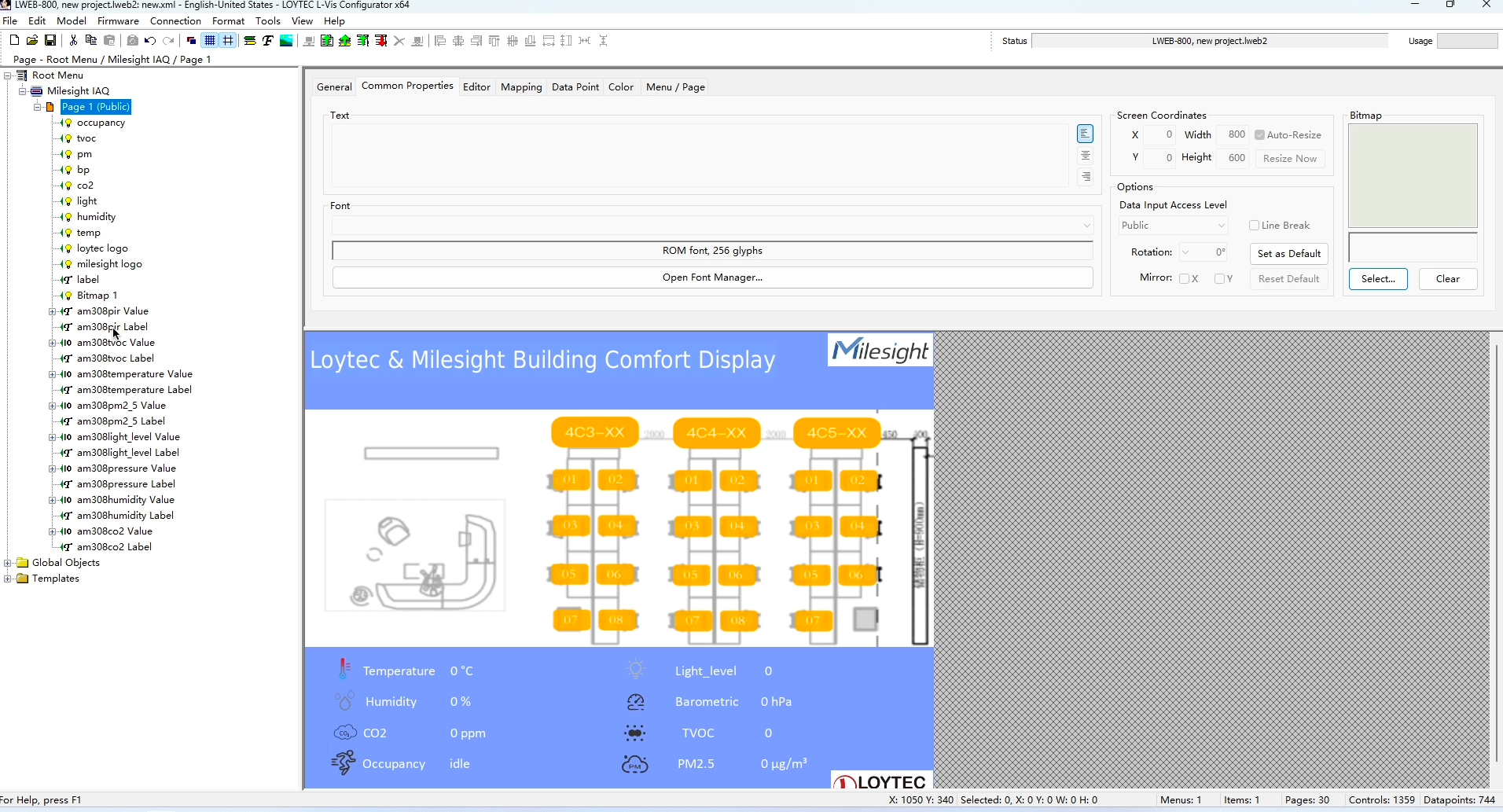
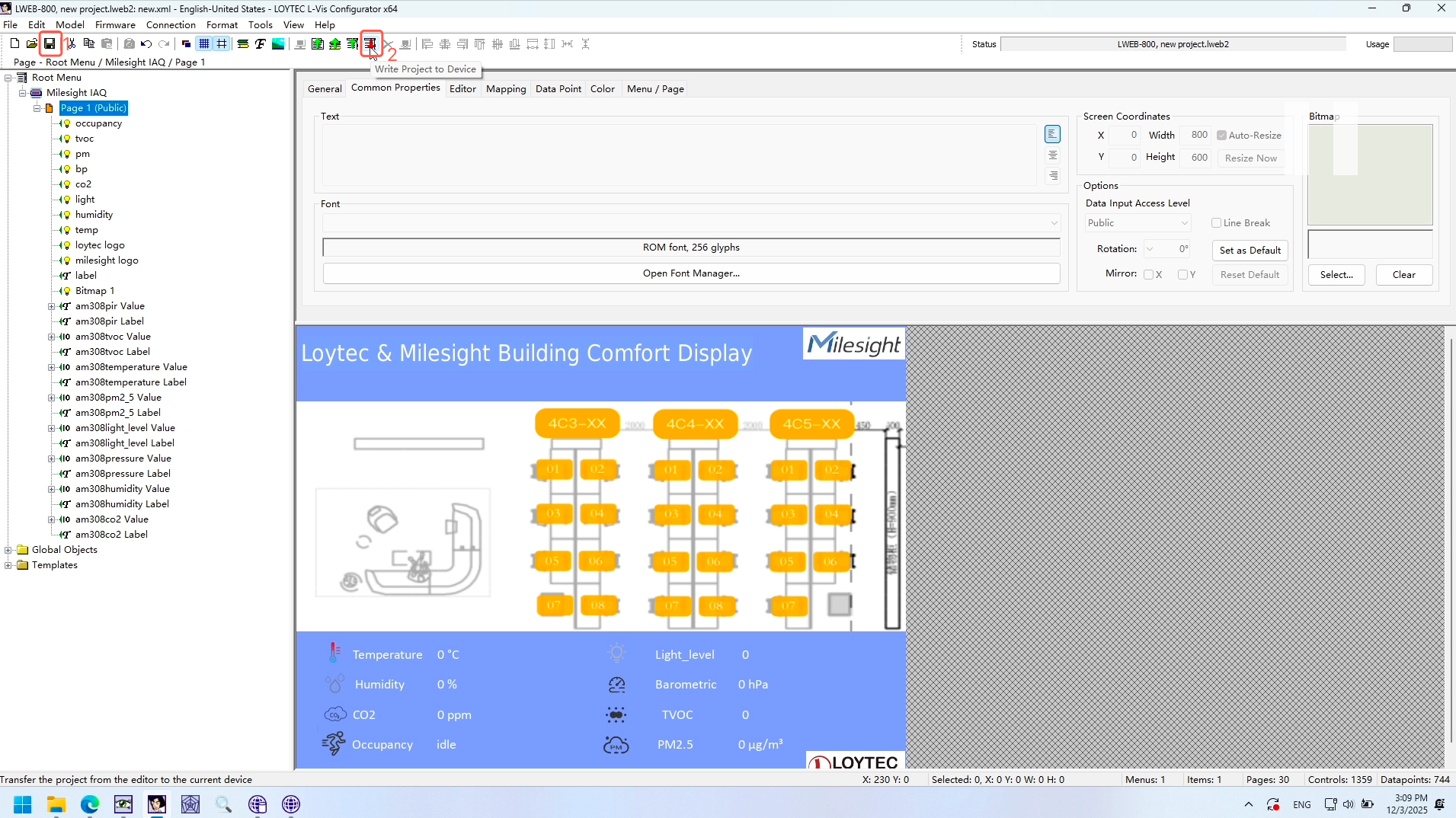
When done, save it, and download it to the controller side.
Play with the dashboard.
Now, let's play with the dashboard.
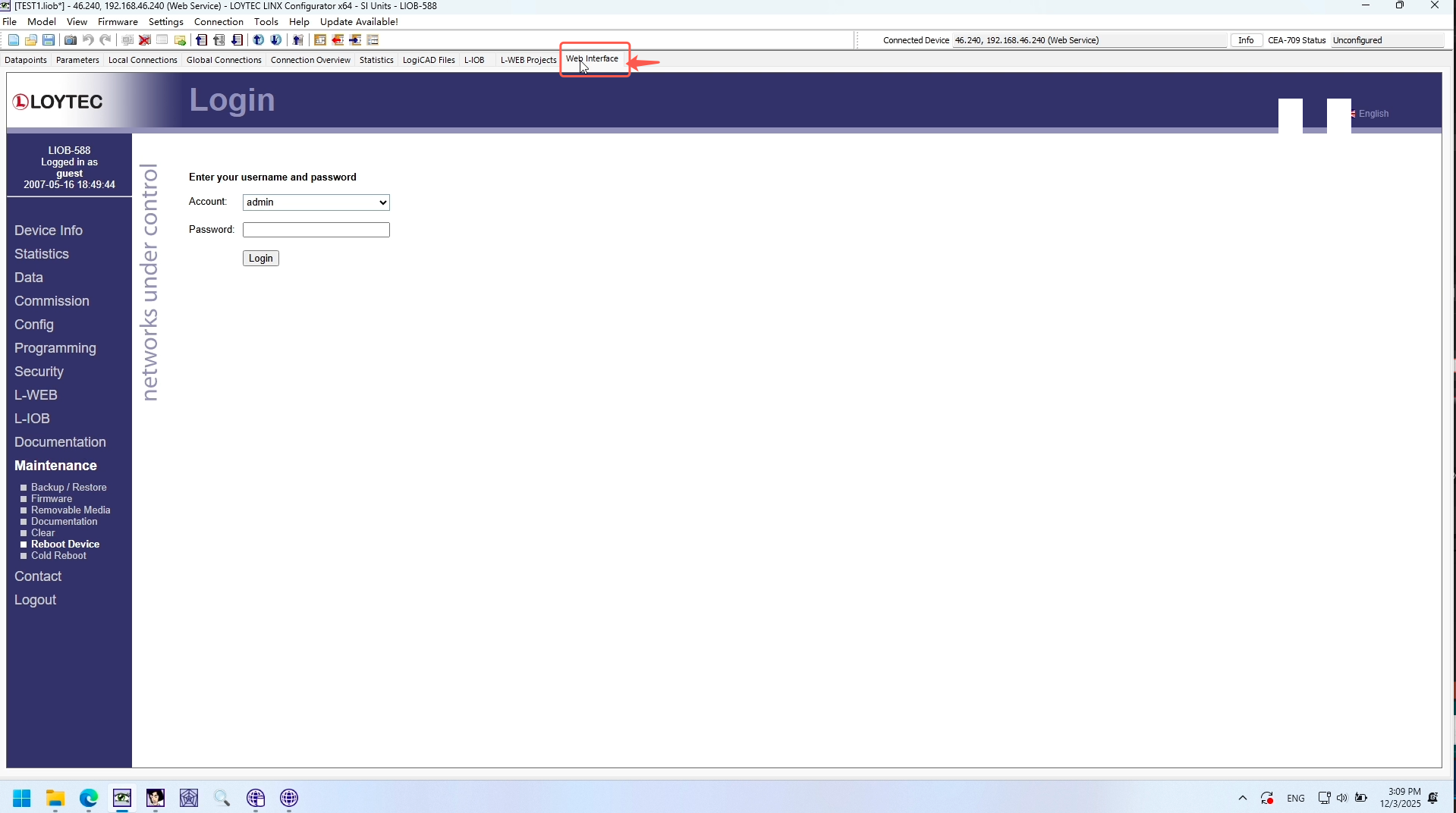
login using default password 'loytec4u'.
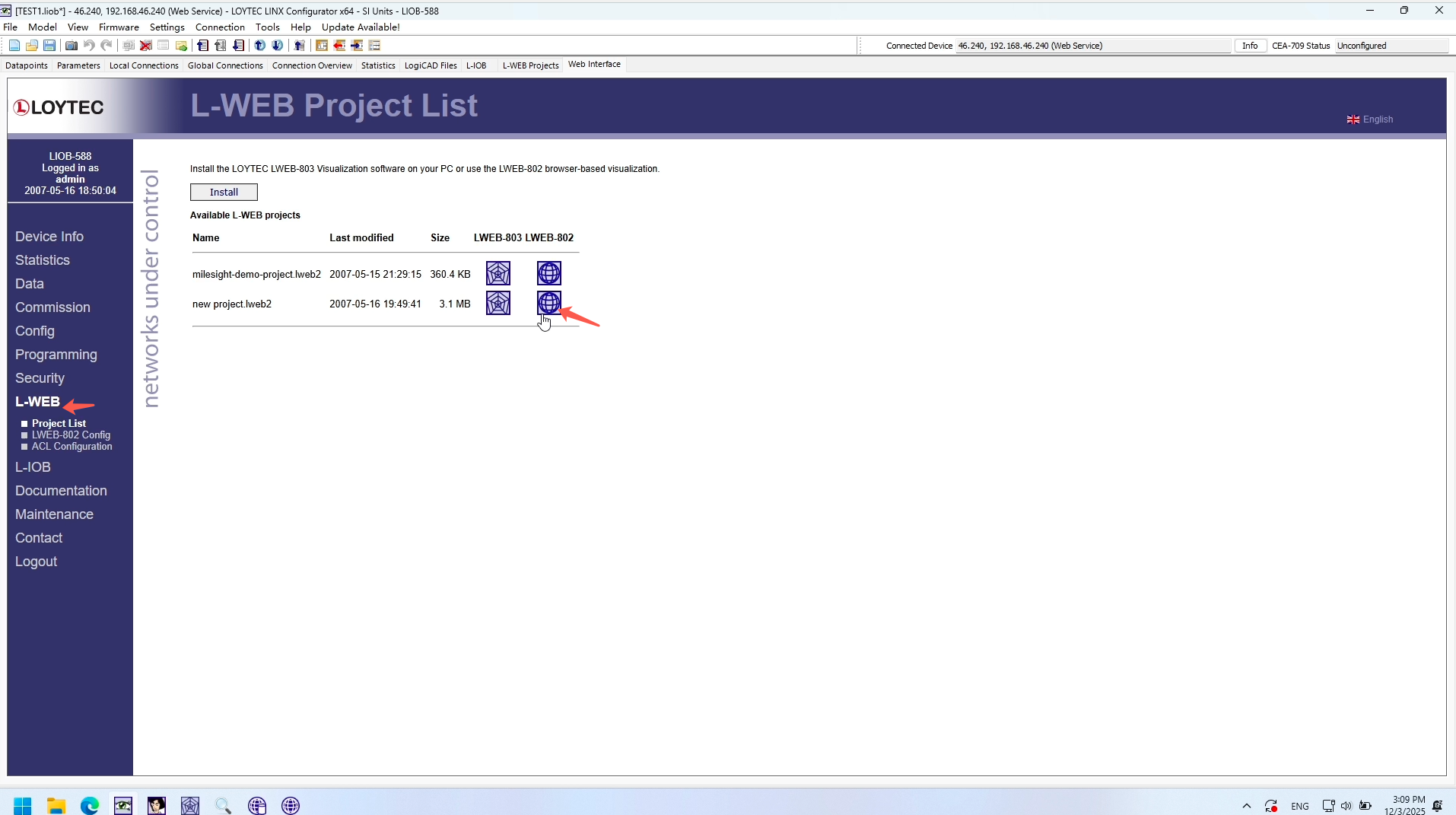
Click 'L-WEB'.
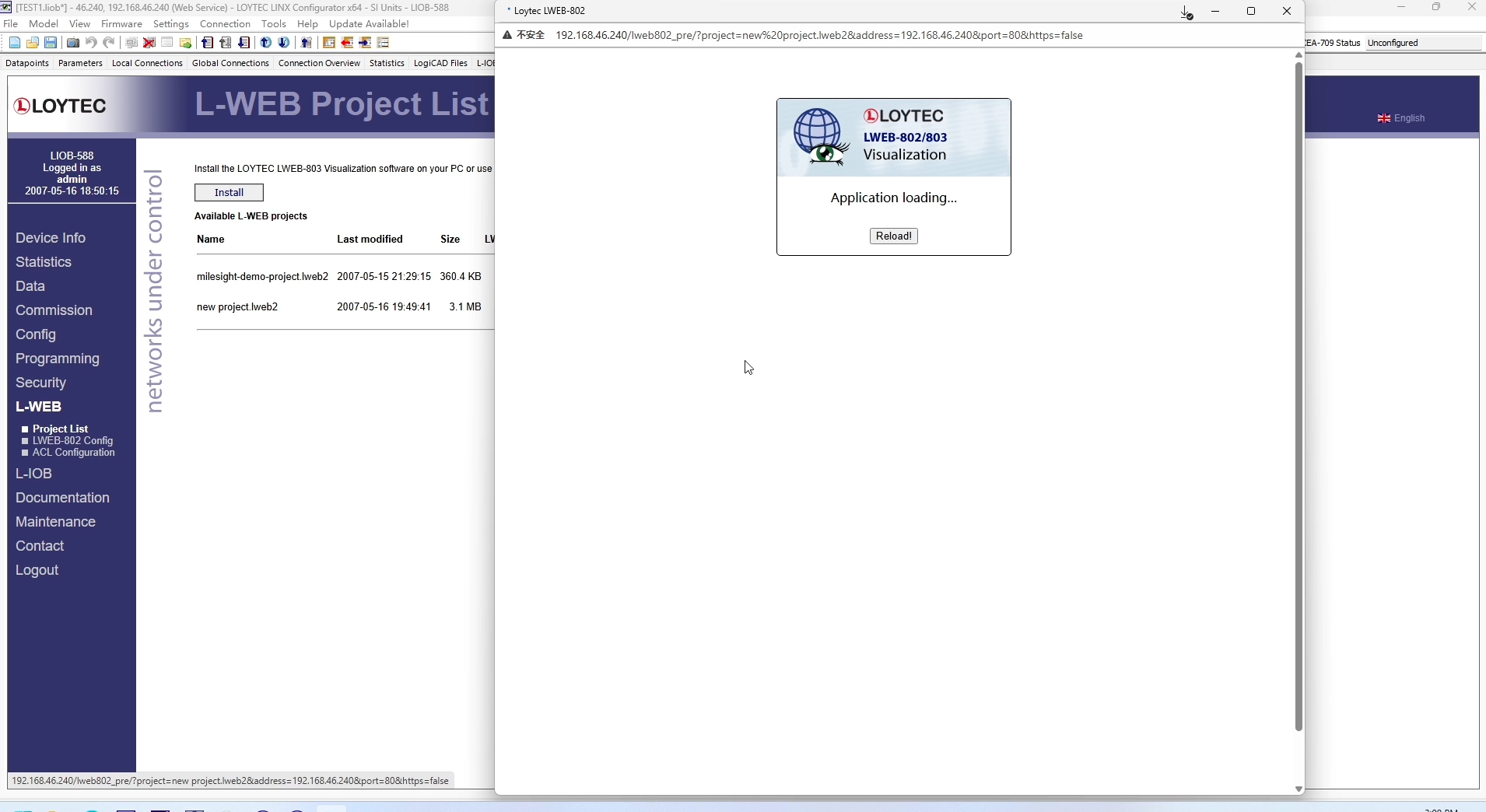
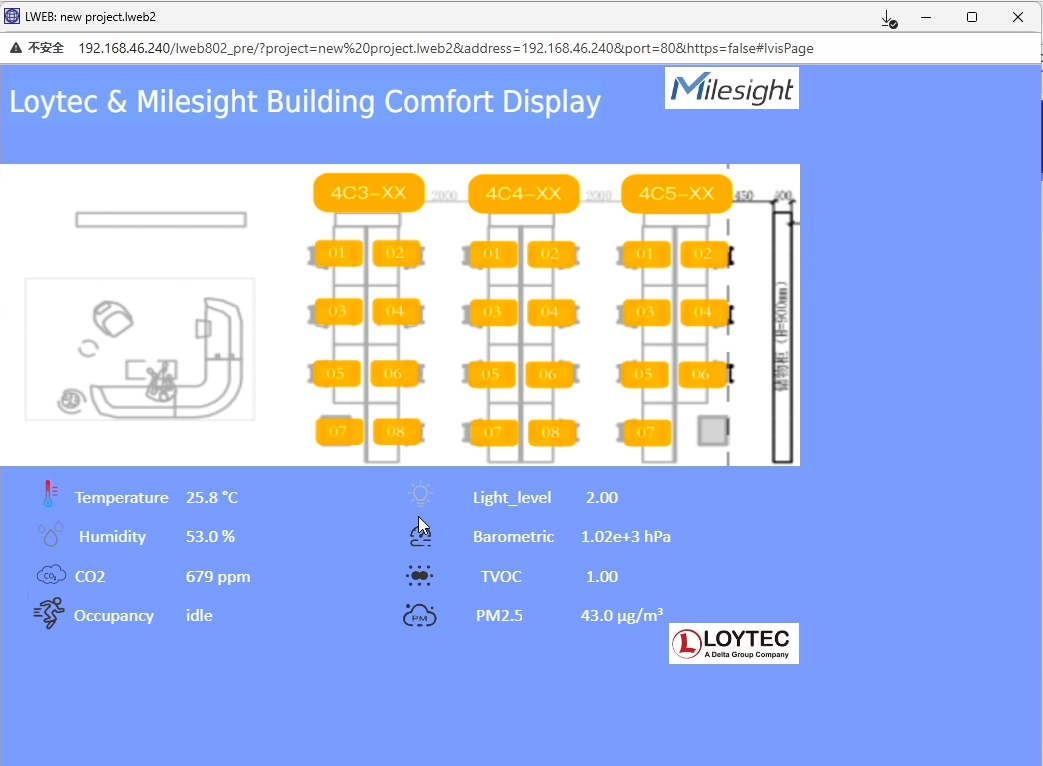
Then we can check the details in L-WEB or the display.
-END-
Was this article helpful?
That’s Great!
Thank you for your feedback
Sorry! We couldn't be helpful
Thank you for your feedback
Feedback sent
We appreciate your effort and will try to fix the article