Description
This document will guide you through using Beaver IoT workflow to implement offline/online email alerts for gateways.
Please note that the current offline alert feature for gateways is only available for gateways with Embedded NS integration. This feature is not supported for gateways on the development platform or those integrated with third-party solutions.
Requirement
Milesight Gateway.
Configuration
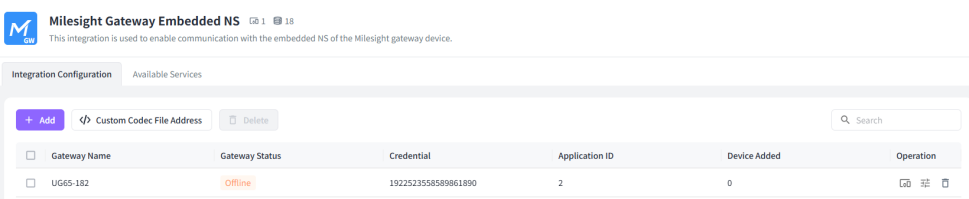
Please refer to the documentation below to integrate the gateway into Beaver using the embedded NS method.
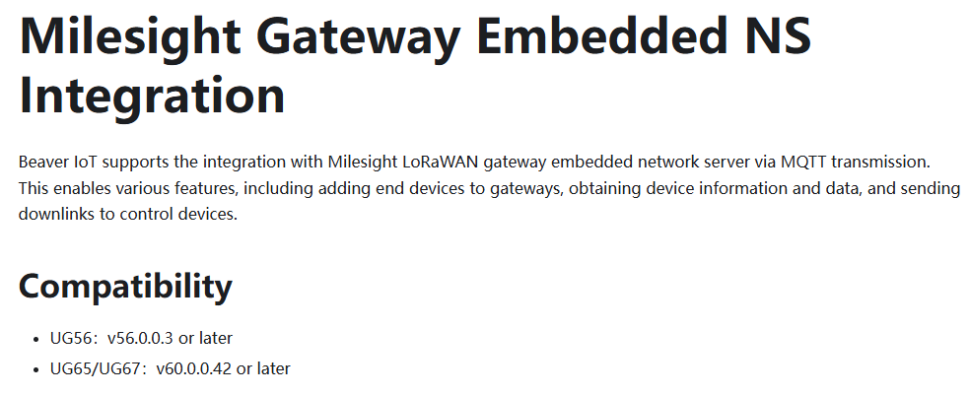
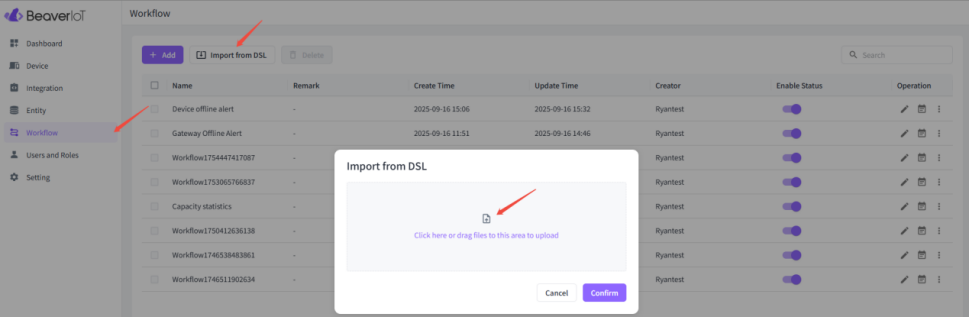
- 1. Please download the JSON file below, then open Beaver workflow and import the downloaded JSON file into it.

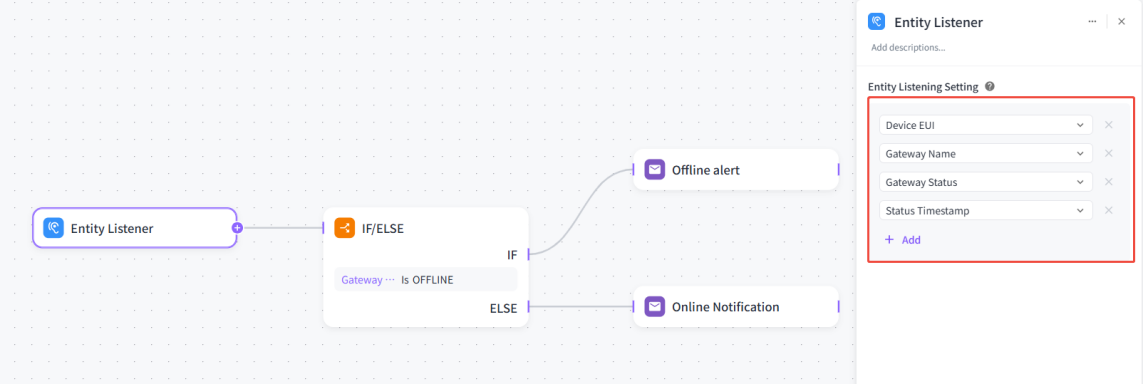
- 2. Enter the Entity Listener and configure it strictly according to the parameters in the demo.
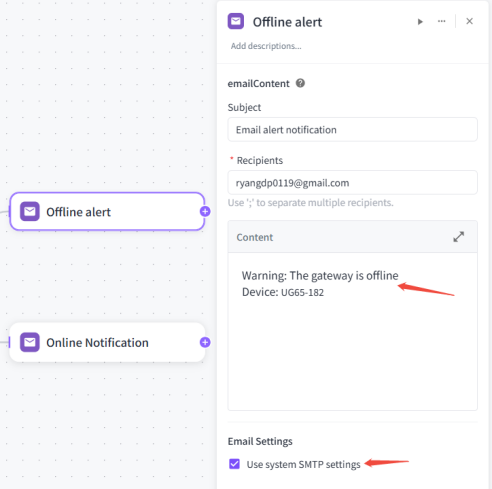
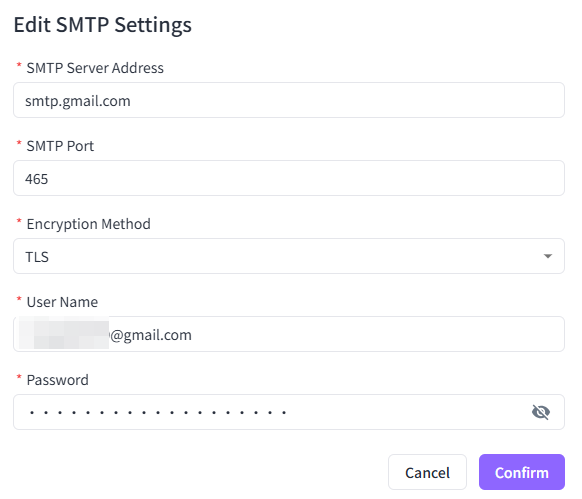
- 3. The content of email alerts can be customized according to individual needs. SMTP settings can be customized or use the system's preconfigured settings.
Configuring the SMTP information. The figure below uses Gmail as an example.
The SMTP password is usually a dedicated password, not your email login password. You need to use 2FA to generate a dedicated password.
Here are the steps for generating an app-specific password for Gmail:
- 1) Log in to your Google account: https://myaccount.google.com/apppasswords
- 2) Select the app type (e.g. “Mail”)
- 3) The system will generate a 16-digit password. Copy and use it as your SMTP login password.

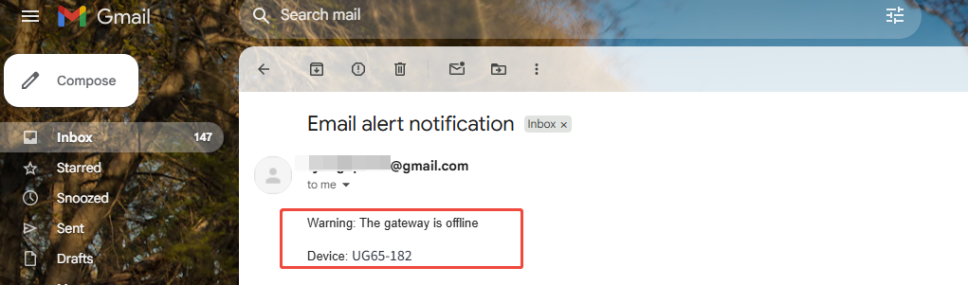
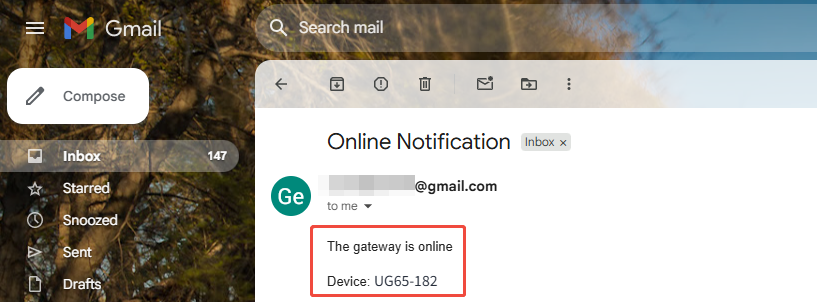
- 4. When the gateway goes offline or comes back online, relevant alert notifications will be received.

---END---
Was this article helpful?
That’s Great!
Thank you for your feedback
Sorry! We couldn't be helpful
Thank you for your feedback
Feedback sent
We appreciate your effort and will try to fix the article