Description
Milesight IoT cloud is no longer adding integration for new products. To get a better feature experience (such as email alerts or triggers), we recommend that you use the brand-new Milesight Beaver IoT platform, which has significantly improved compatibility and flexibility. Next, we will guide you on how to use Beaver IoT's workflow to implement alarm reports.
Requirement
All Milesight node devices.
Configuration
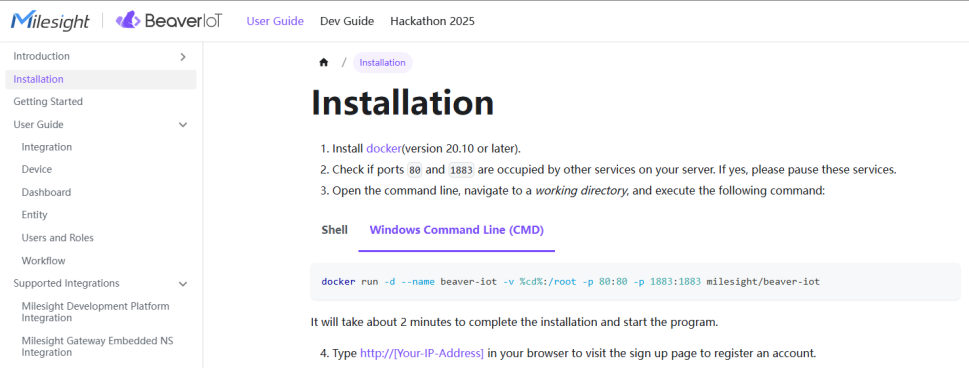
Please install Beaver IoT first. For specific installation steps, please refer to the link below.
https://www.milesight.com/beaver-iot/docs/user-guides/installation/
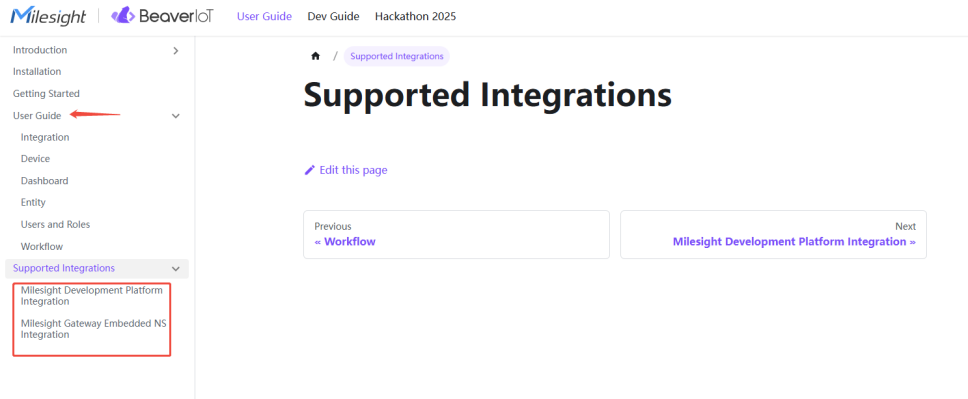
After installation, add integration, select the path to be integrated, and add devices after inheritance.
https://www.milesight.com/beaver-iot/docs/user-guides/published-integrations/
Note: If you encounter any issues during integration or device addition that cannot be resolved by the user guide, please contact the Milesight support team.
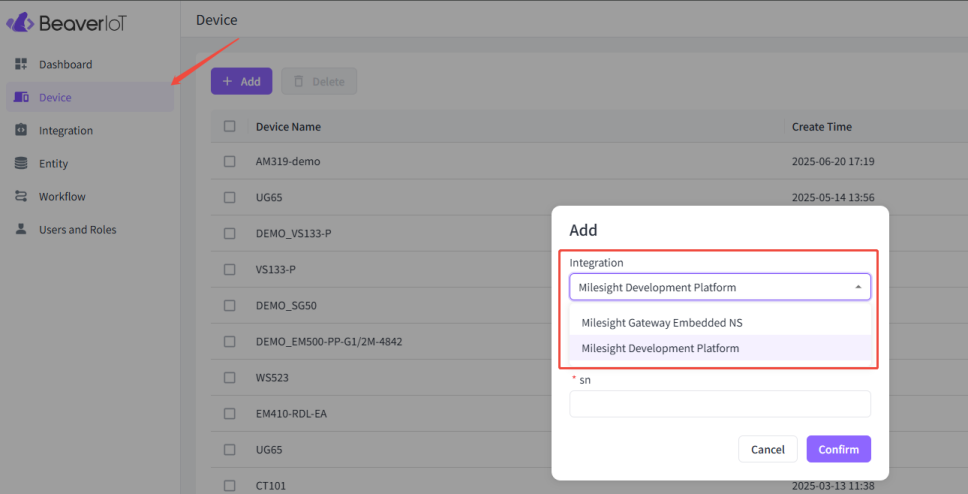
Add device:
When adding a device, select the integration you created at that time for packet forwarding.
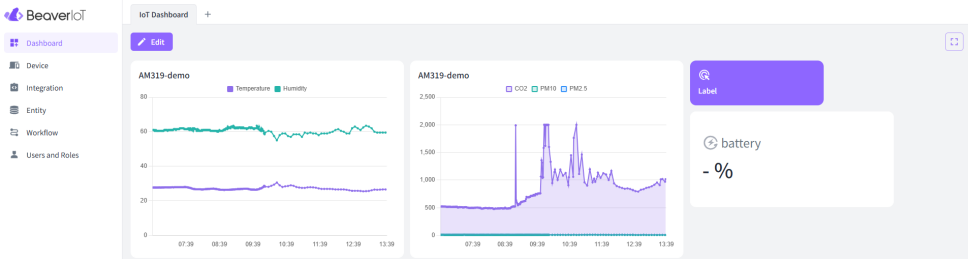
After adding it, you can create a dashboard to display the data in the current report.
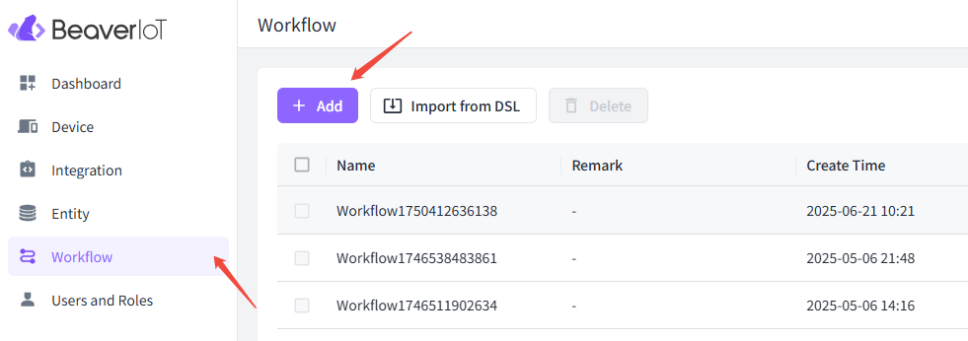
Create workflow:
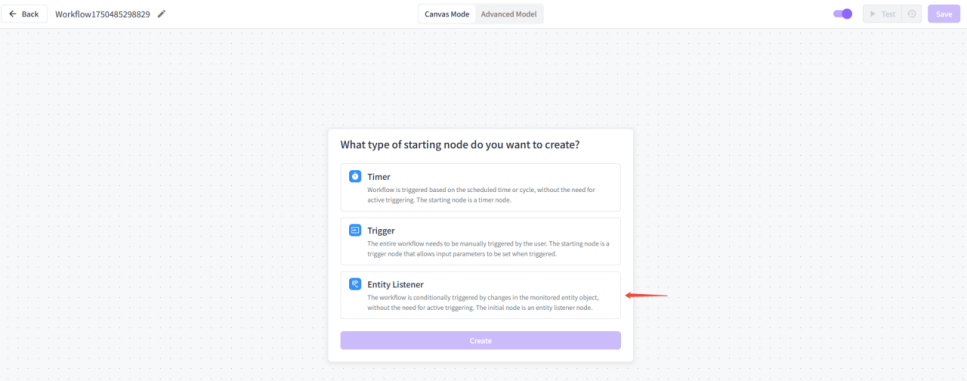
After creation, select Entity Listener.
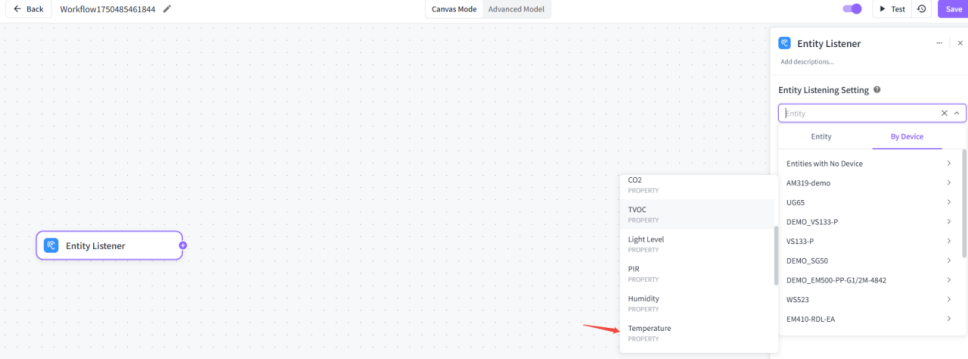
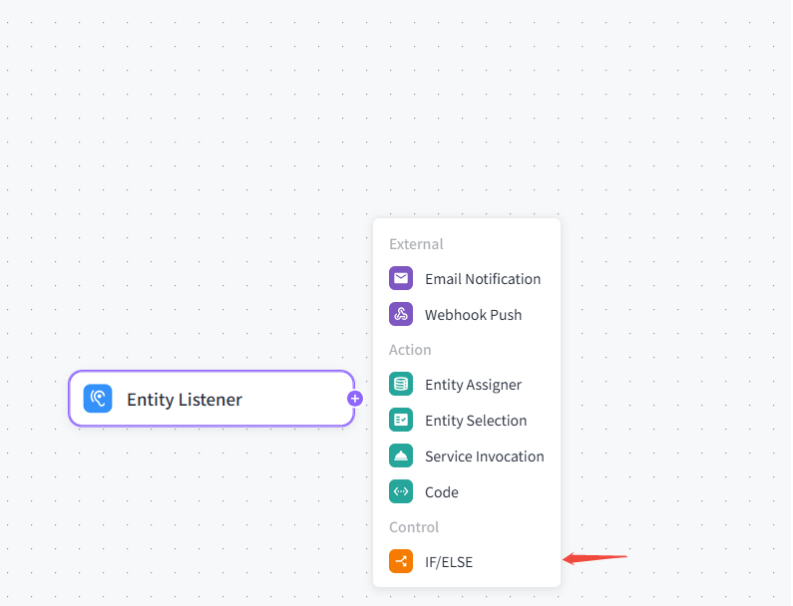
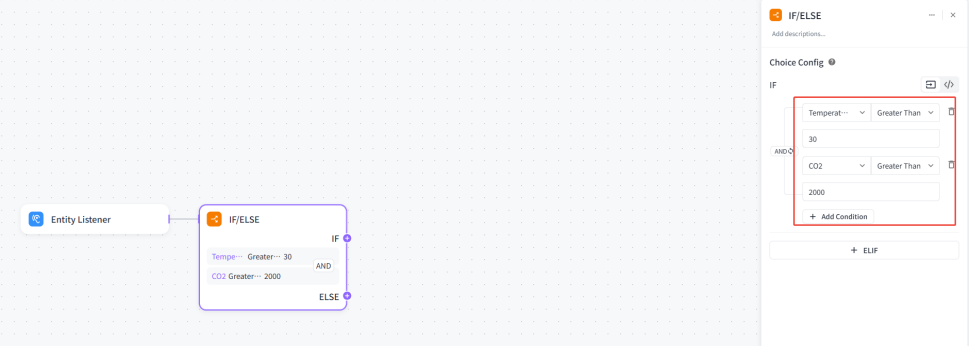
Configure the entity listener object and add IF/ELSE conditions.
In the figure, we use temperature and CO2 as examples to create conditions that trigger an alarm when the temperature exceeds 30°C and CO2 exceeds 2000ppm.
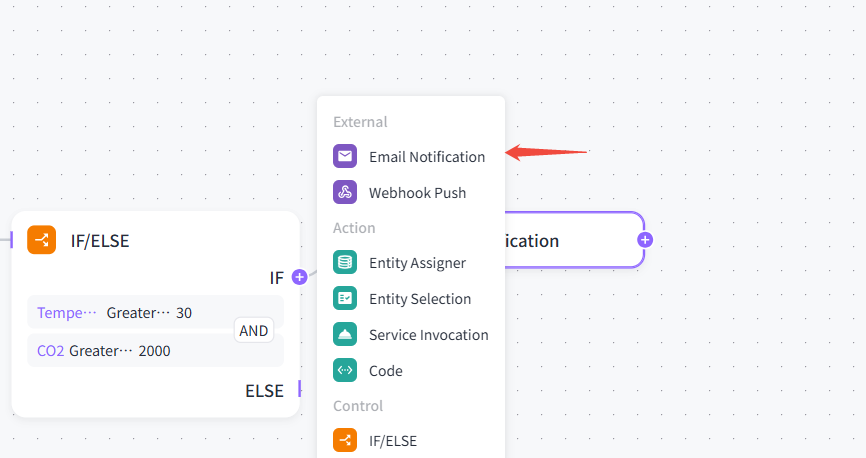
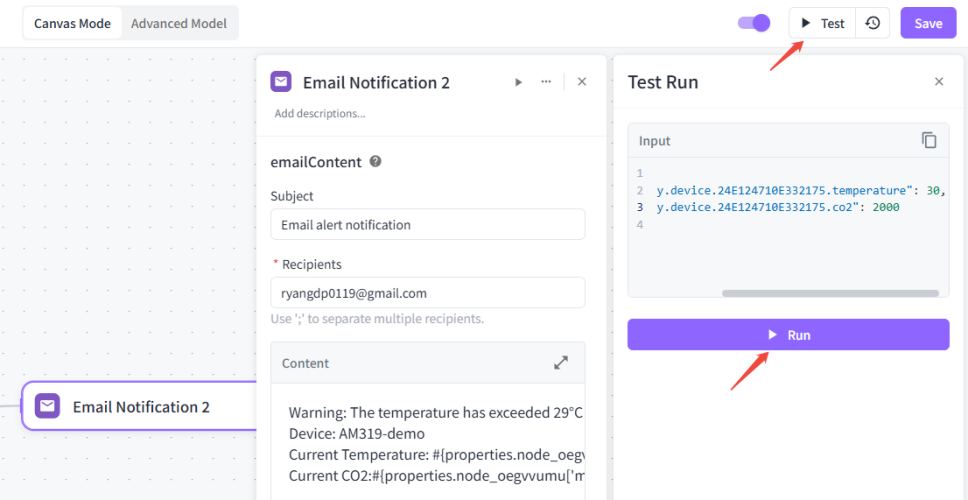
Add Email Notification and configure Content.
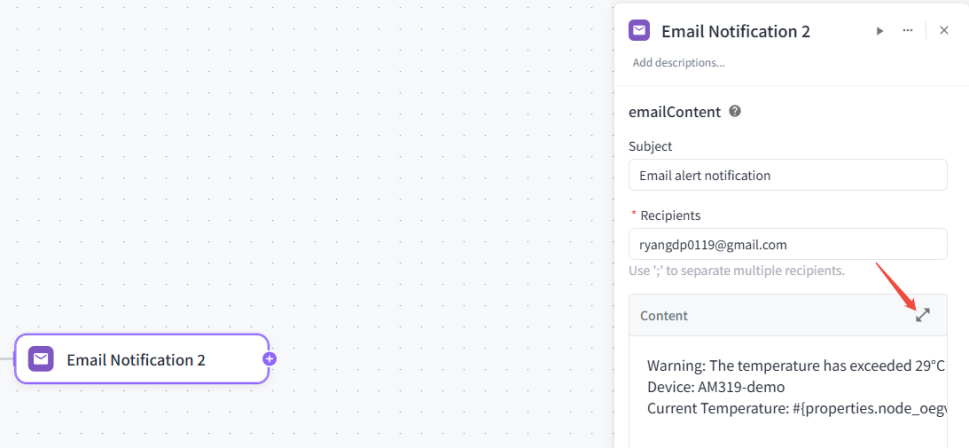
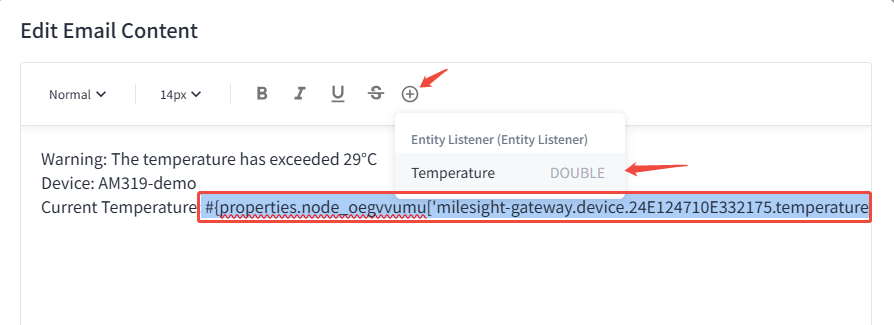
Variables can be referenced during configuration, allowing the current value to be reported, while other content can be customized.
After configuring the email content, start configuring the SMTP information. The figure below uses Gmail as an example.
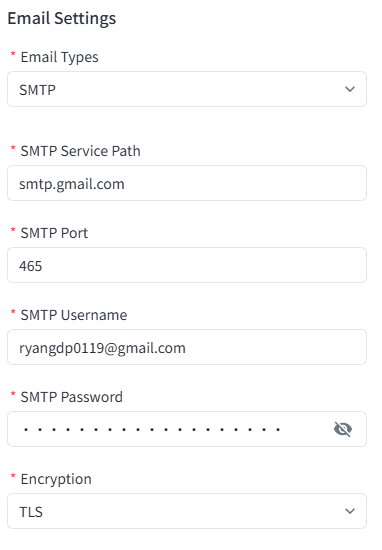
If this error occurs during configuration, first check whether the corresponding port is correct.
For Gmail, the SSL/TLS port is 465, and the StarTLS port is 587.
Then check if the SMTP password is correct. The SMTP password is usually a dedicated password, not your email login password. You need to use 2FA to generate a dedicated password.
Here are the steps for generating an app-specific password for Gmail:
- 1. Log in to your Google account: https://myaccount.google.com/apppasswords
- 2. Select the app type (e.g. “Mail”)
- 3. The system will generate a 16-digit password. Copy and use it as your SMTP login password.
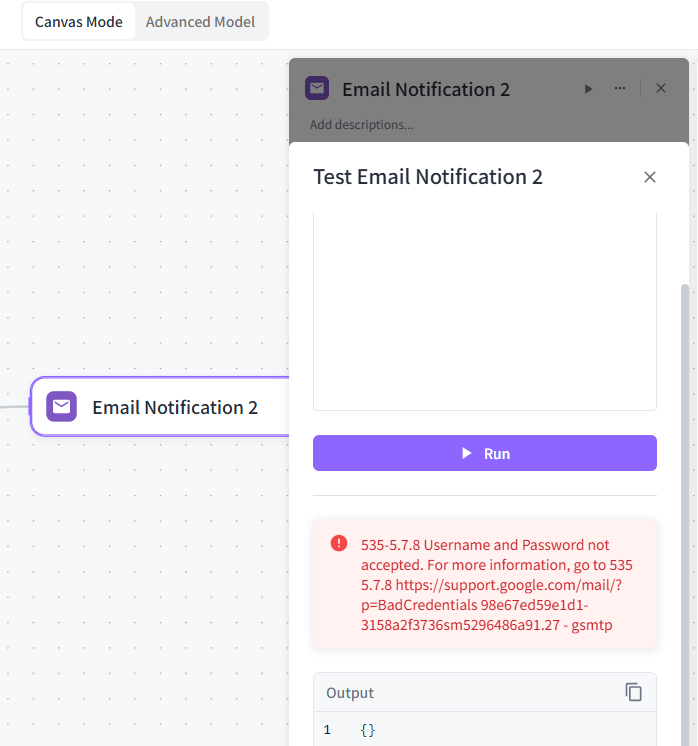
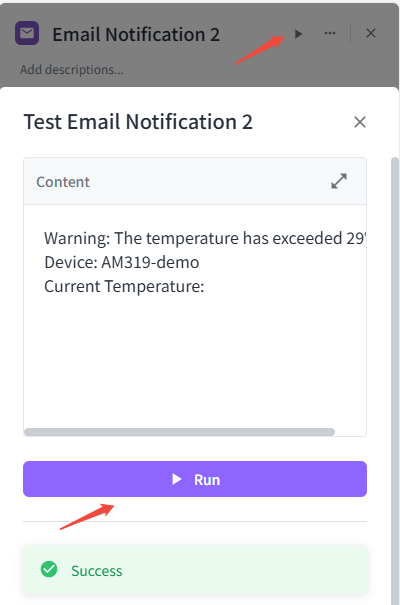
After reconfiguring, you can test whether the SMTP server is functioning properly.
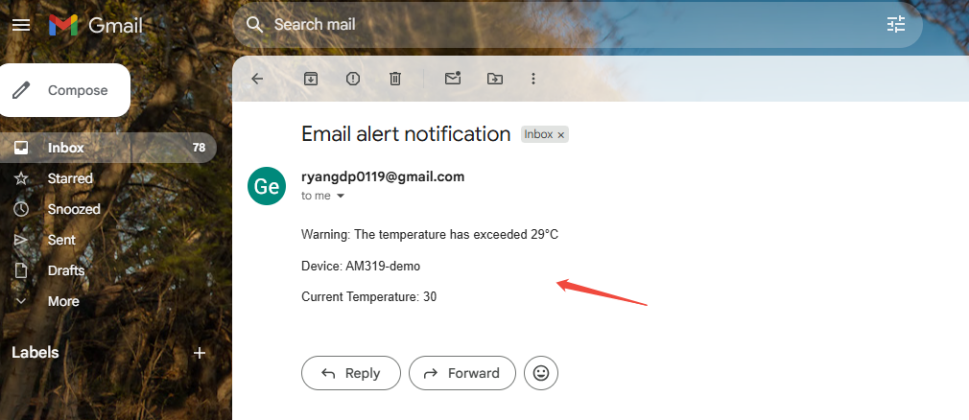
Once the configuration is complete, you can start testing, and you will receive the corresponding alert email in your mailbox.
Was this article helpful?
That’s Great!
Thank you for your feedback
Sorry! We couldn't be helpful
Thank you for your feedback
Feedback sent
We appreciate your effort and will try to fix the article