Description
Since models such as the VS135-P do not support Milesight Cloud, you can refer to this document and use Beaver IoT to perform people counting and capacity statistics across multiple devices.
Requirement
VS133 AI ToF People Counting Sensor
VS135 Ultra ToF People Counter
Configuration
Please install Beaver IoT first. For specific installation steps, please refer to the link below.
https://www.milesight.com/beaver-iot/docs/user-guides/installation/
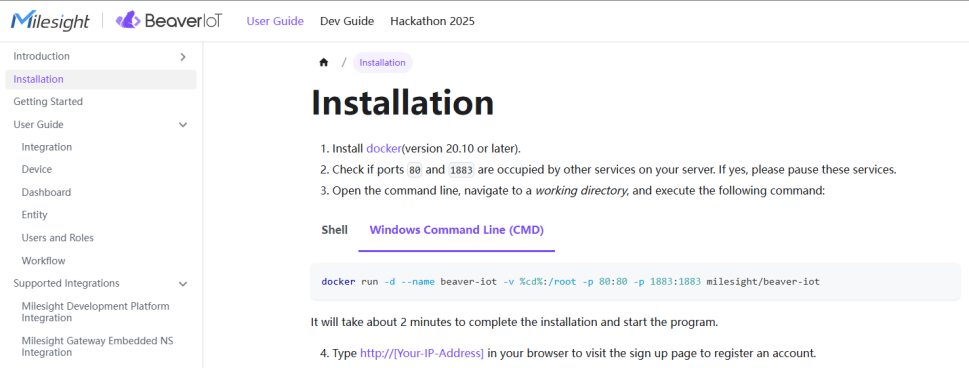
1.Create a installation
After installation, add integration, select the path to be integrated, and add devices after inheritance.
https://www.milesight.com/beaver-iot/docs/user-guides/published-integrations/
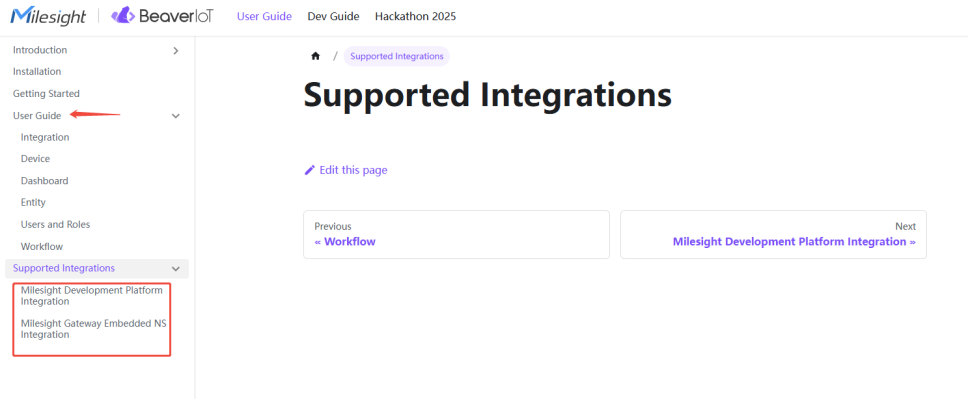
Note: If you encounter any issues during integration or device addition that cannot be resolved by the user guide, please contact the Milesight support team.
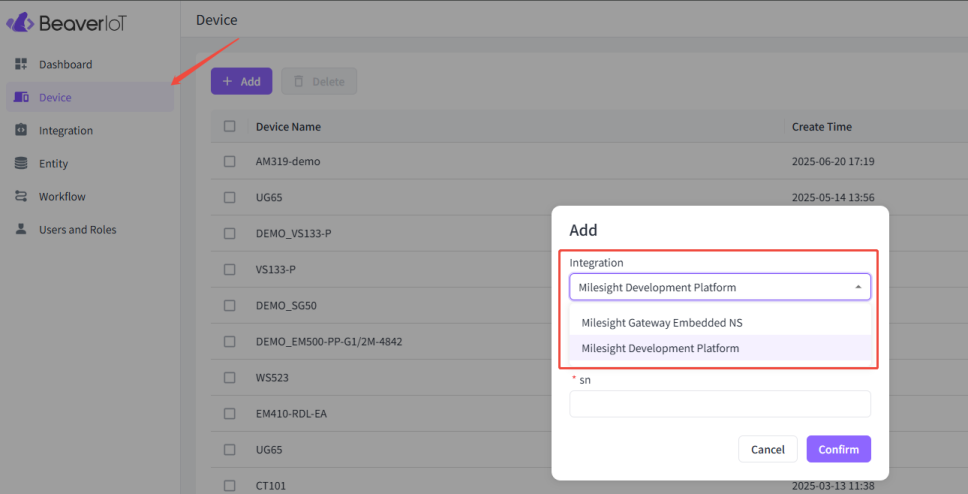
2.Add device
When adding a device, select the integration you created at that time for packet forwarding.
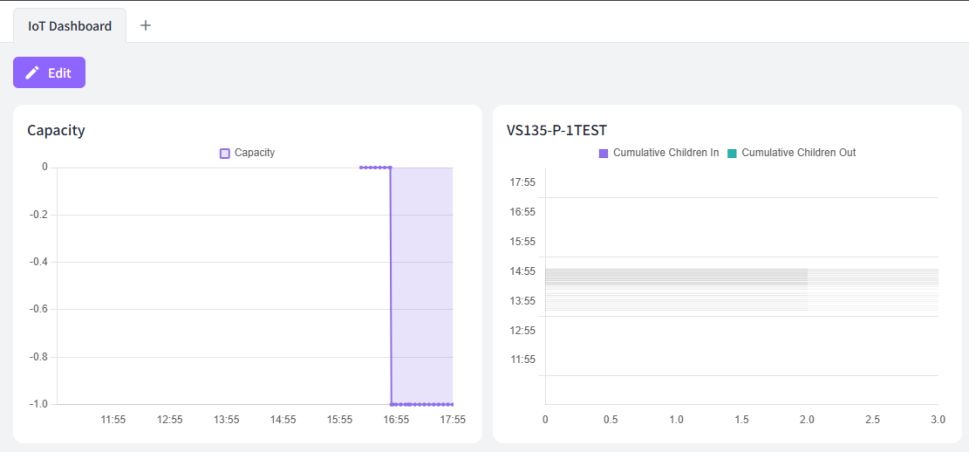
After adding it, you can create a dashboard to display the data in the current report.
3.Create workflow
After creation, select Entity Listener.
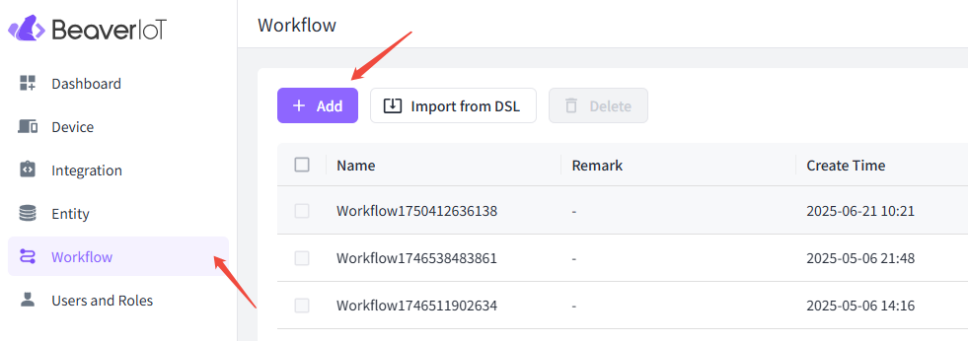
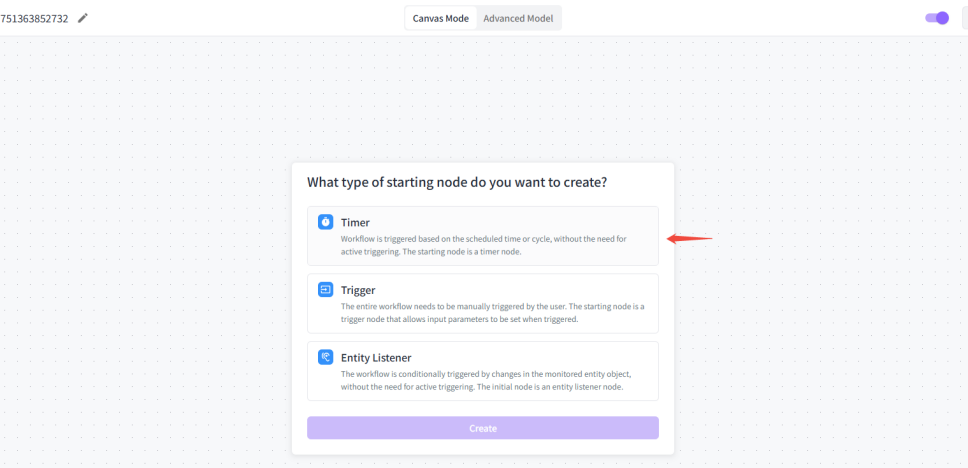
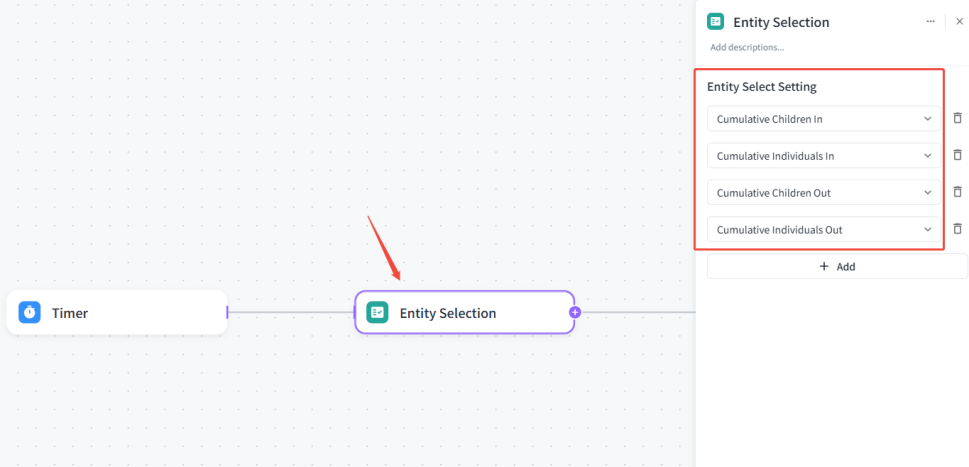
4.Add Entity Selection and configure entity content.
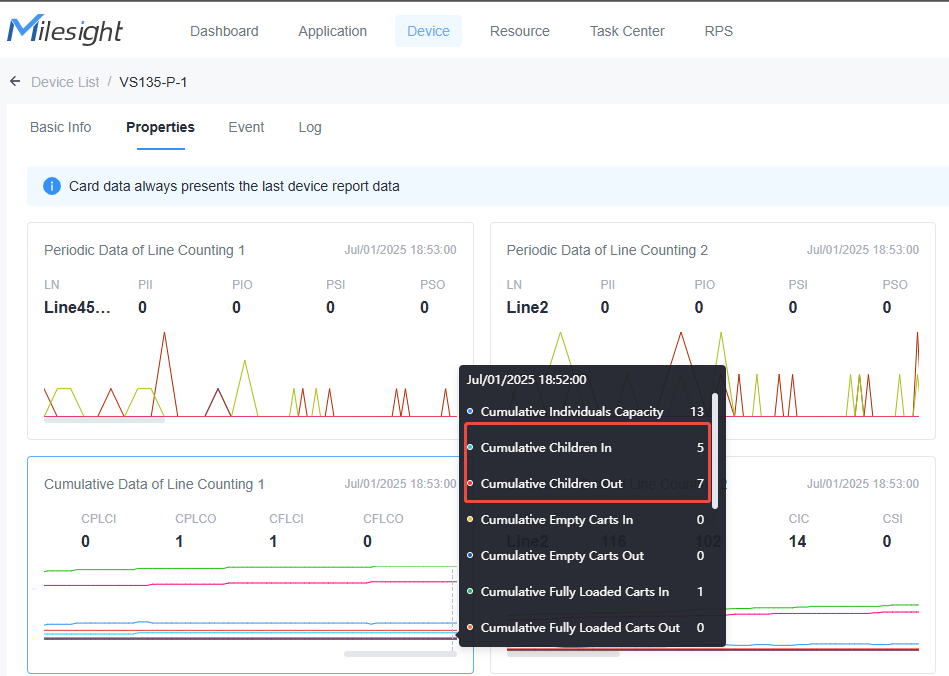
Let's take cumulative children in and out as examples. In the entity select, find the content reported by the device on the development platform.
Take two devices as an example, and add the “in” and “out” data for each device.
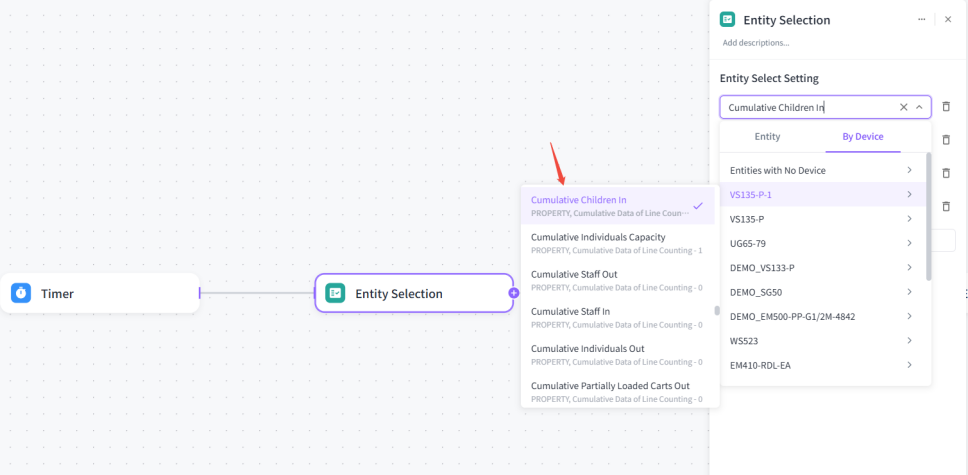
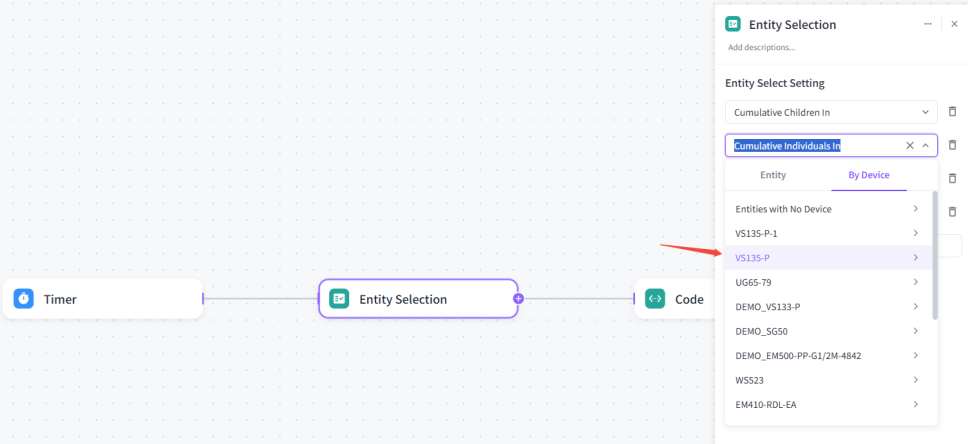
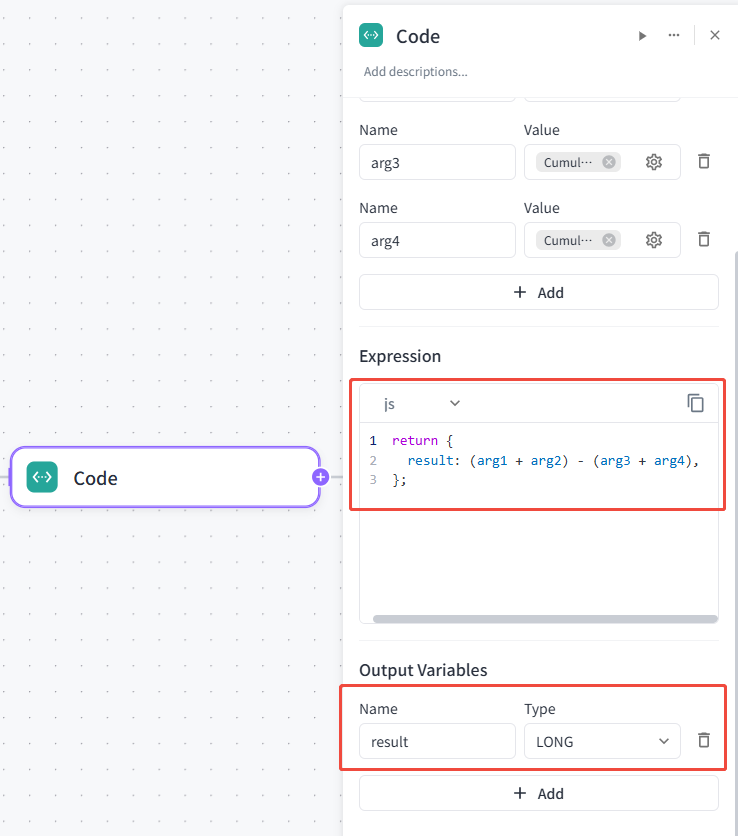
5. Add a code node and add the corresponding Entity Selection in the value of Input Arguments.
We initially created a total of four entity selections, so we added the four entity selections to the corresponding values.
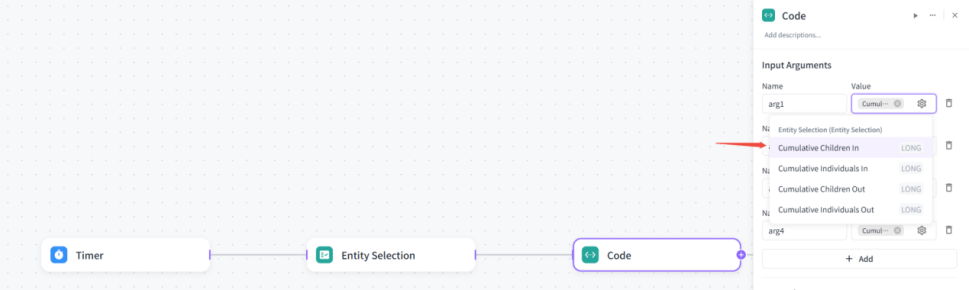
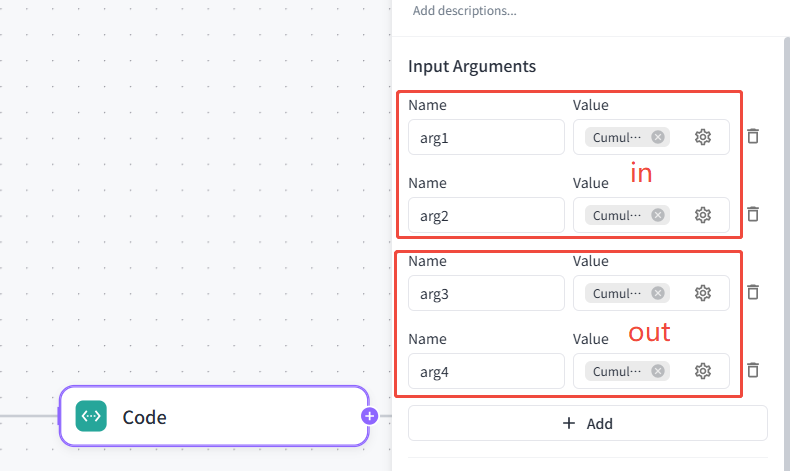
Write the corresponding calculation script in Expression, then select the corresponding output variables.
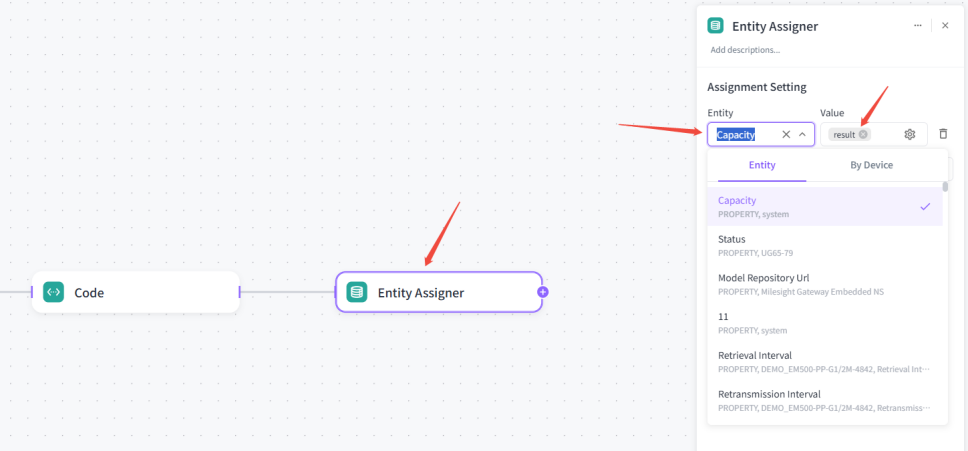
6.Finally, the calculation results are output to an entity assigner.
Select the entity you want to output in Assignment Setting. This entity can be created in Entity on the platform.
If you don't know how to create an entity, please refer to the manual below.

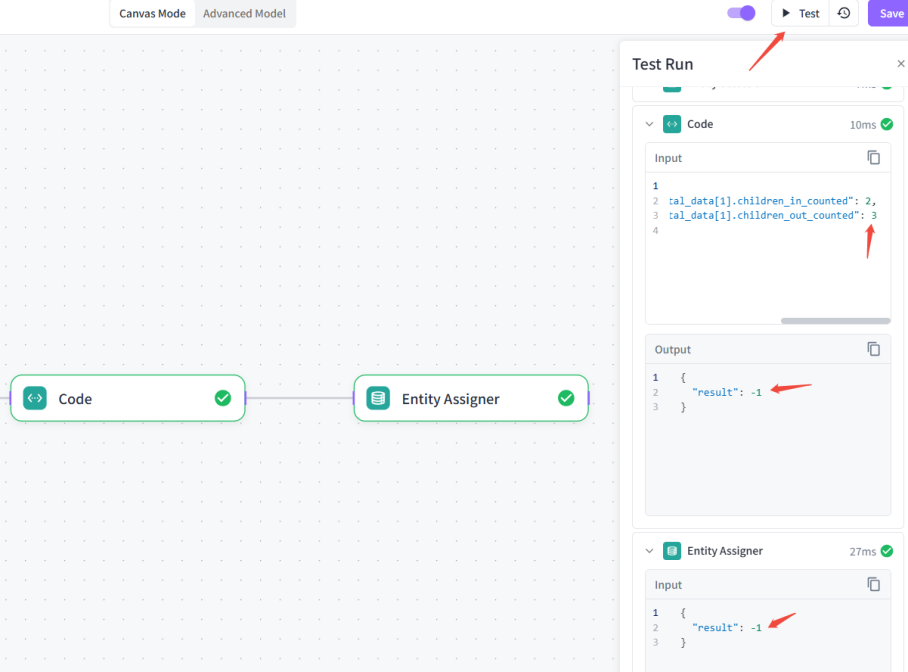
After configuration is complete, click “Test” to check whether the output values are correct.
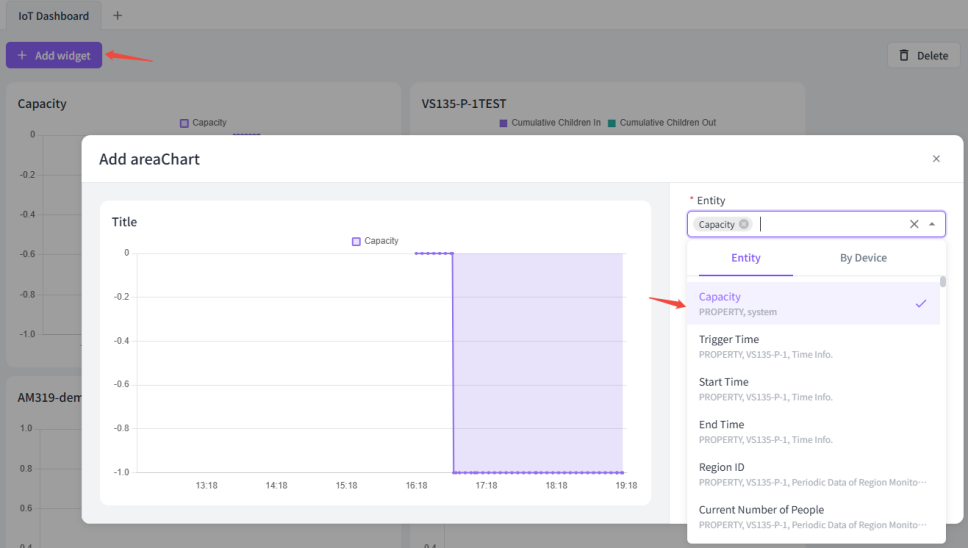
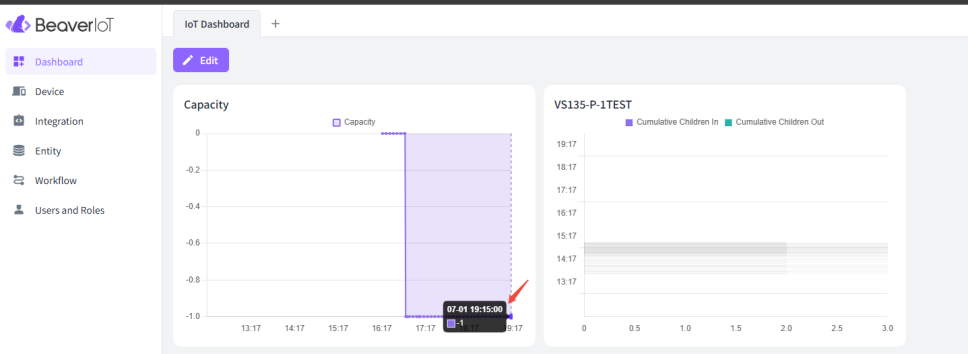
Now, go back to the dashboard, click “Add Widget,” create a chart type, select the corresponding Capacity entity, save it, and you will see the corresponding output content.
---END---
Was this article helpful?
That’s Great!
Thank you for your feedback
Sorry! We couldn't be helpful
Thank you for your feedback
Feedback sent
We appreciate your effort and will try to fix the article