Description
This article demonstrates how to use the iptables feature on a Milesight router to restrict access to a specific port to only allow access from a specific IP address.
Requirement
- Milesight Router : UR3X
Configuration
Step 1: Go to Network->Firewall->Custom Rules
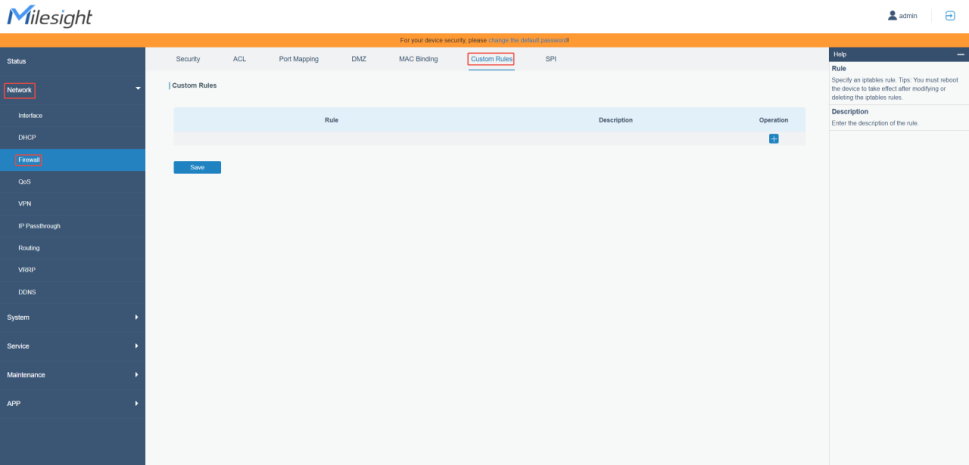
Take an example:
Configure IPtables rules to only allow 192.168.45.159 to access port 80 of the router, that is, to only allow specific IP addresses to control the router to achieve security protection.
In your case, you can modify the allowed target IP address or choose a different port to block third-party access.
Step 2: Put in the Iptables rules.
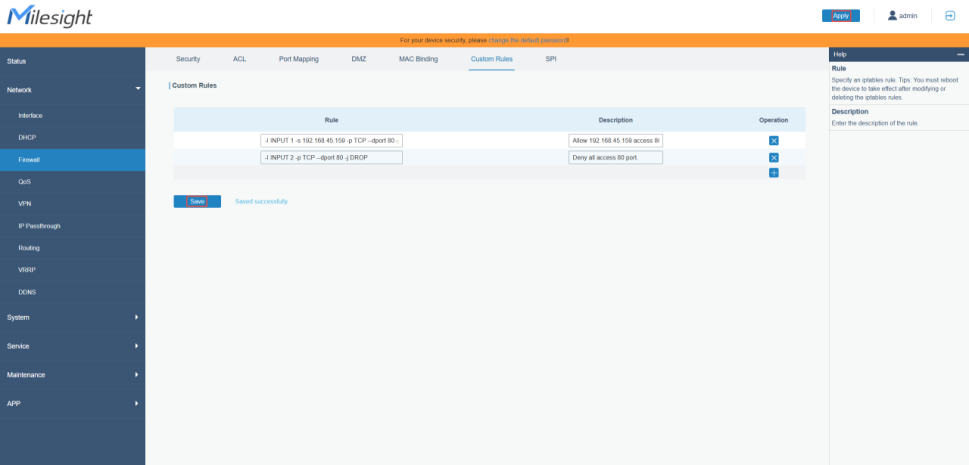
Fill in the rule you want to set, here we put in these rules.
-I INPUT 1 -s 192.168.45.159 -p TCP --dport 80 -j ACCEPT
-I INPUT 2 -p TCP --dport 80 -j DROP
This allow ip address 192.168.45.159 first, you could also change it to ip space(e.g. 192.168.45.0/24).
We need to insert the allow rule on the first row, otherwise if you put deny rule on the first row, all access would be denied.
Note: Remember to click save&apply to take effect.
If you click apply, the iptables rule would take effect immediately, if you delete a rule, you will need to reboot the device to take effect.
Step 3:Test whether IPtable rules take effect.
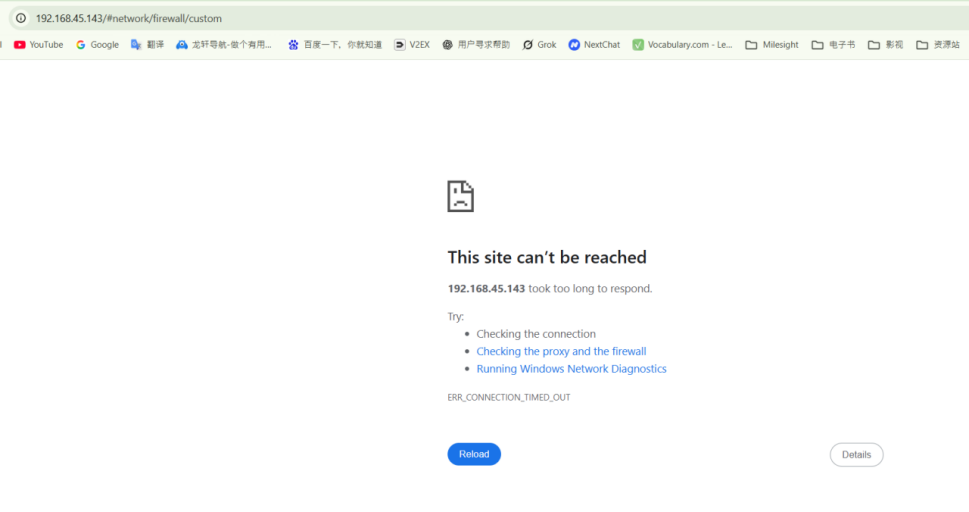
- 1. From other PC.(Can’t reach)
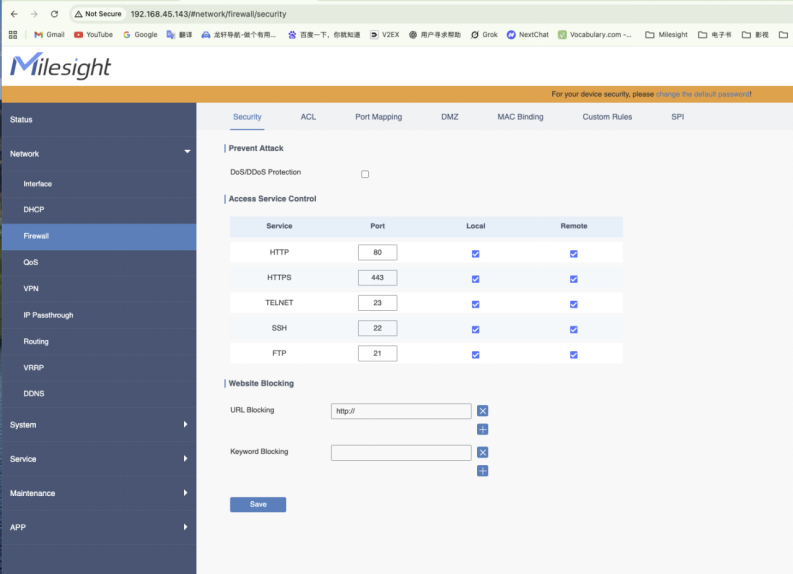
- 2. From 192.168.45.159(allowed)
Was this article helpful?
That’s Great!
Thank you for your feedback
Sorry! We couldn't be helpful
Thank you for your feedback
Feedback sent
We appreciate your effort and will try to fix the article