Description
This article describes how to use the Postman tool to obtain VS133-P/VS135-P report data through the HTTP API.
Requirement
- Milesight VS135 v1.0.9 version or above or VS133 version 1.0.9-r2 and above
- Postman Software
- A Windows System Computer
Configuration
Step 1. Download the latest API interface documentation from the official website
Step 2. Download Postman and learn how to call the API
Download and install Postman software installation from below link by browser first:
https://www.postman.com/downloads/
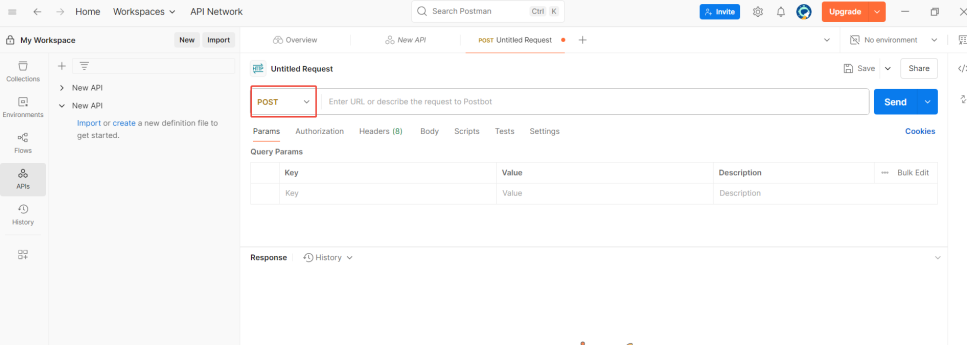
Open Postman, Click File > New > HTTP to create an API workbench. And change the request type to Post.
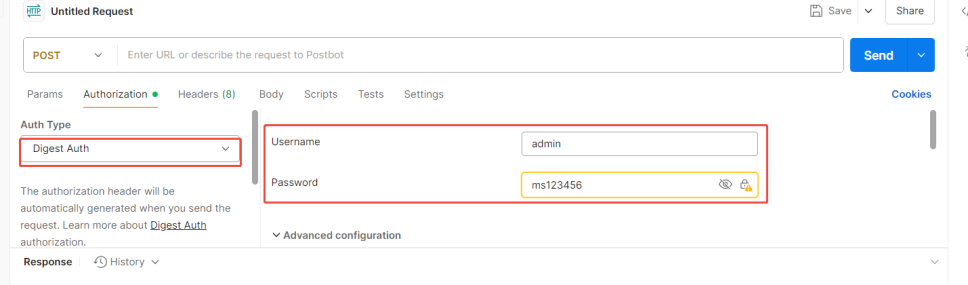
Select Digest Auth in the Authorization module, and enter the web Username and Web Password of the VS133-P/VS135-P.
Select the Body, raw module and fill in the requested content. And fill in the interface to be called in the Post.
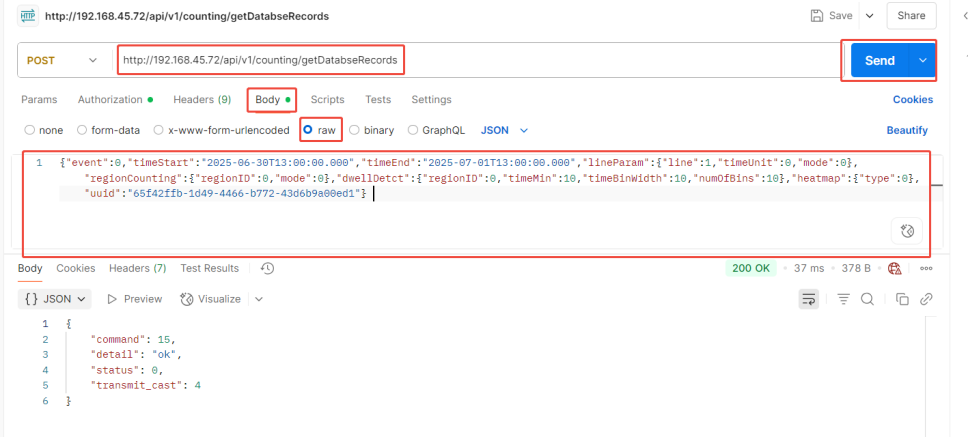
Step 3:To obtain the report data.
The interfaces to be used:
http://192.168.45.72/api/v1/counting/getDatabseRecords
http://192.168.45.72/api/v1/counting/getRecordsResult
The calling content can be referred to in the API Userguide mentioned above. It can also be obtained directly through the web debug interface. Here, I will take the web page acquisition method as an example
First, log in to the web interface of VS13X, and then click F12 to enter the debug interface of the browser. Select "Report > Network" to view the interface.
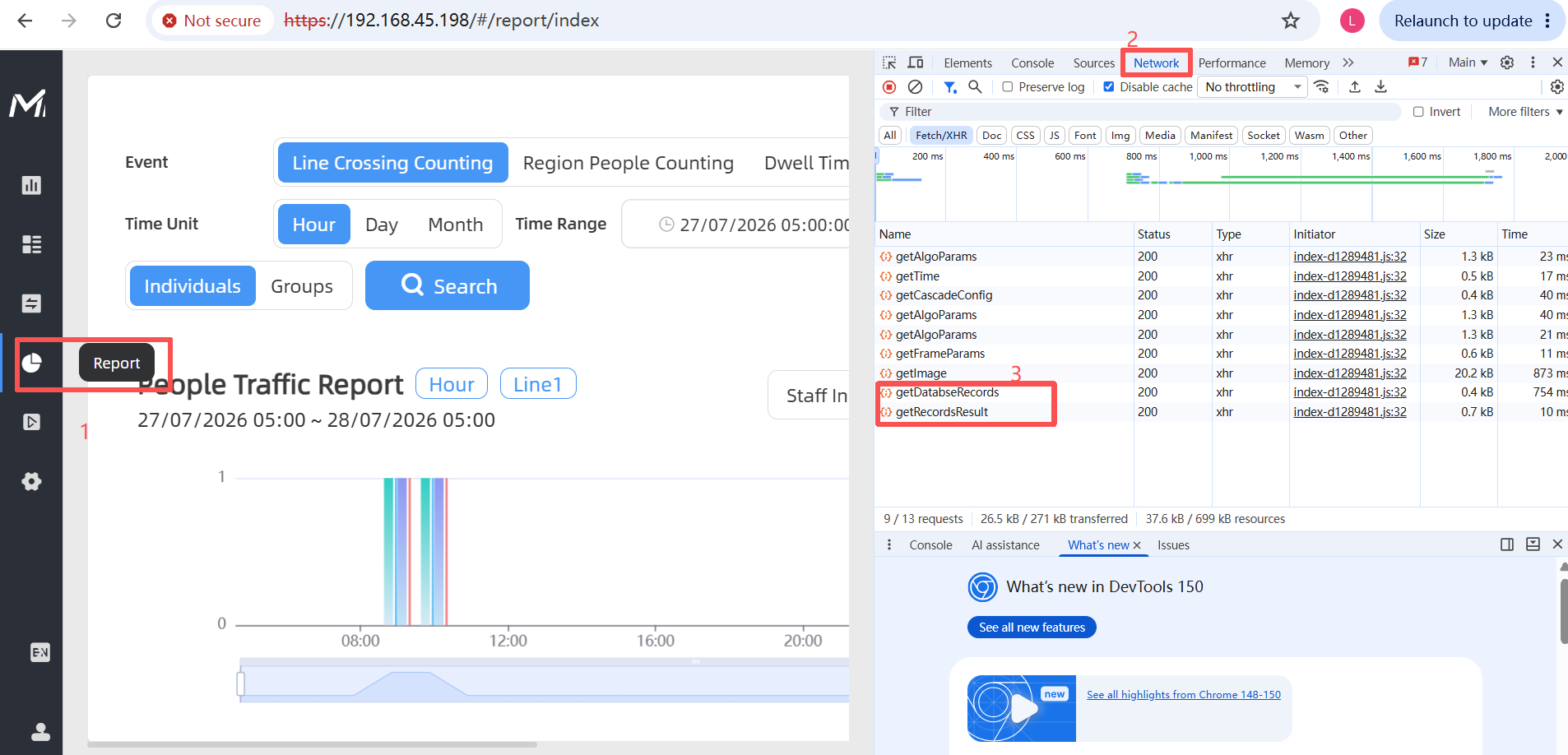
Click on "getDatabseRecords" > "Payload" > "View source", and you will be able to view the complete interface content of this query and copy it.
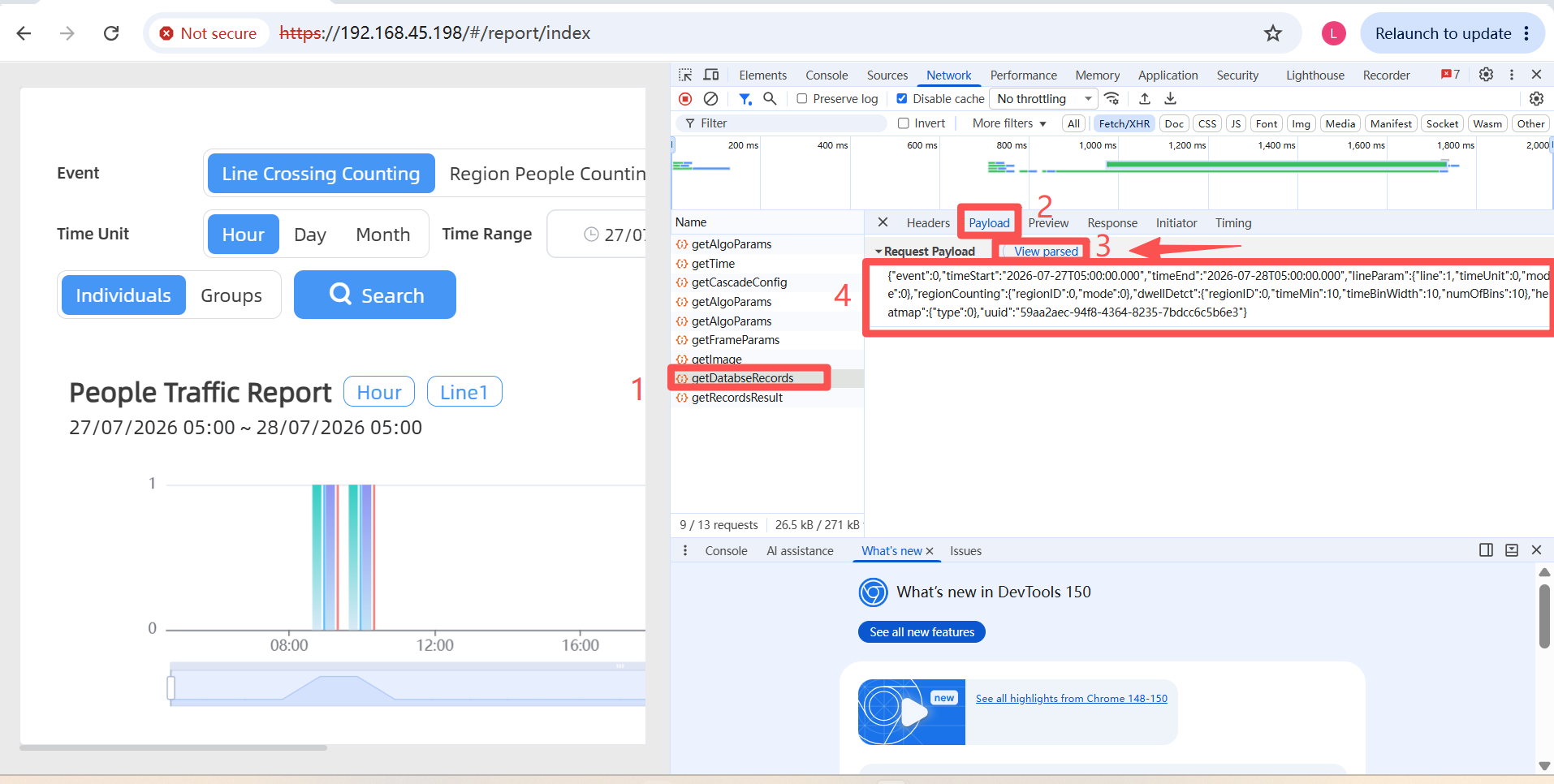
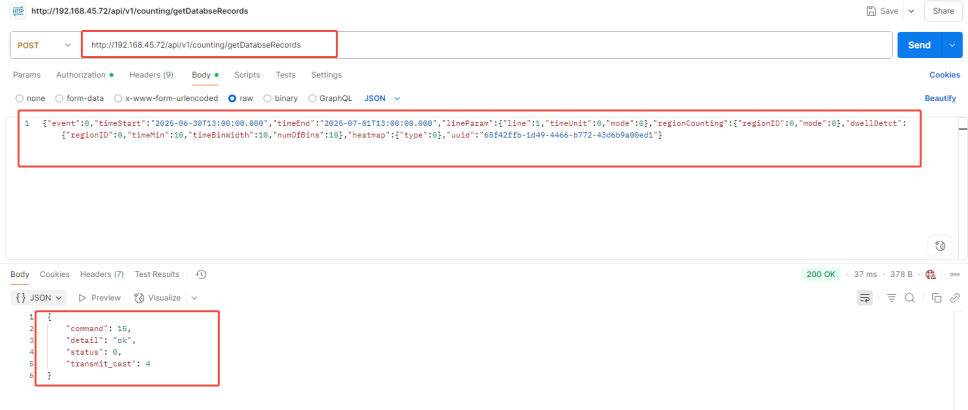
The getDatabseRecords interface needs to be called first. Among them, it is necessary to select the real data query time range and use any unique UUID
If the UUID obtained from the webpage has been called once. It needs to be manually changed to an un-called one, for example, by randomly modifying the UUID to a new value. Just make sure that the uuid of the two interfaces are the same.
{"event":0,"timeStart":"2025-06-30T13:00:00.000","timeEnd":"2025-07-01T13:00:00.000","lineParam":{"line":1,"timeUnit":0,"mode":0},"regionCounting":{"regionID":0,"mode":0},"dwellDetct":{"regionID":0,"timeMin":10,"timeBinWidth":10,"numOfBins":10},"heatmap":{"type":0},"uuid":"65f42ffb-1d49-4466-b772-43d6b9a00ed2"}
Create a new POST page to call the getRecordsResult interface. At this time, the same UUID must be used. Then the data corresponding to the time can be obtained.
{"uuid":"65f42ffb-1d49-4466-b772-43d6b9a00ed2","event":0}
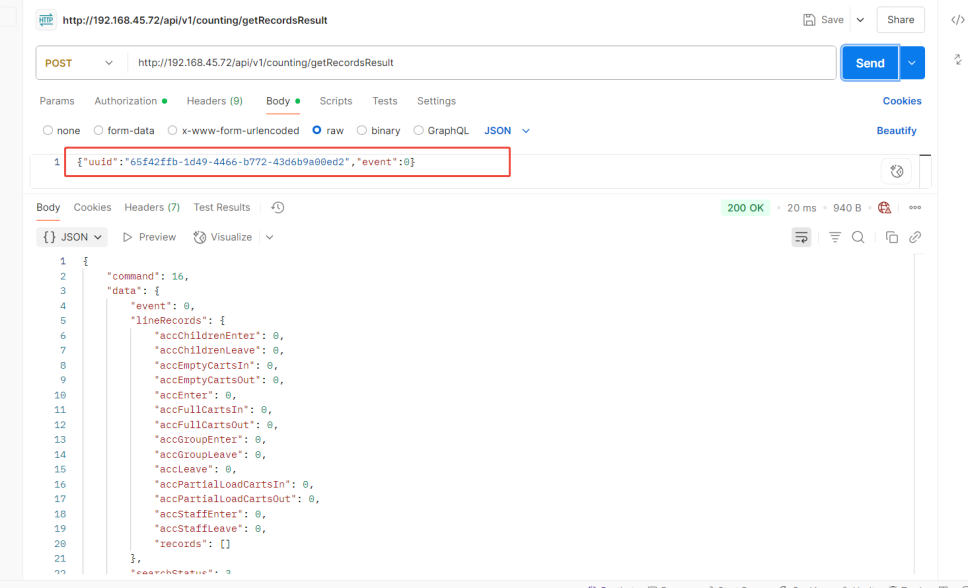
Note: After the UUID call is completed, if a query is needed again, the new UUID should be used to execute step 3 once more. And timeStart and timeEnd can be changed to actual times.
The specific format of the request content can be referred to the API documentation in step 1
-------END-----
Was this article helpful?
That’s Great!
Thank you for your feedback
Sorry! We couldn't be helpful
Thank you for your feedback
Feedback sent
We appreciate your effort and will try to fix the article