Description
This node-red example provides the solution to send data to Google Sheets .This document takes AM102 as an example and transmits time, temperature and humidity to google sheet
Requirement
- Milesight Gateway: UG56/UG65/UG67
- LoRawan Sensor
- Google sheet account and link
Configuration
Step 1: Launch Node-RED and Import Flow Example
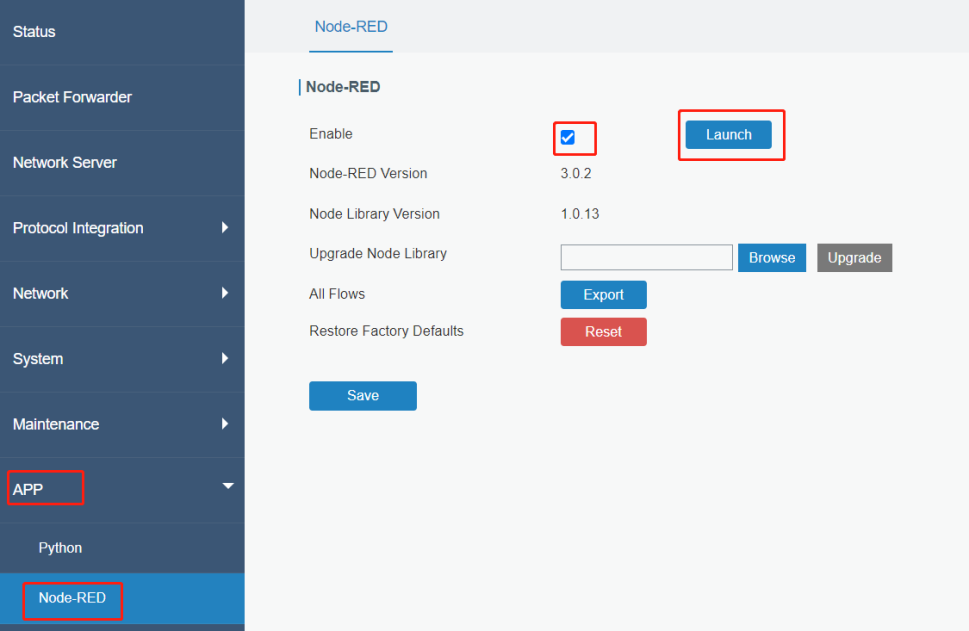
- 1. Go to App > Node-RED page to enable Node-RED program and wait for a while to load the program, click Launch button to start Node-RED web GUI.
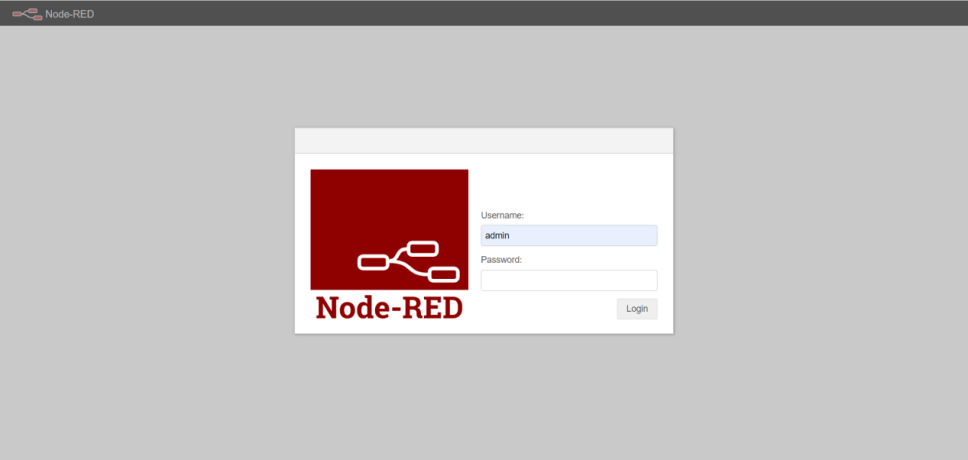
- 2. Log in the Node-RED web GUI. The account information is the same as gateway web GUI.
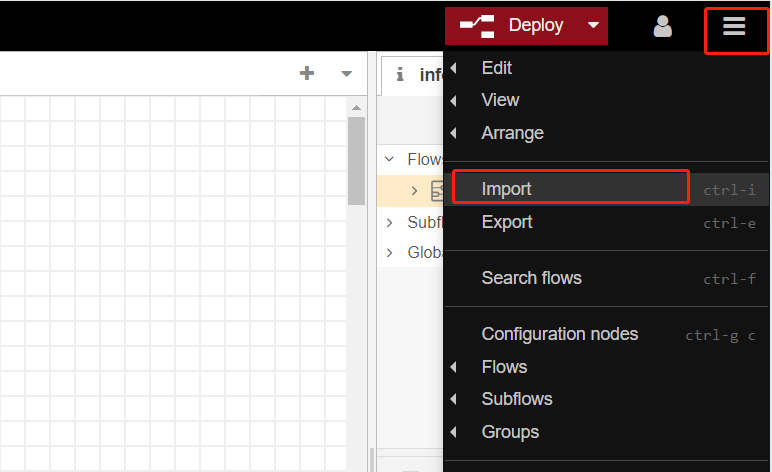
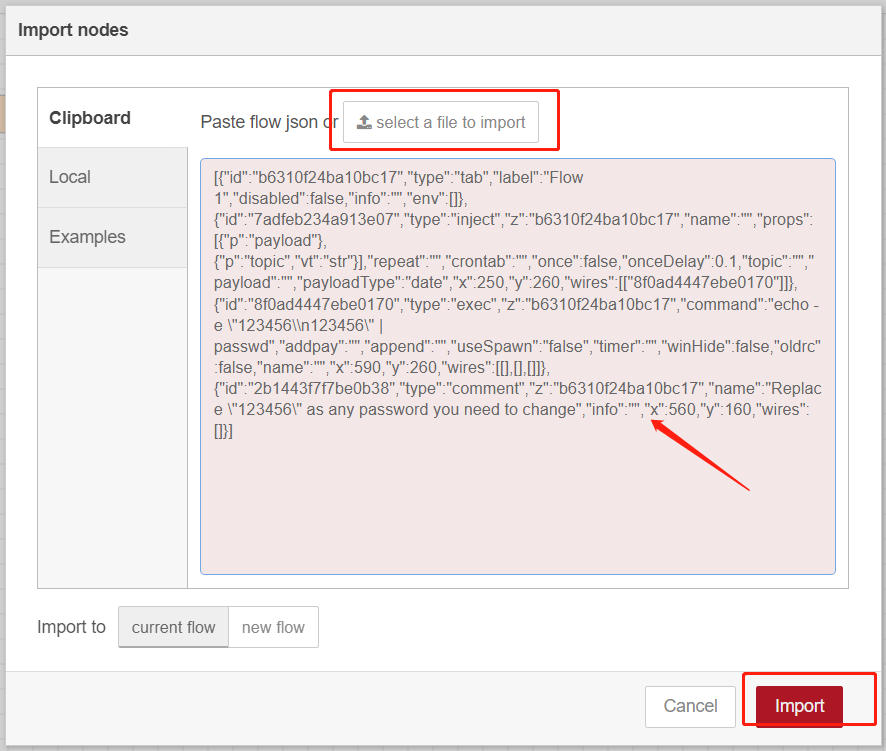
- 3. Click Import to import the node-red flow example by pasting the content or import the json format file.
Step 2:Google sheet configuration
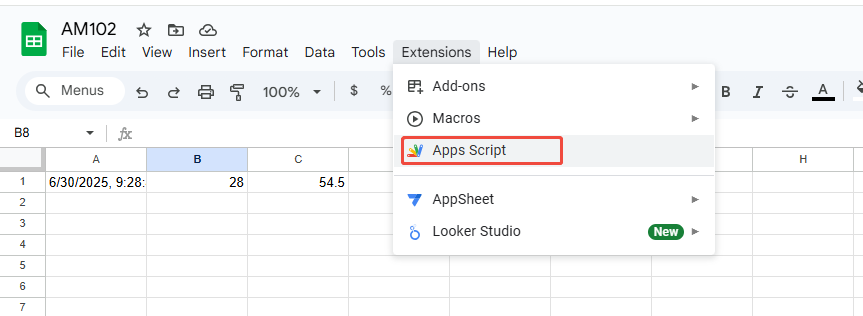
1).Open your Google Sheet
Click Menu: Extension → Apps Script
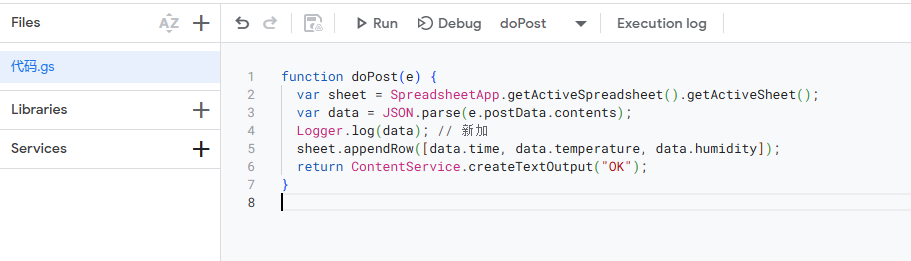
- 2) . Paste the following code.Fill in the parameters you need in sheet.appendRow in the format of data.x.
function doPost(e) {
var sheet = SpreadsheetApp.getActiveSpreadsheet().getActiveSheet();
var data = JSON.parse(e.postData.contents);
Logger.log(data); //
sheet.appendRow([data.time, data.temperature, data.humidity]);
return ContentService.createTextOutput("OK");
}
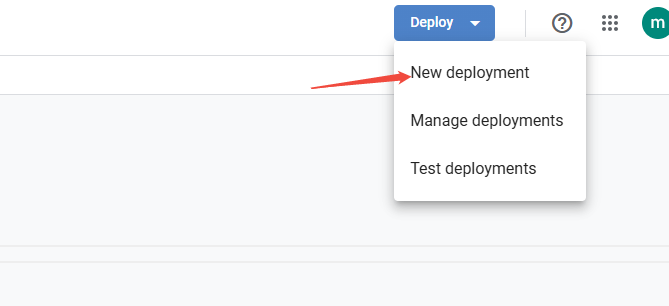
3). Save and deploy as a Web application
Click "Deploy" at the top right corner → "New Deployment"
Select type: Web application
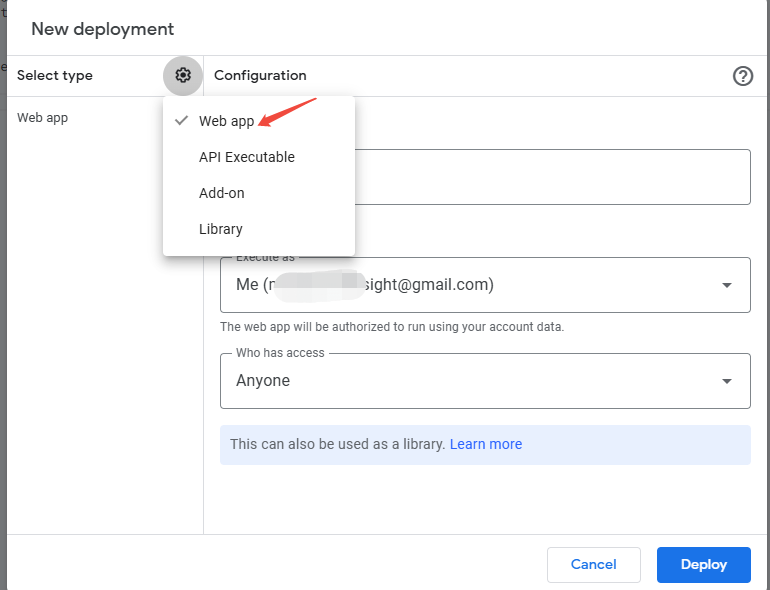
Fill in the instructions freely, and select the account you allow is access as the execution identity
Access permission selection for anyone (including anonymous access)
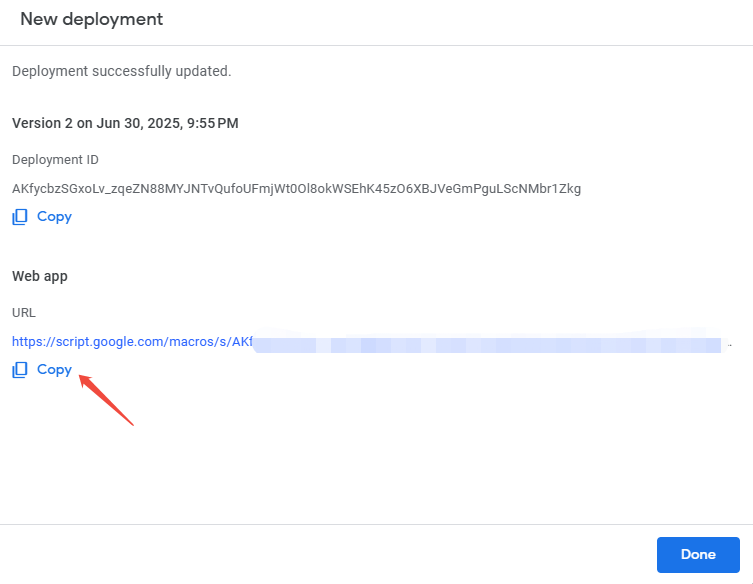
- 4) Click "Deploy". For the first time, you will be asked to authorize. Just follow the prompts to authorize.
After deployment will receive a link to Web applications (such as https://script.google.com/macros/s/xxxxxxx/exec)
Step 3: Node-RED Configuration
Flow structure:

Content:
[{"id":"42d7e9a1c48cf144","type":"tab","label":"流程 2","disabled":false,"info":"","env":[]},{"id":"cd9ecd6d31343e82","type":"http request","z":"42d7e9a1c48cf144","name":"","method":"POST","ret":"txt","paytoqs":"ignore","url":"https://script.google.com/macros/s/AKfycbwhPKWbdxi2Qoo4XDmnTgBQrGGZ5RNdZworDFFZvIEBSMtnBygUqzcuh5thxHQMEK88qg/exec","tls":"","persist":false,"proxy":"","insecureHTTPParser":false,"authType":"","senderr":false,"headers":[],"x":1000,"y":380,"wires":[[]]},{"id":"acf6d4e10f0460ca","type":"function","z":"42d7e9a1c48cf144","name":"format","func":"msg.headers = {};\nmsg.headers['Content-Type'] = 'application/json';\n\nmsg.payload = {\n time: (new Date()).toLocaleString(),\n temperature: msg.payload.temperature,\n humidity: msg.payload.humidity\n};\n\nreturn msg;\n","outputs":1,"noerr":0,"initialize":"","finalize":"","libs":[],"x":730,"y":380,"wires":[["cd9ecd6d31343e82","f45eaef6c25462cc"]]},{"id":"746b279ebef04a1c","type":"LoRa Input","z":"42d7e9a1c48cf144","name":"","devEUI":"","extendedField":"","x":140,"y":380,"wires":[["b0b6f0d2ccee5ba8"]]},{"id":"00ad2b86f7ac3648","type":"function","z":"42d7e9a1c48cf144","name":"decode","func":"/**\n * Payload Decoder\n *\n * Copyright 2024 Milesight IoT\n *\n * @product AM102 / AM102L\n */\n// Chirpstack v4\nfunction decodeUplink(input) {\n var decoded = milesightDeviceDecode(input.bytes);\n return { data: decoded };\n}\n\n// Chirpstack v3\nfunction Decode(fPort, bytes) {\n return milesightDeviceDecode(bytes);\n}\n\n// The Things Network\nfunction Decoder(bytes, port) {\n return milesightDeviceDecode(bytes);\n}\n\nfunction milesightDeviceDecode(bytes) {\n var decoded = {};\n\n for (var i = 0; i < bytes.length;) {\n var channel_id = bytes[i++];\n var channel_type = bytes[i++];\n // BATTERY\n if (channel_id === 0x01 && channel_type === 0x75) {\n decoded.battery = bytes[i];\n i += 1;\n }\n // TEMPERATURE\n else if (channel_id === 0x03 && channel_type === 0x67) {\n // ℃\n decoded.temperature = readInt16LE(bytes.slice(i, i + 2)) / 10;\n i += 2;\n\n // ℉\n // decoded.temperature = readInt16LE(bytes.slice(i, i + 2)) / 10 * 1.8 + 32;\n // i +=2;\n }\n // HUMIDITY\n else if (channel_id === 0x04 && channel_type === 0x68) {\n decoded.humidity = bytes[i] / 2;\n i += 1;\n }\n // HISTORY DATA\n else if (channel_id === 0x20 && channel_type === 0xce) {\n var data = {};\n data.timestamp = readUInt32LE(bytes.slice(i, i + 4));\n data.temperature = readInt16LE(bytes.slice(i + 4, i + 6)) / 10;\n data.humidity = bytes[i + 6] / 2;\n i += 7;\n\n decoded.history = decoded.history || [];\n decoded.history.push(data);\n } else {\n break;\n }\n }\n\n return decoded;\n}\n\n/* ******************************************\n * bytes to number\n ********************************************/\nfunction readUInt16LE(bytes) {\n var value = (bytes[1] << 8) + bytes[0];\n return value & 0xffff;\n}\n\nfunction readInt16LE(bytes) {\n var ref = readUInt16LE(bytes);\n return ref > 0x7fff ? ref - 0x10000 : ref;\n}\n\nfunction readUInt32LE(bytes) {\n var value = (bytes[3] << 24) + (bytes[2] << 16) + (bytes[1] << 8) + bytes[0];\n return (value & 0xffffffff) >>> 0;\n}\n\nfunction readInt32LE(bytes) {\n var ref = readUInt32LE(bytes);\n return ref > 0x7fffffff ? ref - 0x100000000 : ref;\n}\nvar buffer = Buffer.from(msg.payload, 'base64');\nvar aa = Decoder(buffer);\nmsg.payload = aa;\nmsg.buffer = buffer;\nreturn msg;","outputs":1,"noerr":0,"initialize":"","finalize":"","libs":[],"x":540,"y":380,"wires":[["acf6d4e10f0460ca"]]},{"id":"b0b6f0d2ccee5ba8","type":"Device Filter","z":"42d7e9a1c48cf144","name":"","eui":"24E124725E282933","x":330,"y":380,"wires":[["00ad2b86f7ac3648"]]},{"id":"f45eaef6c25462cc","type":"debug","z":"42d7e9a1c48cf144","name":"debug 43","active":true,"tosidebar":true,"console":false,"tostatus":false,"complete":"false","statusVal":"","statusType":"auto","x":880,"y":280,"wires":[]}] |
- 1) LoRa Input : To get all uplink message from Sensor in network server.
- 2) Device Filter: Filter device by Device EUI. Here we need configure it to filter the sensor EUI.
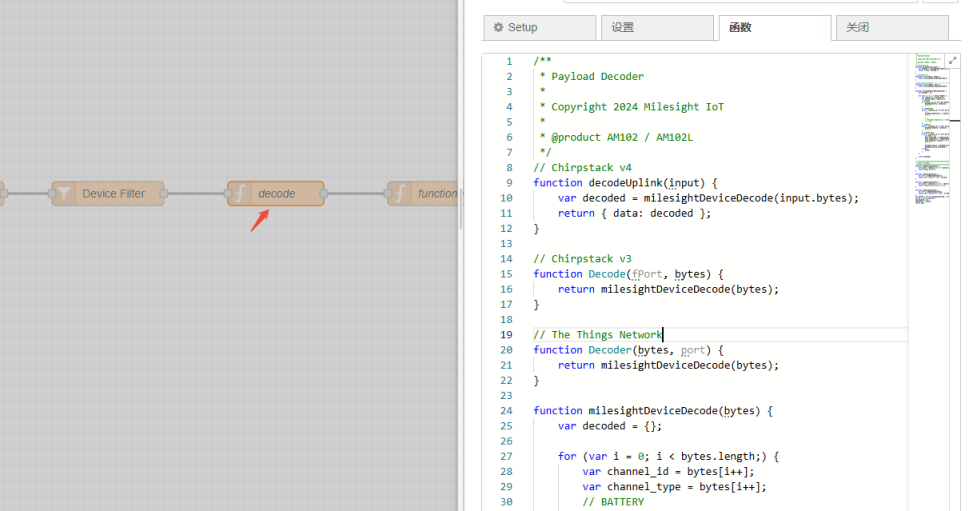
- 3) Function(Decode):This function is used for decoding data. In the example, it is the payload of AM102. If other sensors are used, you can refer to this document for modification.
https://support.milesight-iot.com/support/solutions/articles/73000535734-how-to-use-decoder-on-node-red
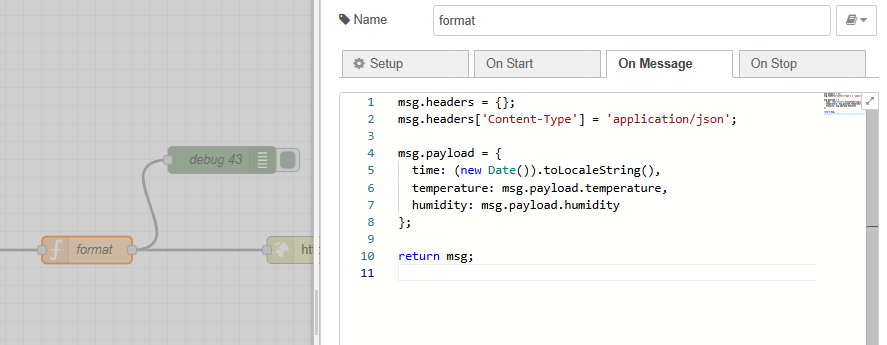
- 4) Function(format):This function is used to standardize the passed data structure (add timestamps and extract valid fields).You can add the parameters that need to be passed to msg.payload.
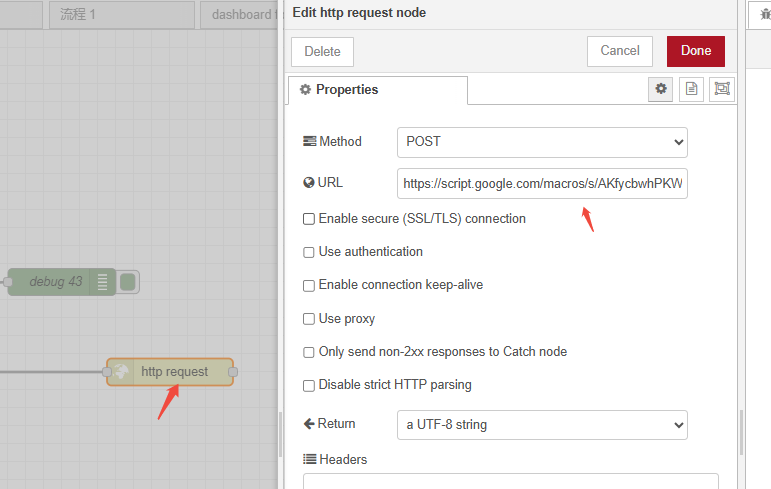
5)Http request:To copy the STEP 2 links (https://script.google.com/macros/s/xxxxxxx/exec) in the URL.Then click "done"
- 5) Debug:Displays selected message properties in the debug sidebar tab and optionally the runtime log. By default it displays msg.payload, but can be configured to display any property, the full message or the result of a JSONata
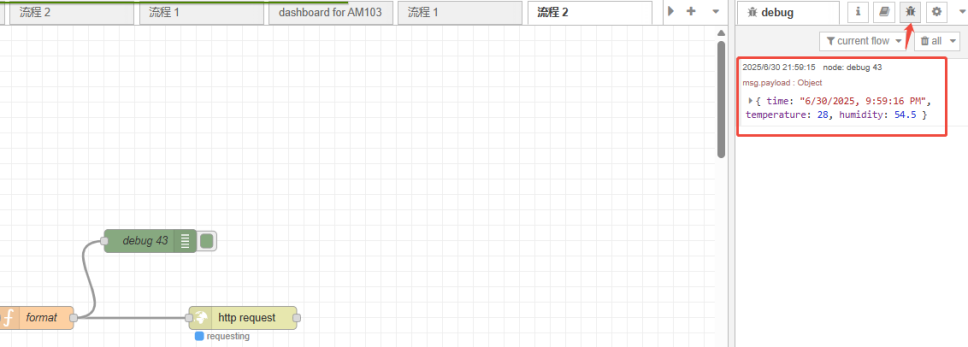
Step 4: Deploy and Check Result
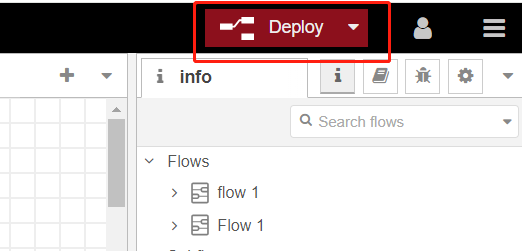
- 1. Click Deploy to save all node-red configurations.
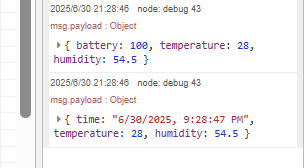
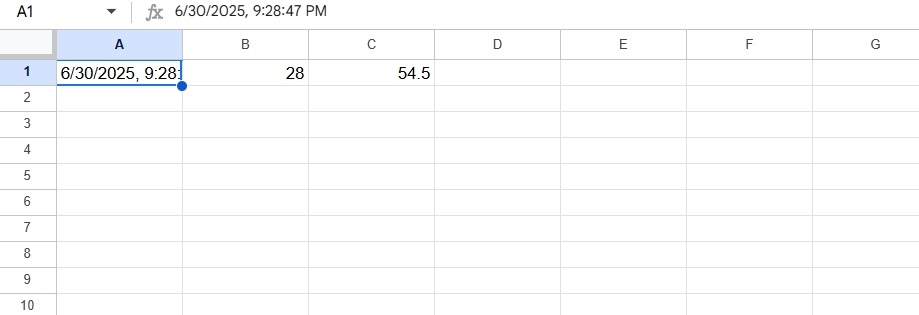
2.When a new packet from the sensor is reported, you can see the data in the node-red debugging as well as in the google sheet.
-------END-----
Was this article helpful?
That’s Great!
Thank you for your feedback
Sorry! We couldn't be helpful
Thank you for your feedback
Feedback sent
We appreciate your effort and will try to fix the article