Description
Since some of Milesight’s new products do not yet have templates on Datacake, the devices cannot be directly parsed or displayed as online after being added to Datacake. This article will introduce how to add Milesight devices without templates to Datacake, and how to parse and display their data.
Requirement
- Milesight LoRaWAN Gateway:UG56,UG6x
- Milesight LoRaWAN Sensor
Configuration
Step 1: Add gateway to the platform
You will first need to register a Datacake account and add the gateway to Datacake. For this part, you can refer to our existing article: Datacake Platform-Milesight Gateway Integration
Step 2: Add sensor devices to the platform
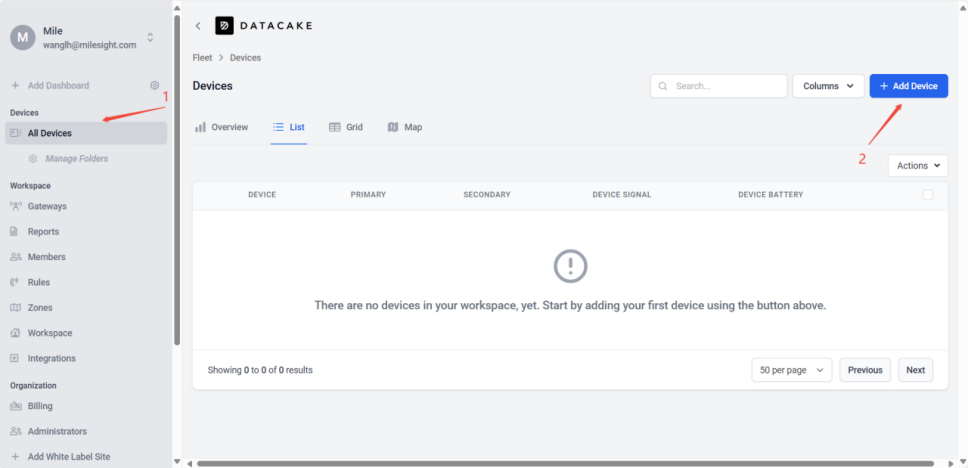
Since this article focuses on Milesight sensors without templates, the steps for adding them are slightly different. The details are as follows.
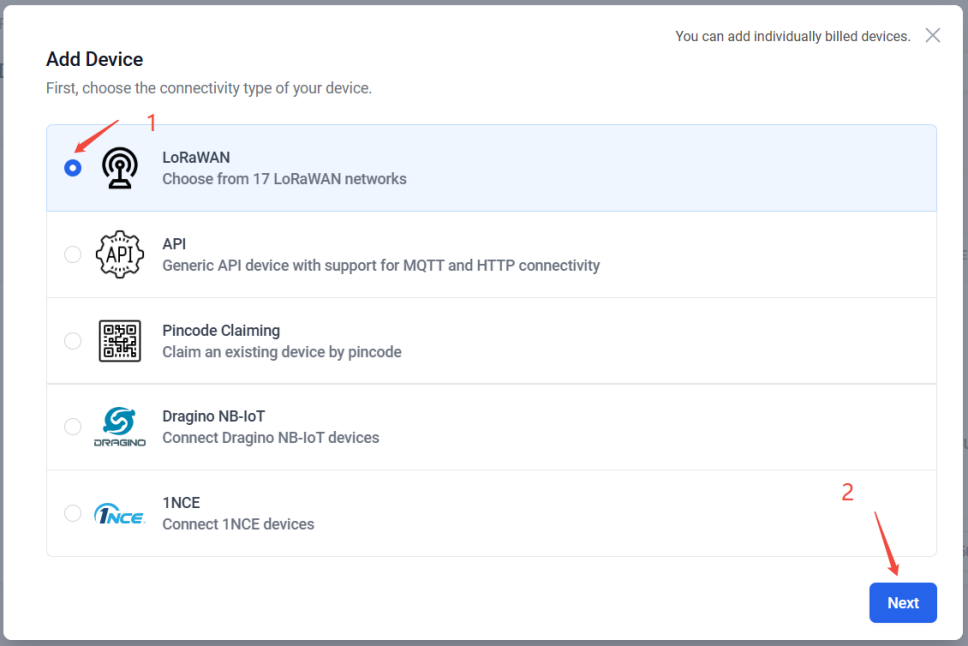
In the pop-up window, select the LoRaWAN option:
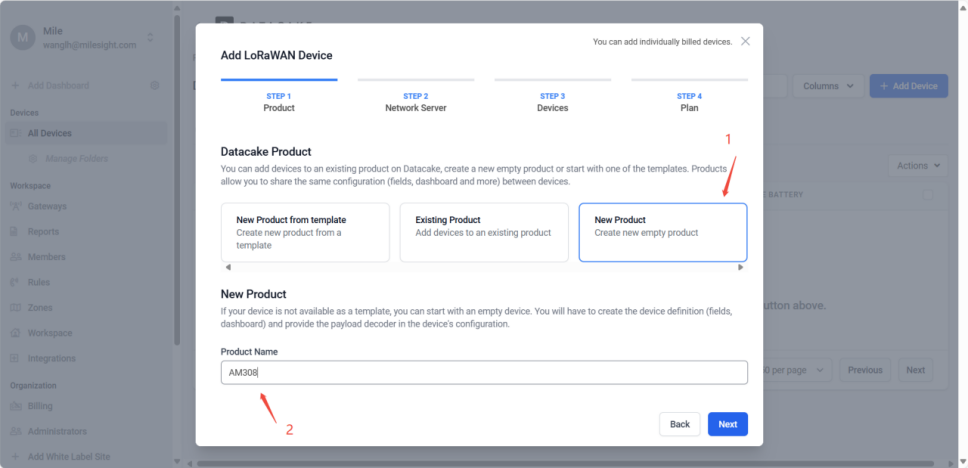
Select New Product and customize the Product Name.
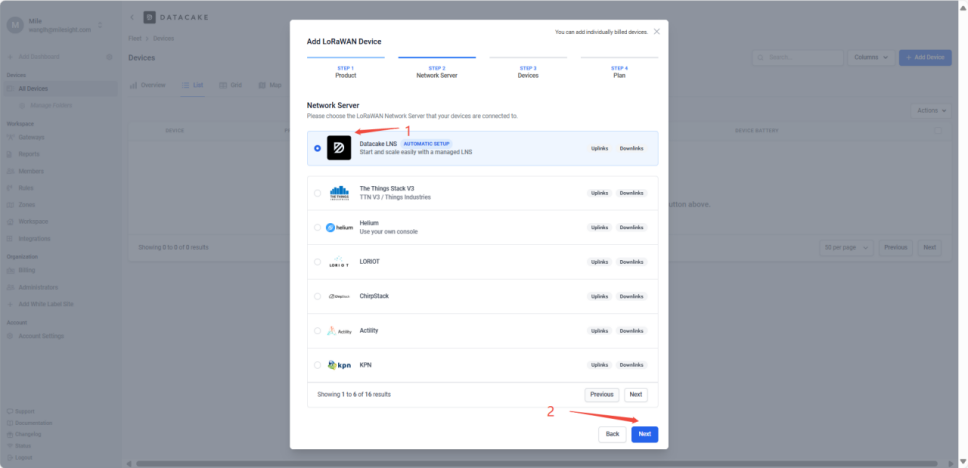
Select Datacake LNS.
Enter the sensor information such as DEVEUI. You can obtain this information by scanning the sensor with the Toolbox app on your phone. Here, we take the AM308 as an example.
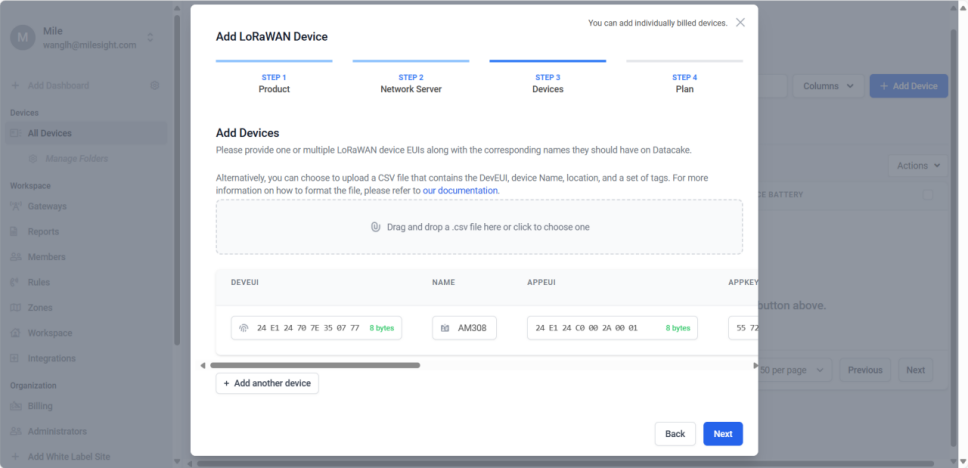
Click Next, then choose the appropriate plan.
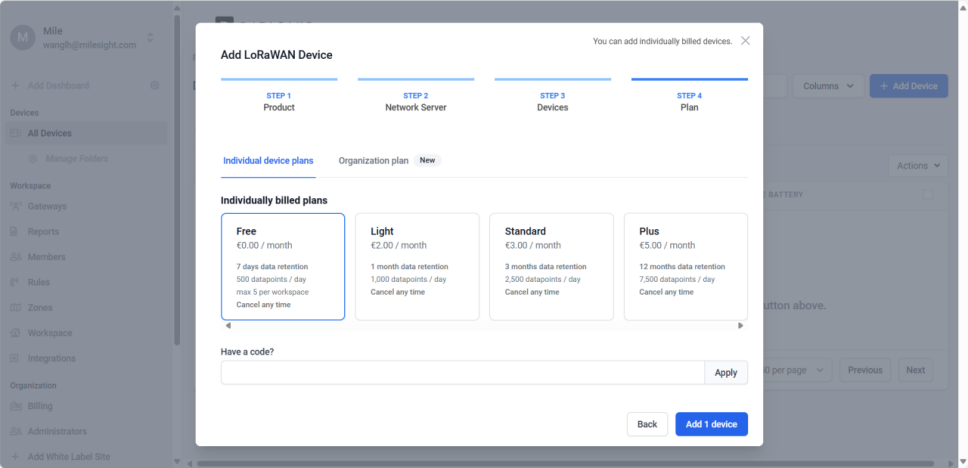
Since this guide uses the Free version, you may select the option that best suits your needs:
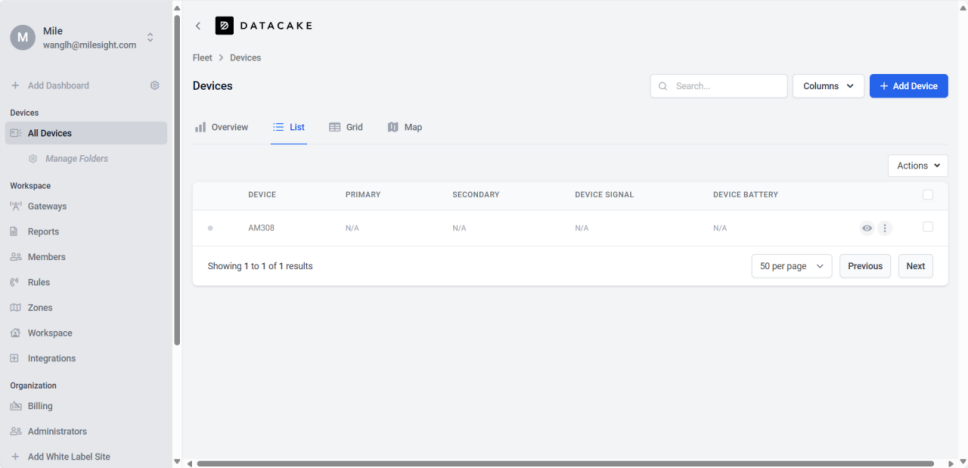
Step 3: Configure the sensor after it has been added.
After adding the sensor, restarting the device via Toolbox allows it to go online quickly. But since the added device does not have a template, the decoder and other configurations required for data parsing need to be added manually.
- 1. Manually add the decoder.
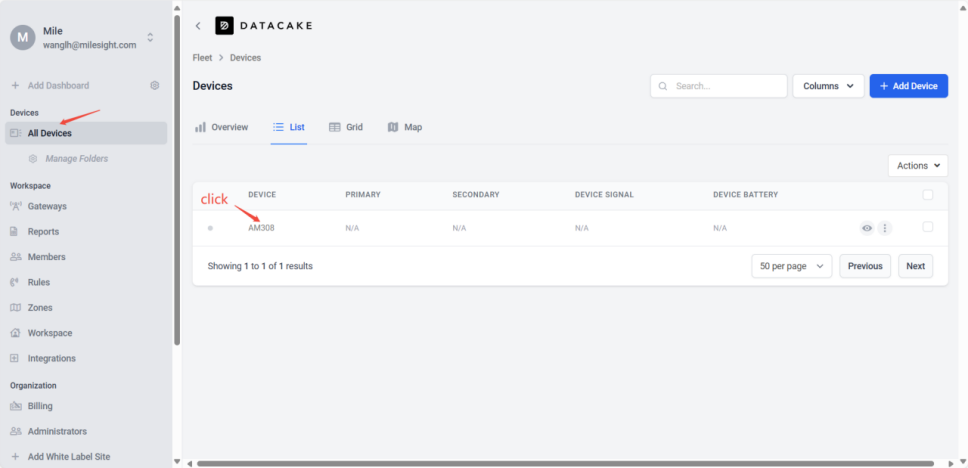
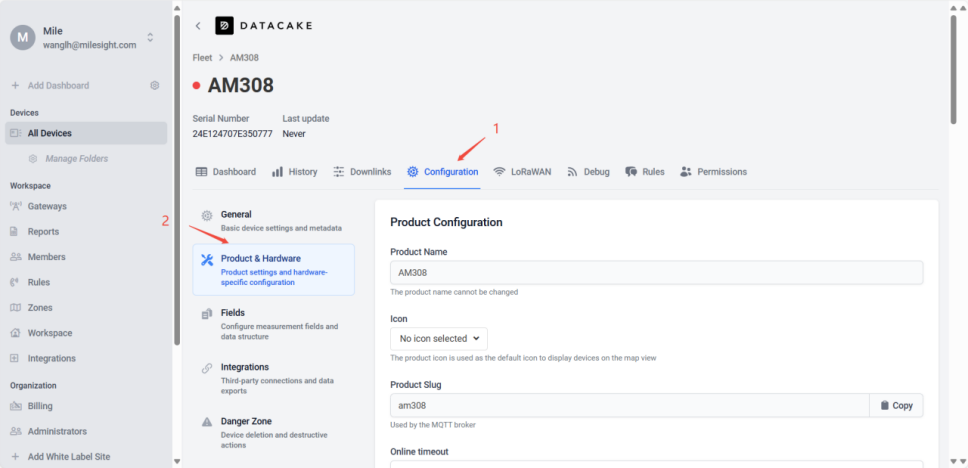
Select Configuration → Product & Hardware in sequence.
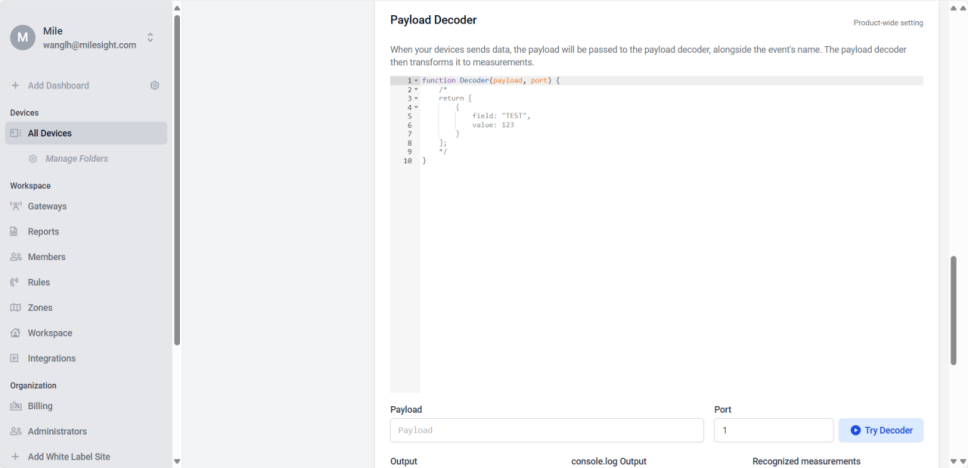
Scroll down the page to find Payload Decoder.
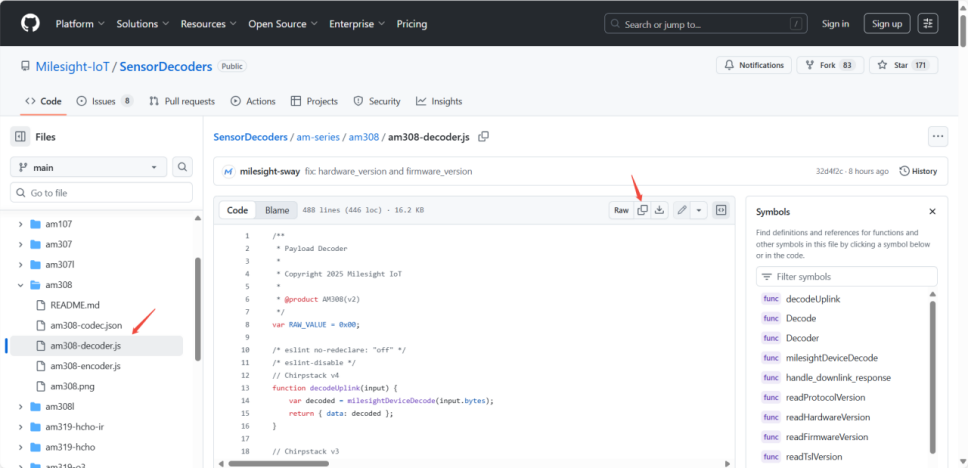
You can find the corresponding device decoder through our GitHub link and copy the decoder here. The GitHub link is: GitHub - Milesight-IoT/SensorDecoders: Payload Codec for Milesight Sensors
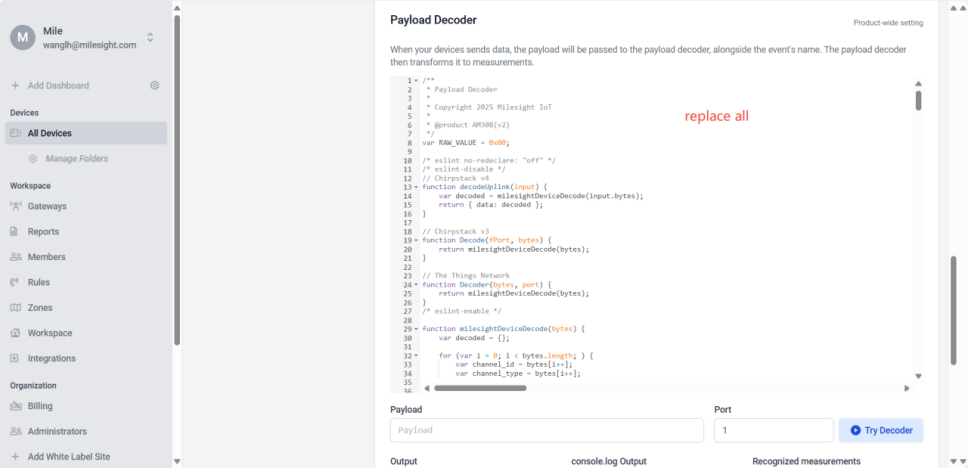
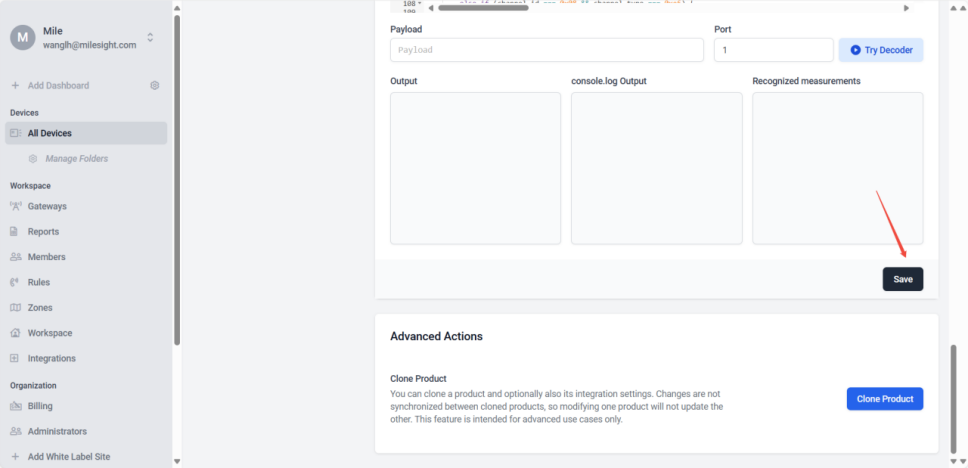
Once the device reports data next time, you will be able to see the parsed data.
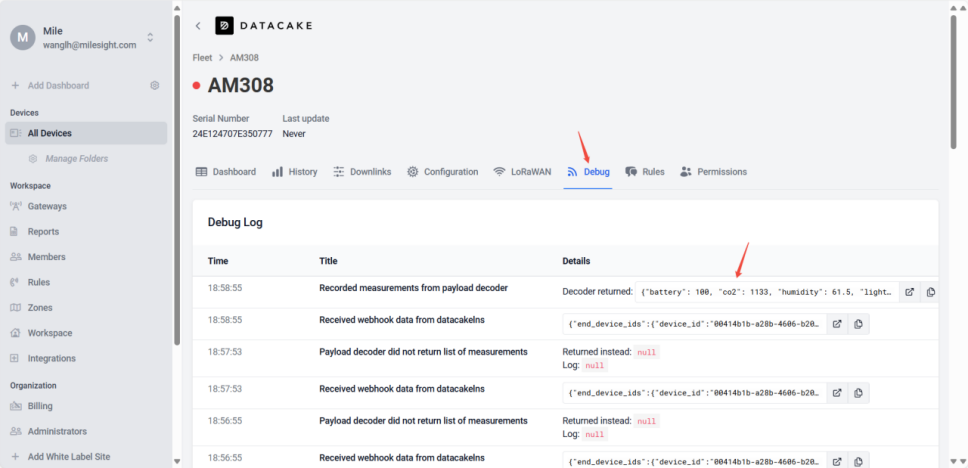
- 2. Make the device show as online.
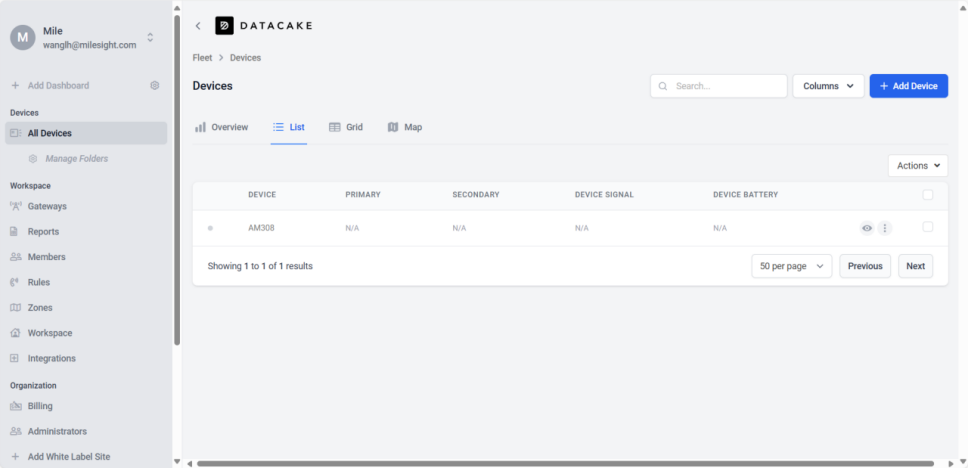
Even though the data has been reported to Datacake and parsed, the device still will not show as online. The following steps need to be completed to make the device display the green online icon.
Select Configuration->Fields, you will notice that the fields are empty at this time.
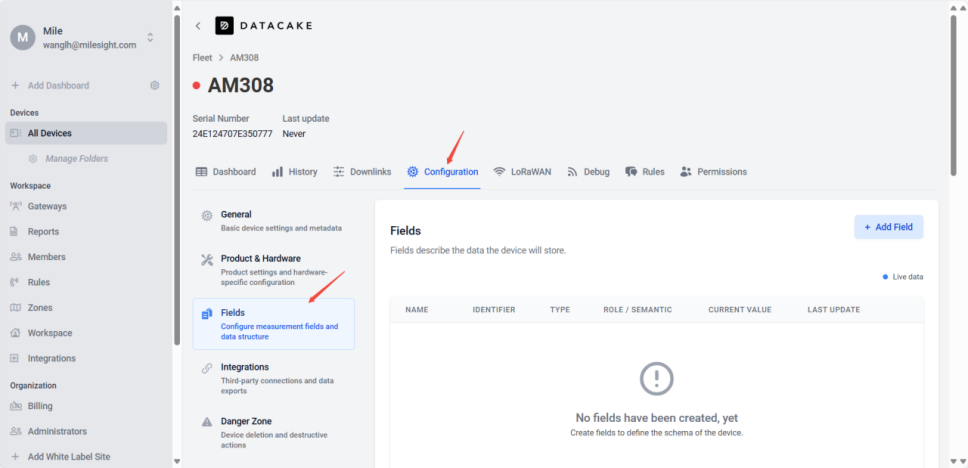
Scroll down the page, and you will see all the fields previously parsed by the decoder. Taking the AM308 as an example, you can select fields such as battery, temperature, humidity, etc. Choose the data you need and click Create Field.
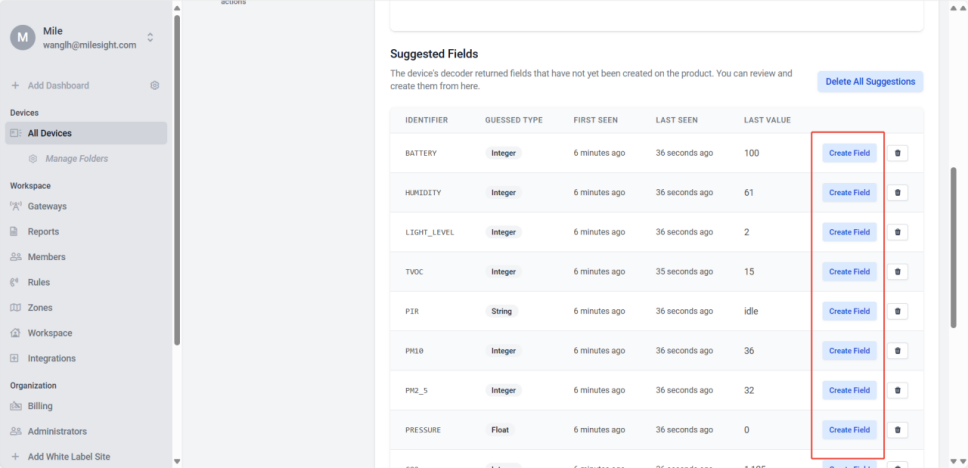
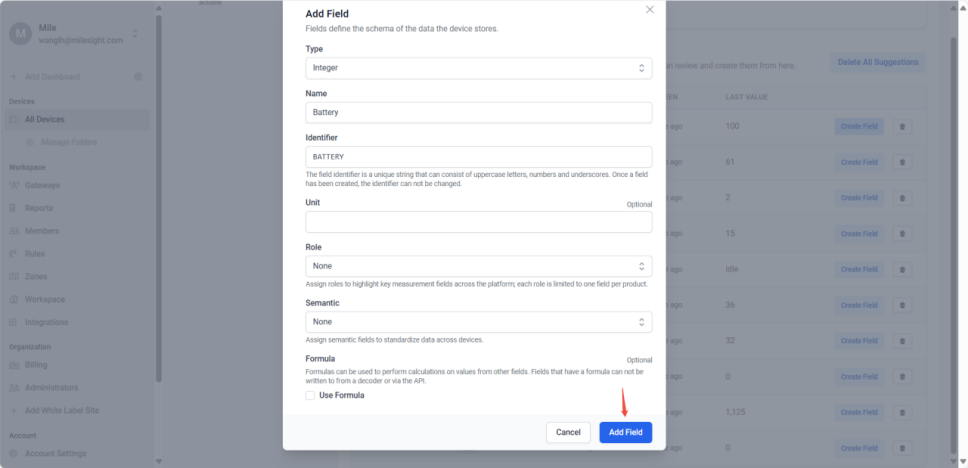
You can choose to fill in the unit for the data, and then click Add Field to complete the addition.
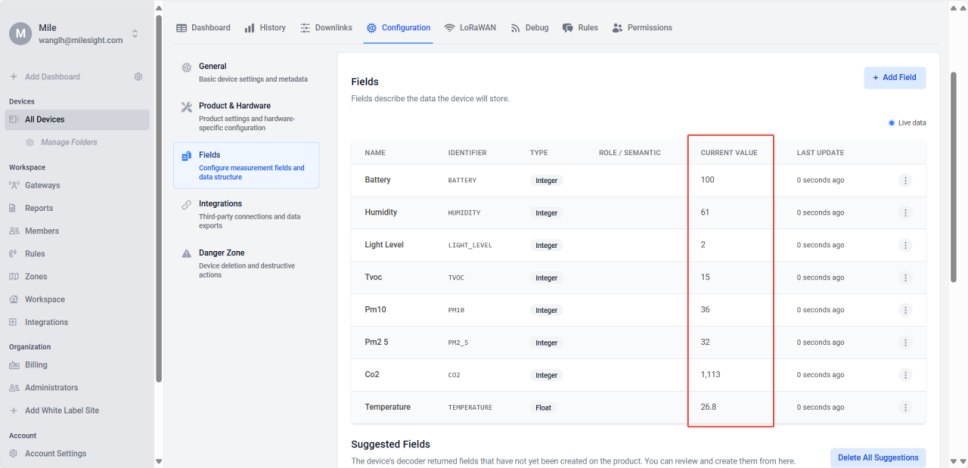
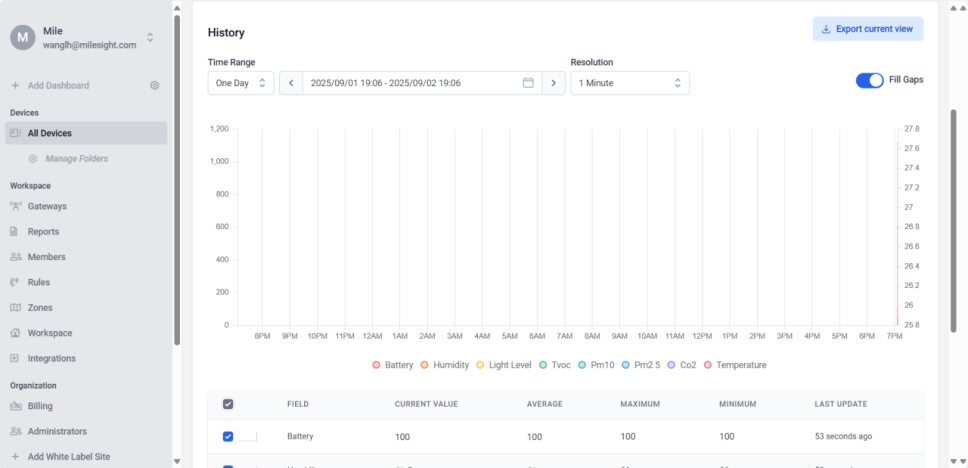
At this point, you can see that the fields have been updated and the current values are displayed.
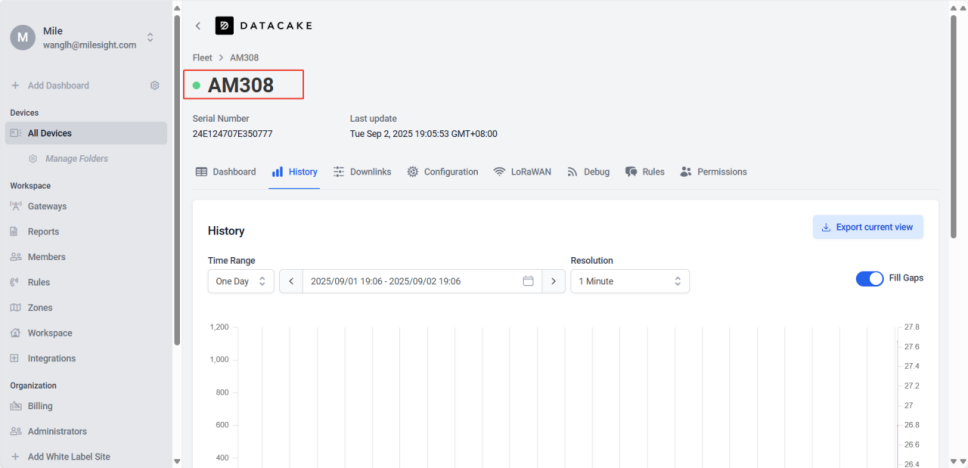
Finally, once the data is updated, the device will show as online.
-------END-----
Was this article helpful?
That’s Great!
Thank you for your feedback
Sorry! We couldn't be helpful
Thank you for your feedback
Feedback sent
We appreciate your effort and will try to fix the article