TABLE OF CONTENTS
- Preface
- Prerequisites
- Milesight Driver installation
- Manage Milesight gateway in Phoenix Contact Emalytics
- Manage Milesight end devices in Phoenix Contact Emalytics
Preface
The Phoenix Contact Emalytics is an IoT-based building management system (BMS) designed to integrate management, control, and energy monitoring into a single intelligent platform.
Based on Niagara Framework®, it provides an open, flesible and cybersecure solution for modernizing building automation. and also integrate protocols such as BACnet and Modbus, as well as IoT and cloud services.
Milesight offers multi-potential sensing products to capture the most meaningful data and makes it accessible across diverse applications. Milesight product are widely used in facility management, energy management, people comfort and occupancy&people counting in smart buildings.
In this guide, Milesight develop the driver to integrate Milesight LoRaWAN gateways and sensors to Phoenix Contact Emalytics in an efficient way. it's This is also a sign of our in-depth cooperation with TOP BMS palyers.
Prerequisites
Phoenix Contact:
- Phoenix Contact Emalytics.
- version is from N4.10 and above.
Milesight:
- Milesight LoRaWAN Gateway UG65/UG67, firmware version: 60.0.0.46-r2 or above.
- If You gateway is Milesight UG56,firmware version: 56.0.0.46-r2 or above.
- Milesight LoRaWAN sensors
- Milesight BACnet driver package: v1.0.1.9
Note: Milesight BACnet driver is license free, it's a value-added tool of Milesight LoRaWAN gateways and sensors to integrate to Phoenix Contact Emalytics. Since it's BACnet based, the datapoints saved in local database will count against the global capacity point count in the Phoenix Contact Emalytics's license.
Milesight Driver installation
Download the driver from Milesight website->resources->"Software&Firmware"page, unzip it, then copy "milesightBacnet-rt.jar" and "milesightBacnet-wb.jar" to Phoenix Contact Emalytics's "modules" folder:
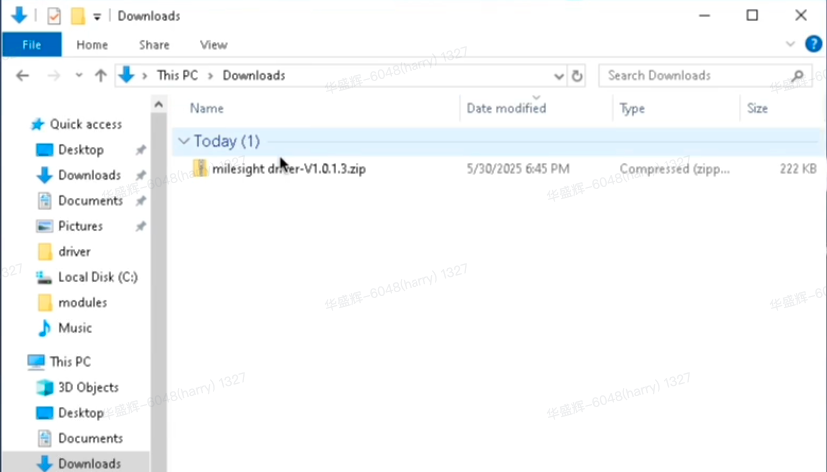
For example: C:\PhoenixContact\Emalytics1.1\SupervisorN4-4.7.110.32
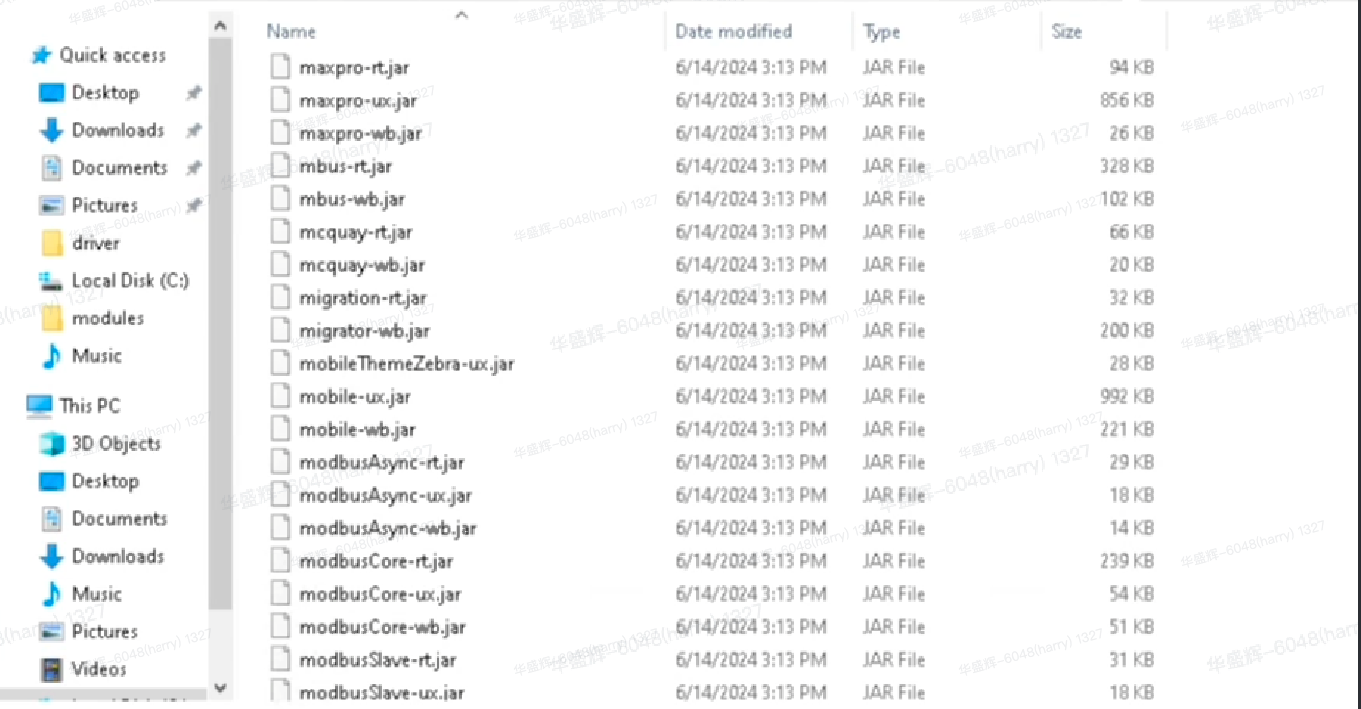
Open Phoenix Contact Emalytics to load the driver,then the driver is installed successfully:
Manage Milesight gateway in Phoenix Contact Emalytics
Before you start to manage Milesight gateway, please make sure the 'station' is created well. Then load the driver in the "Palatte"to create milesight Bacnet Network. You can also follow this full Guide to create it step by step.
Add Milesight Gateway by Discovery
Power on the gateway, If Milesight Gateway and the Phoenix Contact Emalytics are in the same LAN, we can click Discover to add it.
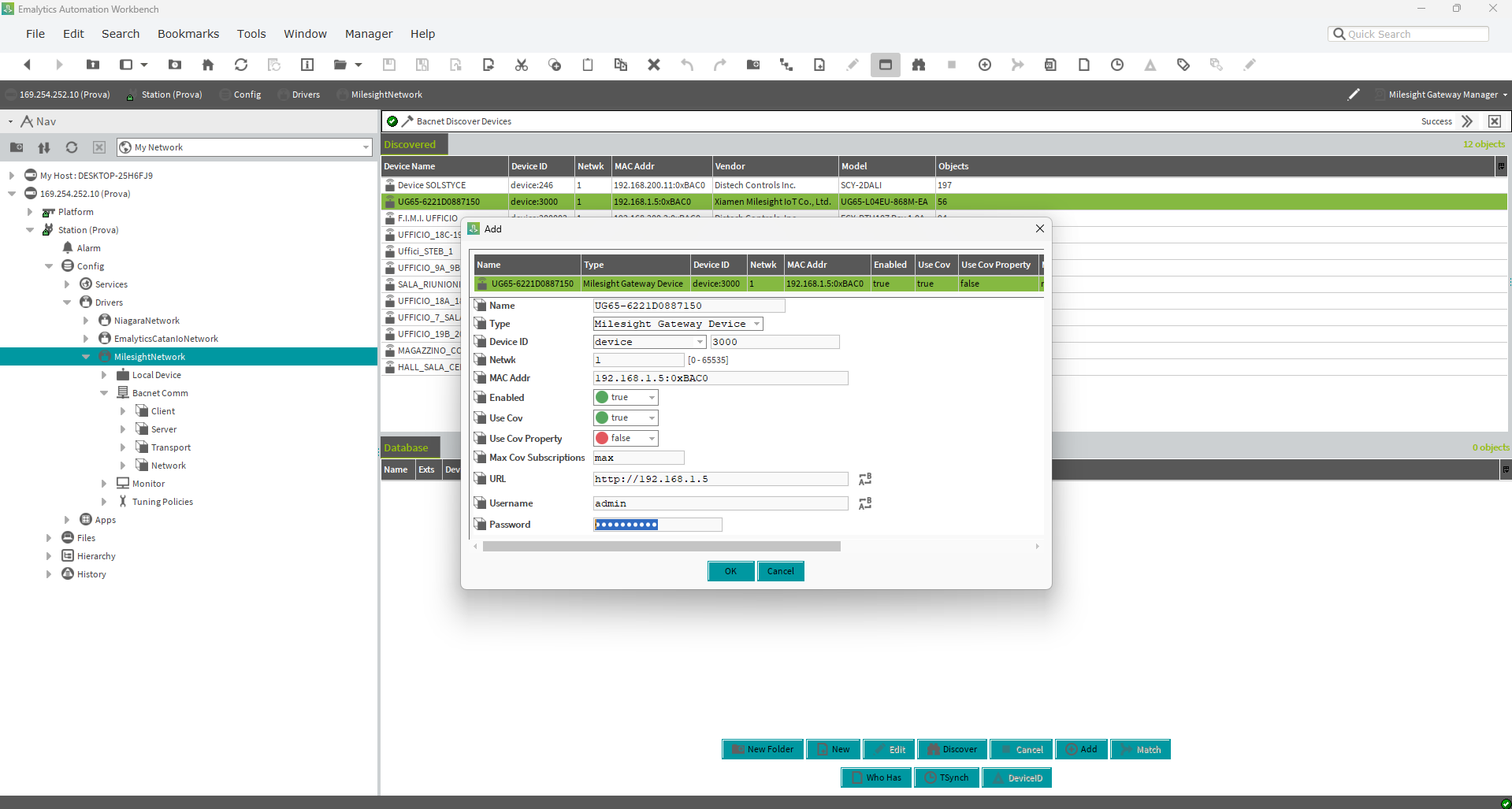
The Driver will search the BACnet devices and list them here after several seconds.
Drag the right gateway device to local Database, a pop window will appear to input the gateway's name and API information.
- Name: Input the name of the gateway as your wish.
- Type: Keep the default value "Milesight Gateway Device"
- Device ID: The BACnet device ID, just keep the value.
the other BACnet settings can be kept as well.
- URL: The gateway's http access, in this example
- Username: the Username to login web interface, it's the same as account admin, if you prefer a saperate account to manage the API connection, you can create the account in Gateway's web -> System -> User Management -> HTTP API Account page.
- Password: The password of Account admin.
Click OK to save it. The gateway's status will be OK shortly.
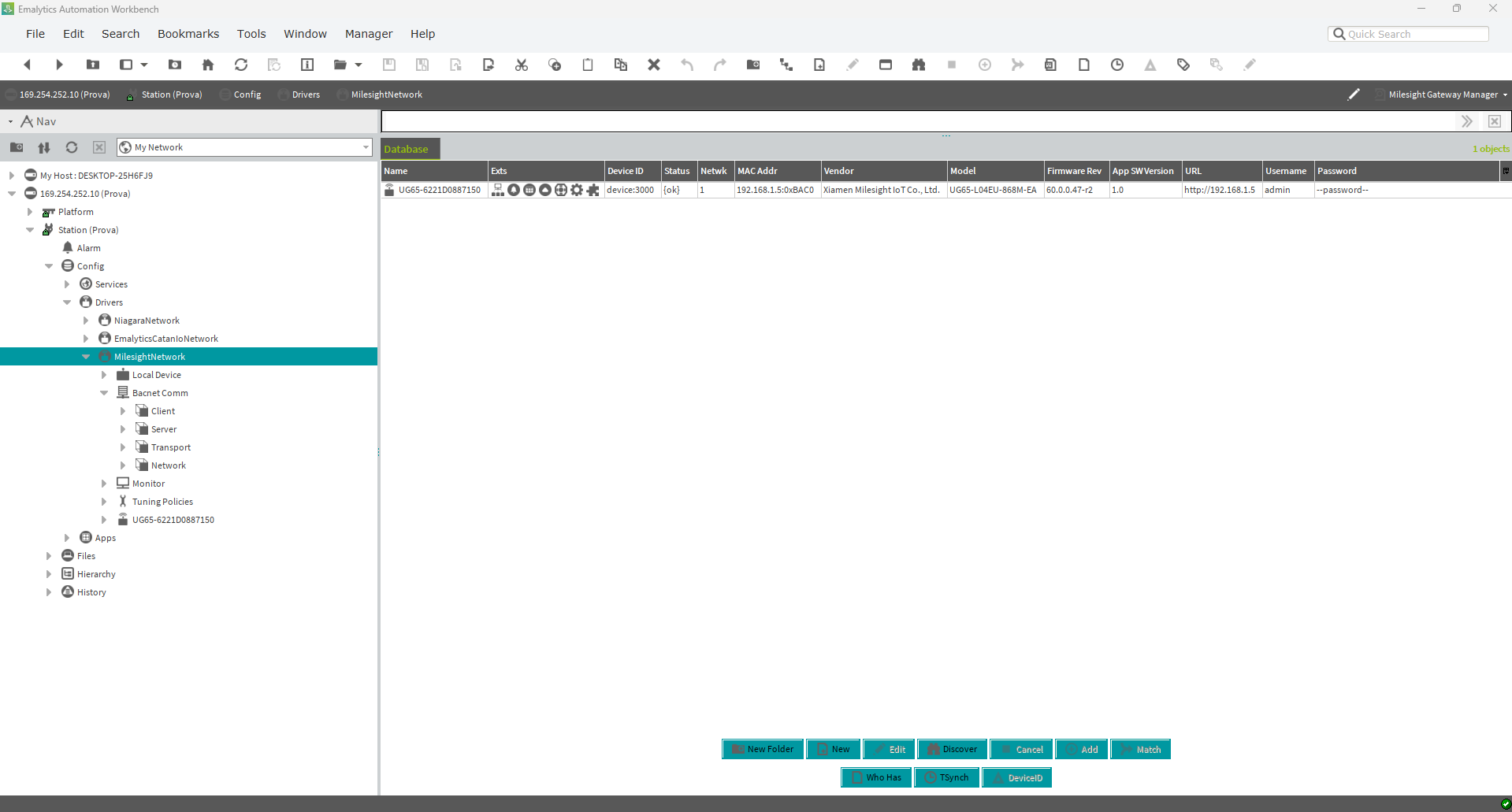
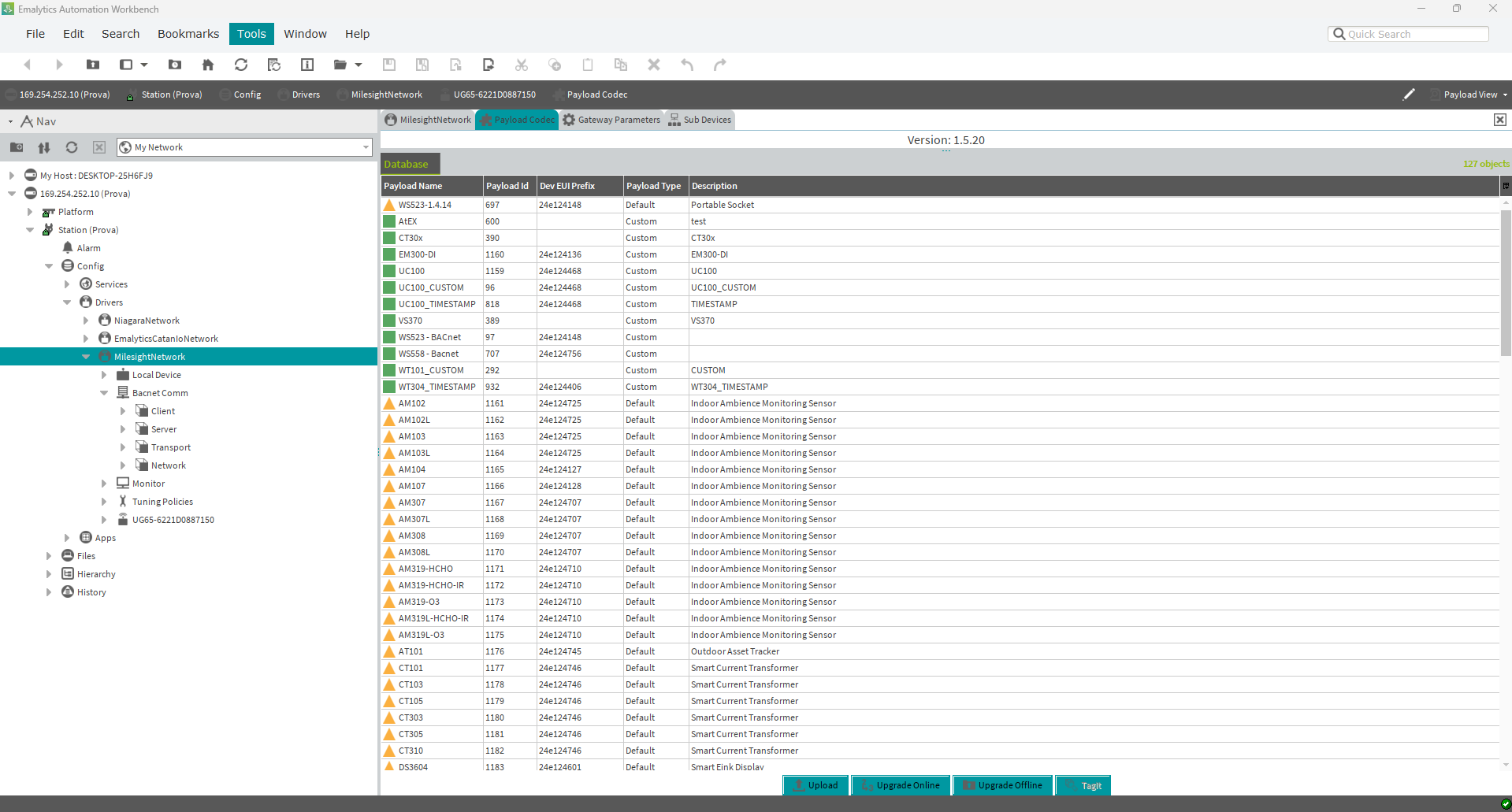
The driver will call gateway's API and finish the sync of decoder and gateway settings information automatically.
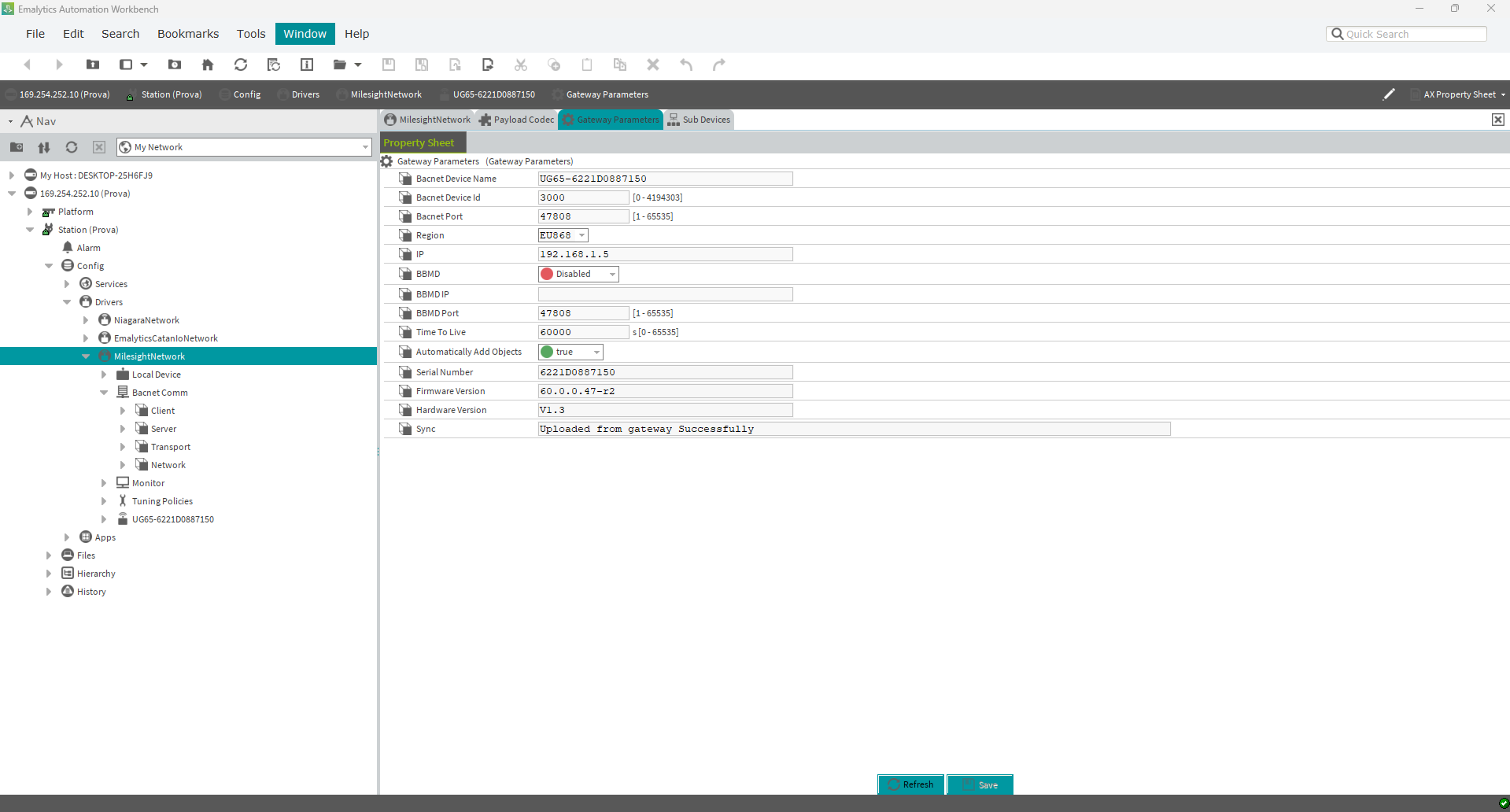
You can also manage the gateway's settings here directly. Including the BACnet settings and the LoRaWAN Region frequency settings.
Manage Milesight end devices in Phoenix Contact Emalytics
Create Milesight end devices manually
Navigate to Sub Devices, we can create the LoRaWAN sensors and Controllers here.
A pop-up window will appear for you to input the basic information
- Name: Input the name as your wish, in this exmaple: EM400-MUD is used
- DevEUI: The device EUI of the sensor, You can find it in the back label of the device
- Payload Codec: The payload codec for this device, it will match the DevEUI automatically. You can choose the best option.
- Description: input any description as your wish.
- Application Key: Input the application key, the default one is:
5572404c696e6b4c6f52613230313823 - Timeout: The time out value to define the online/offline status of the sensor when no uplink data after this period.
Hit Ok to save it, it will be downloaded to the gateway through API automatically.
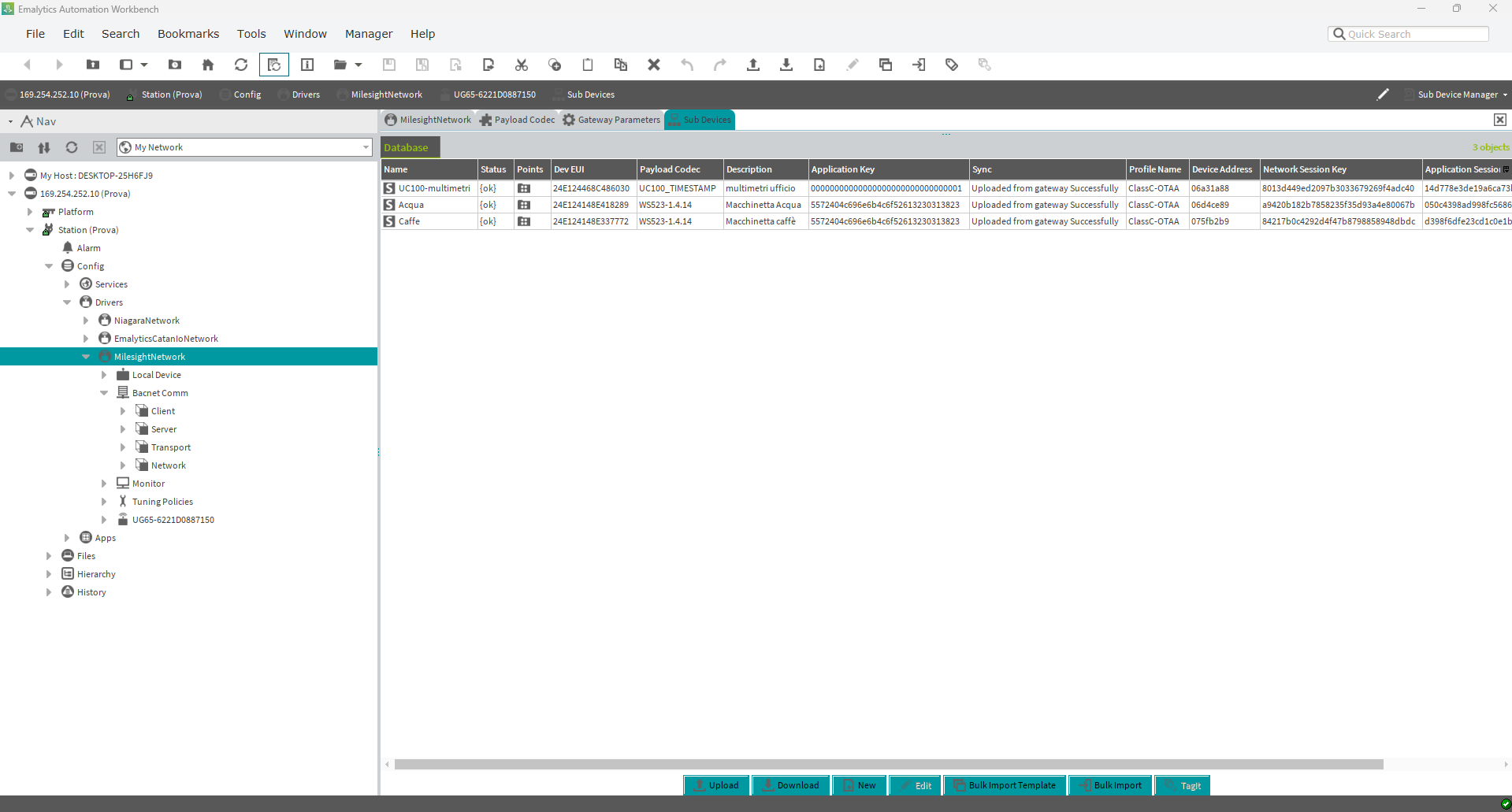
Ps: If Application key is empty, it means to load the default one.
Add data points of Milesight end devices
Milesight LoRaWAN sensors and controllers support multipie data points, they are mapped to BACnet object automatically inside the gateway already. in this step, we will discover them and load it.
Click Discover in the Sub Devices(uc100, ws523) we created just now, The Data points will be listed immediately with the full details.
Pickup the needed data object, drag it to local database, Hit Ok to save it.
Power on the sensor, and wait for several miutes. then the new data will be updated correctly.
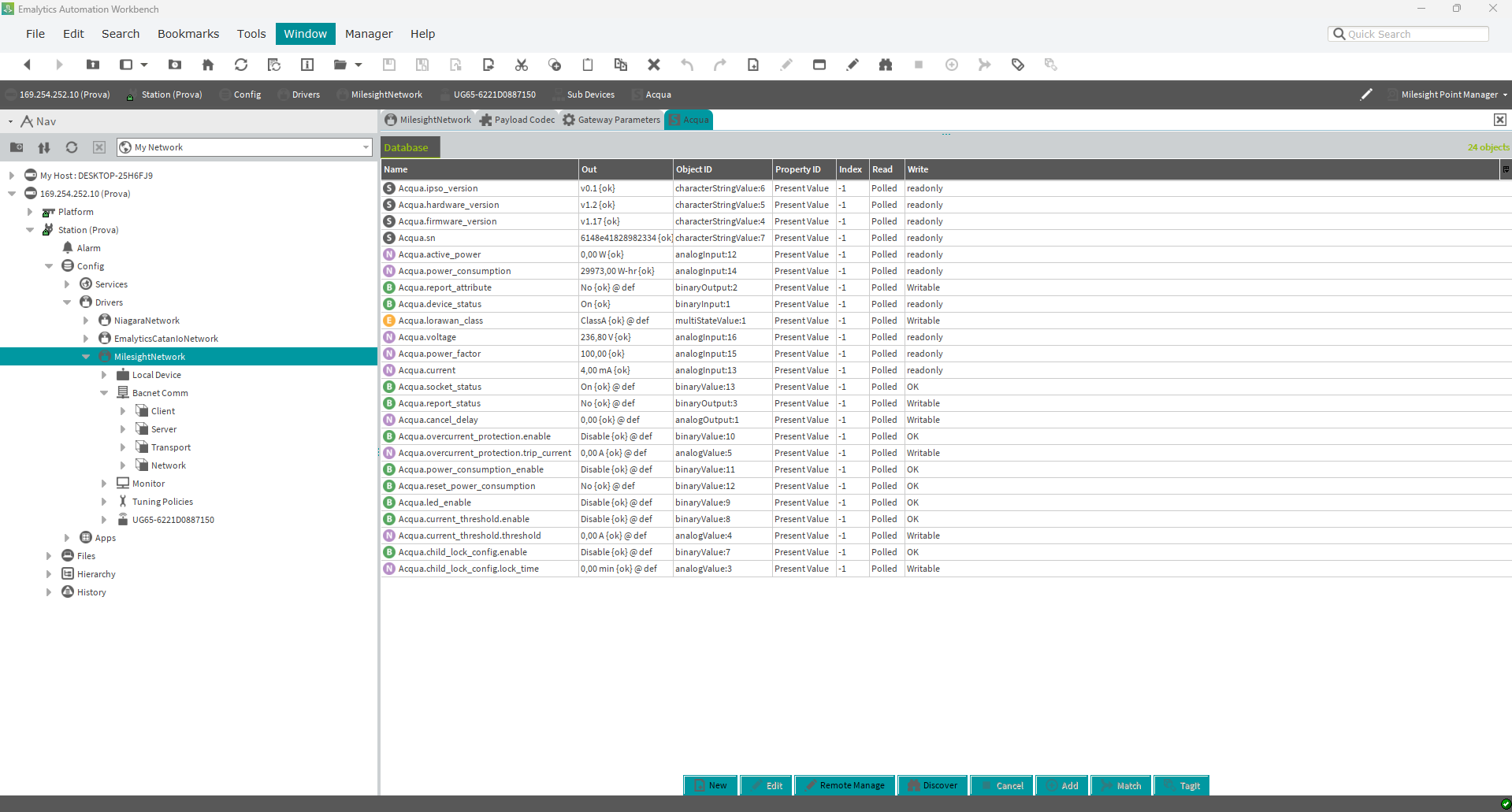
Then you can build your own application or dashboard using the object values here.
Note: The new data points added will count against the global capacity point count in the license
FAQ
Q1: Is there any license fee for Milesight BACnet driver?
A1: Milesight BACnet driver is license free, since it's a value-added tool of Milesight LoRaWAN gateways and sensors to integrate to Niagara Framework Based BMS. But since it's BACnet based, the datapoints saved in local database will count against the global capacity point count in the Niagara's or Phoenix license.
Q2: Do you have the develop team to maintant the driver?
A2: Yes, Milesight R&D team has passed the Tridium's develop program, we can handle it.
Q3: Does Milesight BACnet driver supports 3rd party sensor?
A3: Our goal is to integrate Milesight's products in a better way, for 3rd sensors, it's possible technically. You will need to prepare the decoder archive. More details please contact Milesight support team.
Q4: If Milesight launch a new LoRaWAN sensor do I need to upgrade the driver?
A4: No need, you will just need to click Upgrade Online in Payload codec, it will trigger the gateway to update the decoder and upload it to the driver automatically.
-END-
Was this article helpful?
That’s Great!
Thank you for your feedback
Sorry! We couldn't be helpful
Thank you for your feedback
Feedback sent
We appreciate your effort and will try to fix the article